Why Personal Trainers Need a Real Online Platform
If you're still building workout programs in spreadsheets, PDFs, or sending them through WhatsApp, you're spending way more time than you need to. And honestly, the experience your clients get isn't great either. Gymkee was built specifically to solve both problems: it saves you hours every week and gives your clients a professional mobile app experience with all their coaching in one place.
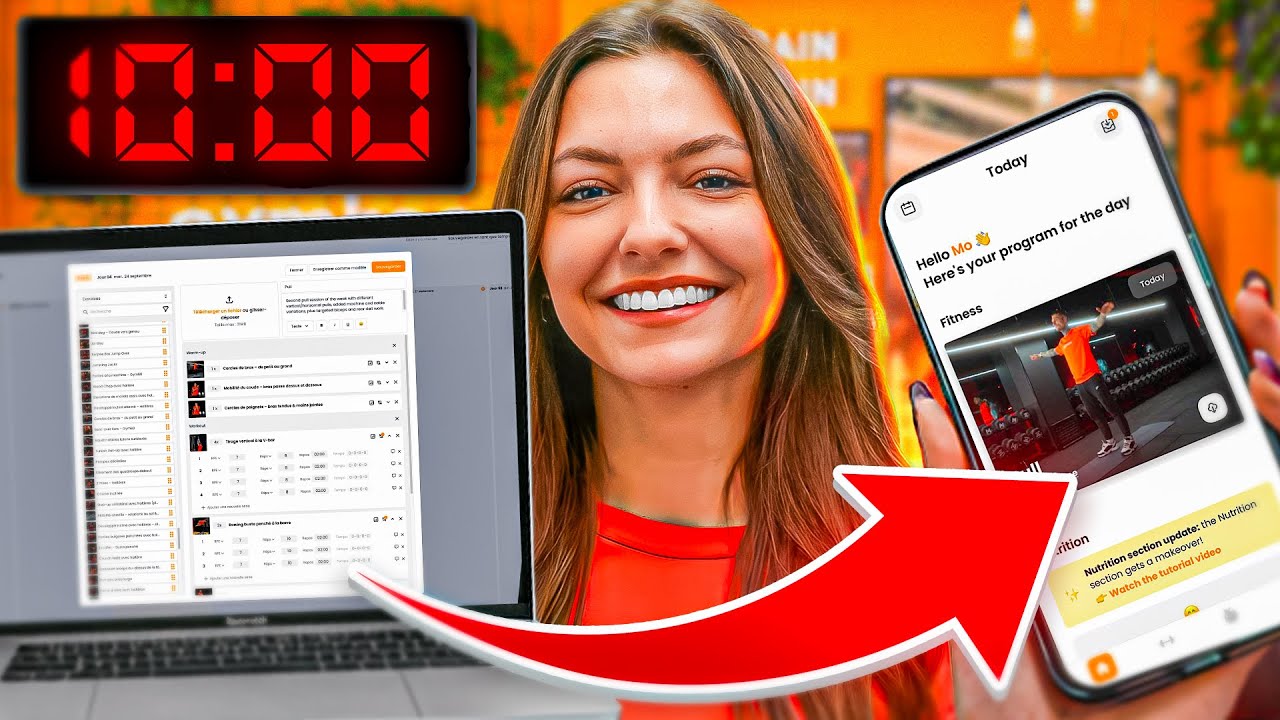
Here's a full walkthrough of how to create fitness programs online using Gymkee, from start to finish, in under 10 minutes.
The Workout Builder: Where Everything Happens
The workout builder is the centerpiece of Gymkee. It's where you create all your clients' programs, and it's designed to make the process as fast and flexible as possible.
You can build a program from scratch or start from a previously saved template. Set a start date, choose how many weeks the program runs, and add periodization if needed. You can also add a program description, a thumbnail image, and even a preview video that your clients can watch before they start.
Gymkee gives you multiple views to work with. There's a week-by-week view, a day-by-day view that lets you filter specific workouts across weeks (perfect for comparing and adjusting progressive overload), a side-by-side two-week view for easy comparison, and a full month view to see the big picture. These different perspectives let you work the way that makes sense for each situation.
Creating Workouts with Drag and Drop
Building a workout is dead simple. Click the plus button or hover over a day and hit "create a workout." You can stack multiple workouts on the same day, so morning cardio plus evening strength is no problem.
On the left side of the builder, you'll see the full exercise library with over 450 exercises, each with HD demo videos. You can also add your own custom exercises with your own demonstration videos. To add an exercise to the workout, just drag it from the library and drop it in. That's it.
Supersets, Circuits, AMRAP, Tabata, and EMOM
Gymkee supports every workout format trainers actually use. To create a superset, just drag one exercise on top of another. The rest time on the first exercise automatically sets to zero, and you define the rest between sets on the last exercise in the group.
Keep adding exercises on top to build tri-sets, circuits, or any combination you need. Once you've stacked them, a menu lets you choose the circuit format, and everything's preconfigured: AMRAP, tabata, EMOM, or standard circuits. For tabatas, Gymkee automatically applies the correct work and rest intervals. For EMOMs, you set the total time and add exercises for each minute. It's all built to save you time on the setup so you can focus on the actual programming.
Configuring Load, Reps, Rest, and Tempo
Every exercise has four configuration labels. The first handles load and resistance. You can choose exact weight (displayed in kg or lbs), percentage of one rep max, bodyweight with optional added weight, RPE (rate of perceived exertion on a 1 to 10 scale), or no feedback at all.
The second label covers reps or time. Options include max reps (to failure), max time, max distance, fixed distance, fixed reps, rep ranges (like 8 to 12), or timed holds. You can also create completely custom labels for any special instructions.
Third is rest time, set directly on each exercise. And fourth is tempo, which is off by default but can be toggled on to set exact eccentric, pause, concentric, and pause values for each movement.
Exercise Options and Alternatives
One of the smartest features in Gymkee is exercise options. Let's say you program push-ups. Some clients will handle standard push-ups fine, but for others it's too easy or too hard. Instead of waiting for a message saying "Coach, this is too hard, what else can I do?", you can proactively add options: Option A might be knee push-ups, Option B could be close grip push-ups. All skill levels covered, zero back-and-forth.
Alternatives are configured in your exercise library and give clients a backup if the equipment you picked isn't available at their gym. From any exercise, you can also pull up the client's past performance data to make informed programming decisions.
Templates and Week Duplication: The Time Savers
On a 12-week program, you're obviously not building every workout from scratch. Gymkee gives you three ways to reuse your work. First, you can copy any workout and paste it into another day within the same program. Second, you can save a workout as a template and drag it into any program, any time. Third, you can duplicate an entire week of workouts and paste it across other weeks, whether that's just the next week, every other week, or all remaining weeks at once.
These shortcuts are how trainers on Gymkee save an average of 2 hours per client per week. Build once, reuse everywhere, and focus your time on the coaching that actually matters.
What Your Client Sees on the Mobile App
Once you send a program, your client gets an instant push notification on the Gymkee app. When they open it, today's workout is the first thing they see. They can tap into the full workout, watch exercise demo videos, see your coaching notes, and log their performance by sliding with their finger.
From your dashboard, you can track every client's progress, see post-workout summaries, and check who's about to finish their program. It's a complete loop: you build, they train, you optimize, and the coaching experience stays sharp without you chasing anyone on WhatsApp.