We know that physical activity is always coupled with good nutrition and that the success of your clients is primarily based on this!
On Gymkee, you will have the possibility to create food programs or to send food advice to your clients to help them reach their goals 🍏
For this, you will have two ways to do it:
- When you log in to Gymkee
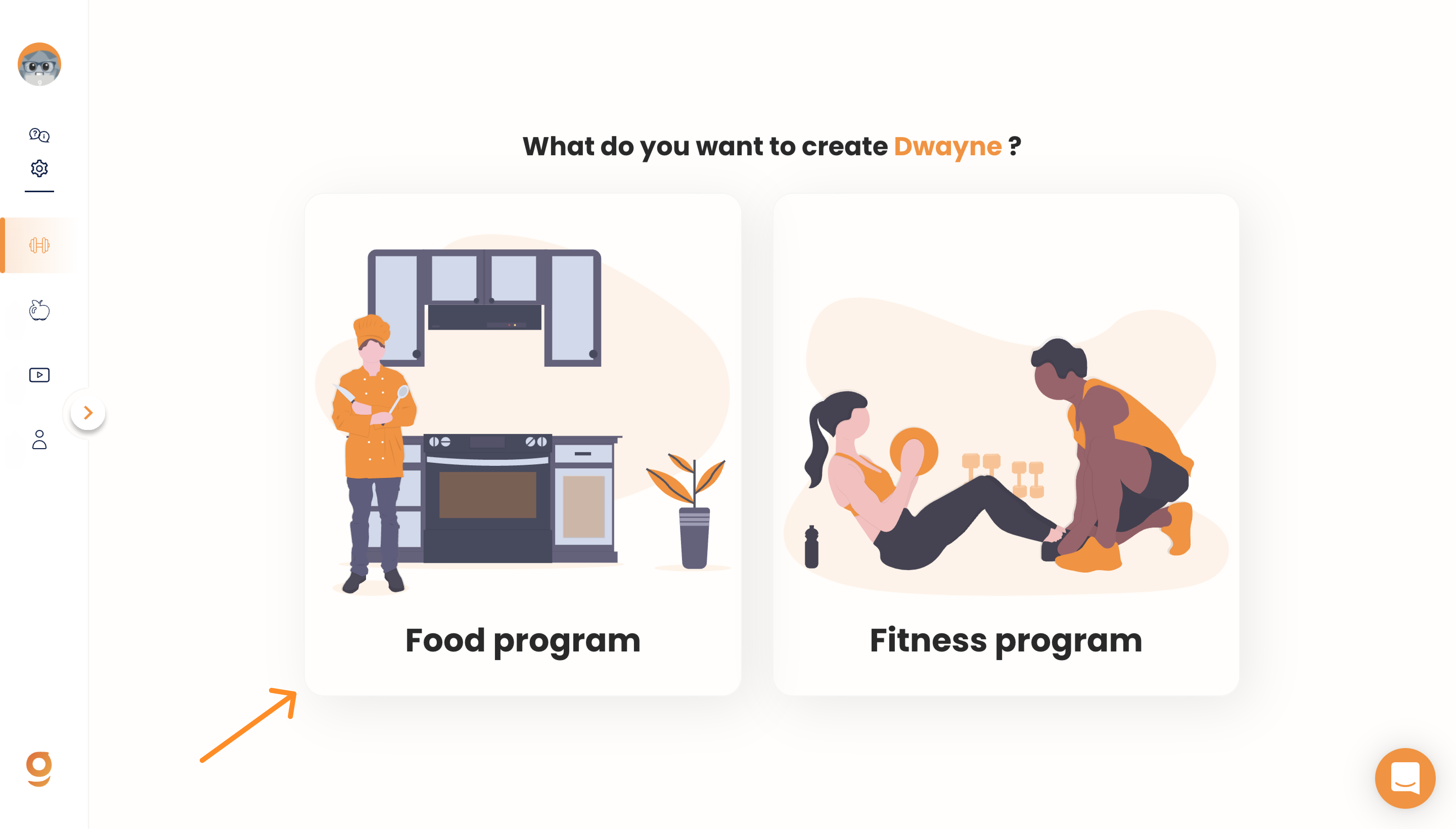
- In the "Nutrition" & "Programs" section
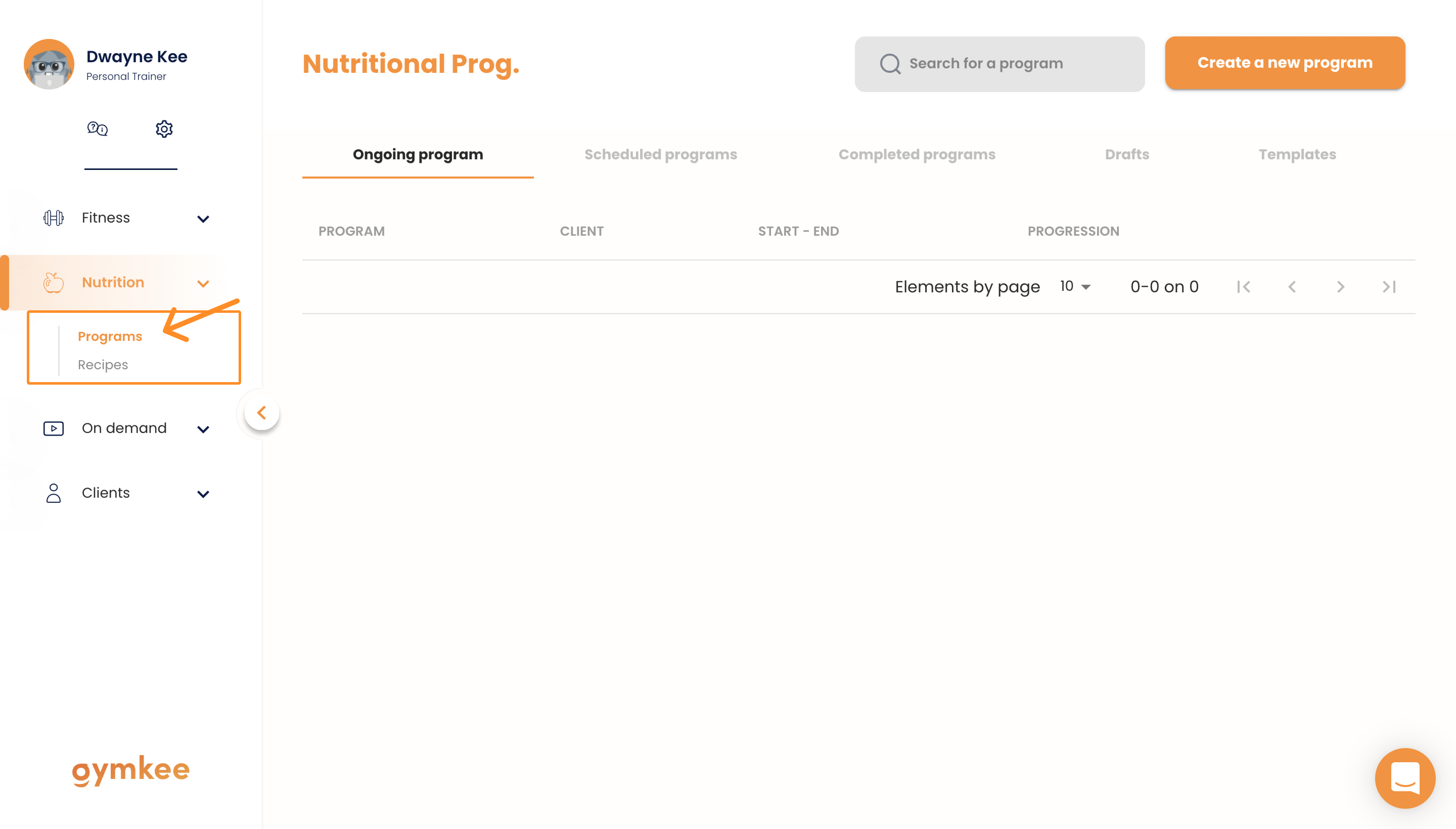
All that remains is to click on "Create a new program" to start.
When you start creating a new program, you will need to set it up very quickly with essential elements.
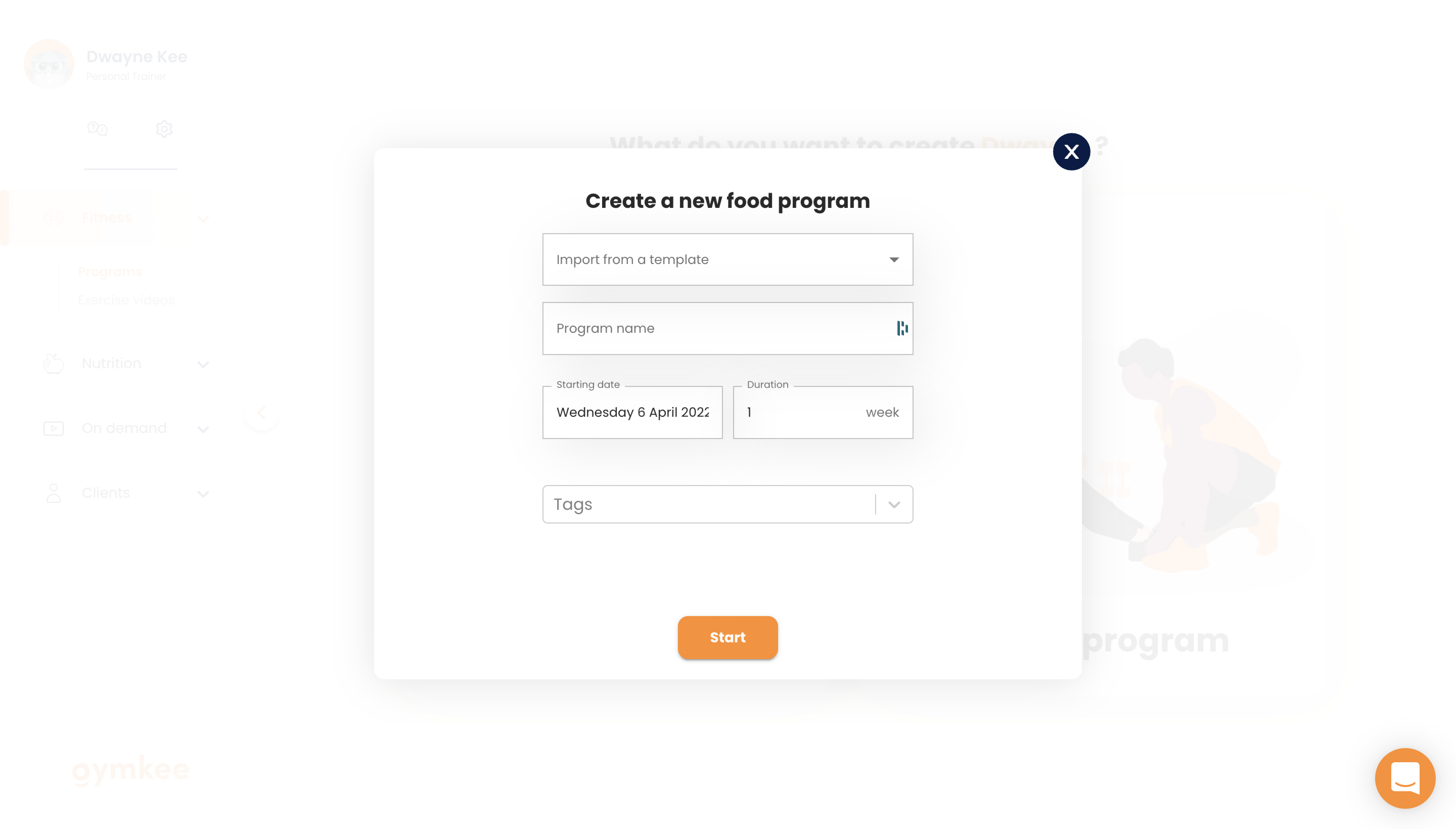
To create a program, you will have to set up :
- The name of the program.
- The start date of your program.
- The number of weeks of your program.
- Tags if there are any.
- Indicate if the program should be imported from a template.
Tags allow you to save your different programs by assigning them a specific tag.
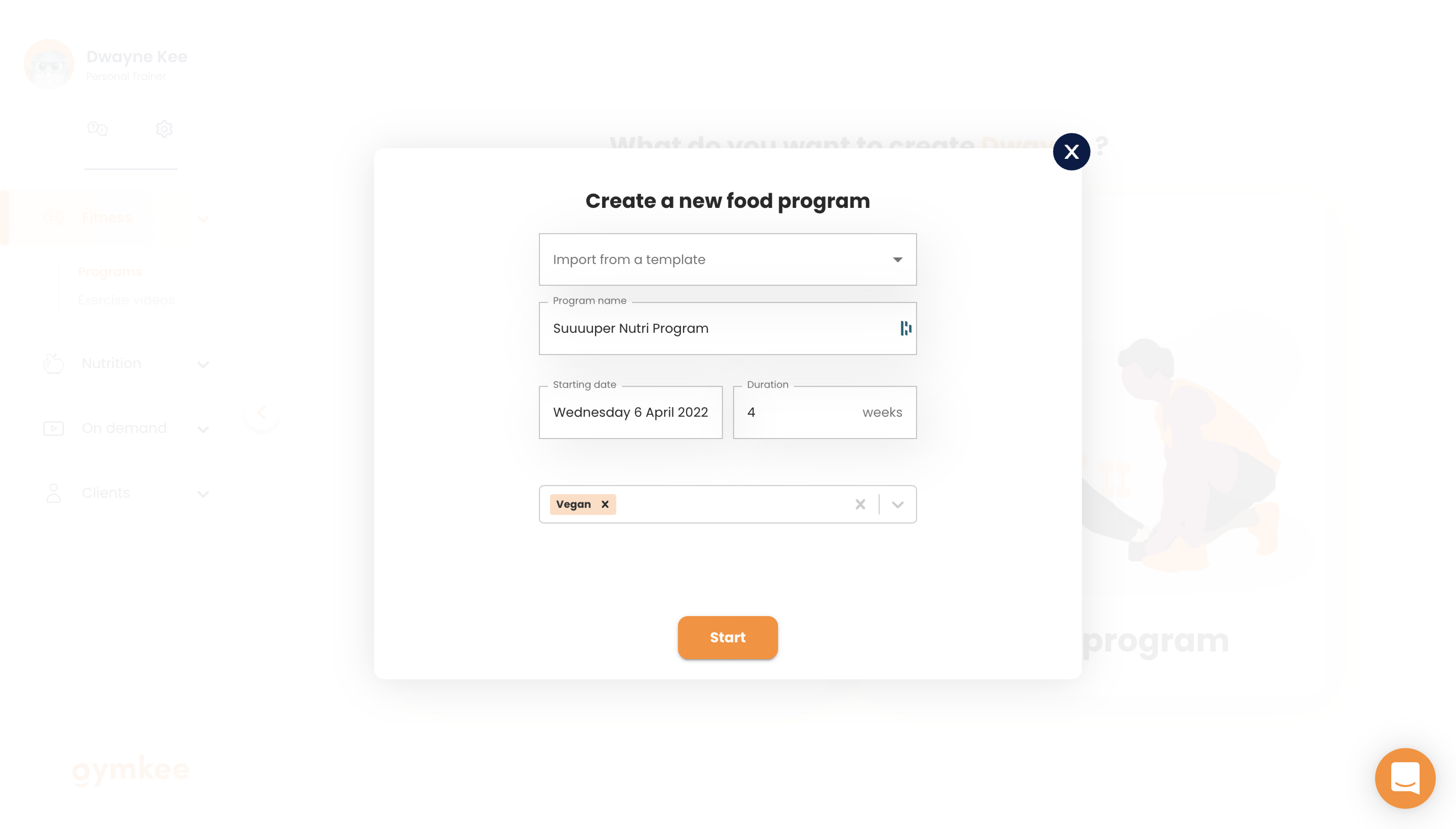
Click on "Start" to open our Nutrition Builder.
When we designed our Nutrition Builder, we put a lot of energy into simplicity. Making it as simple & smooth as possible to save you as much time as possible.
I will explain the structure of the Nutrition Builder:
- Program name
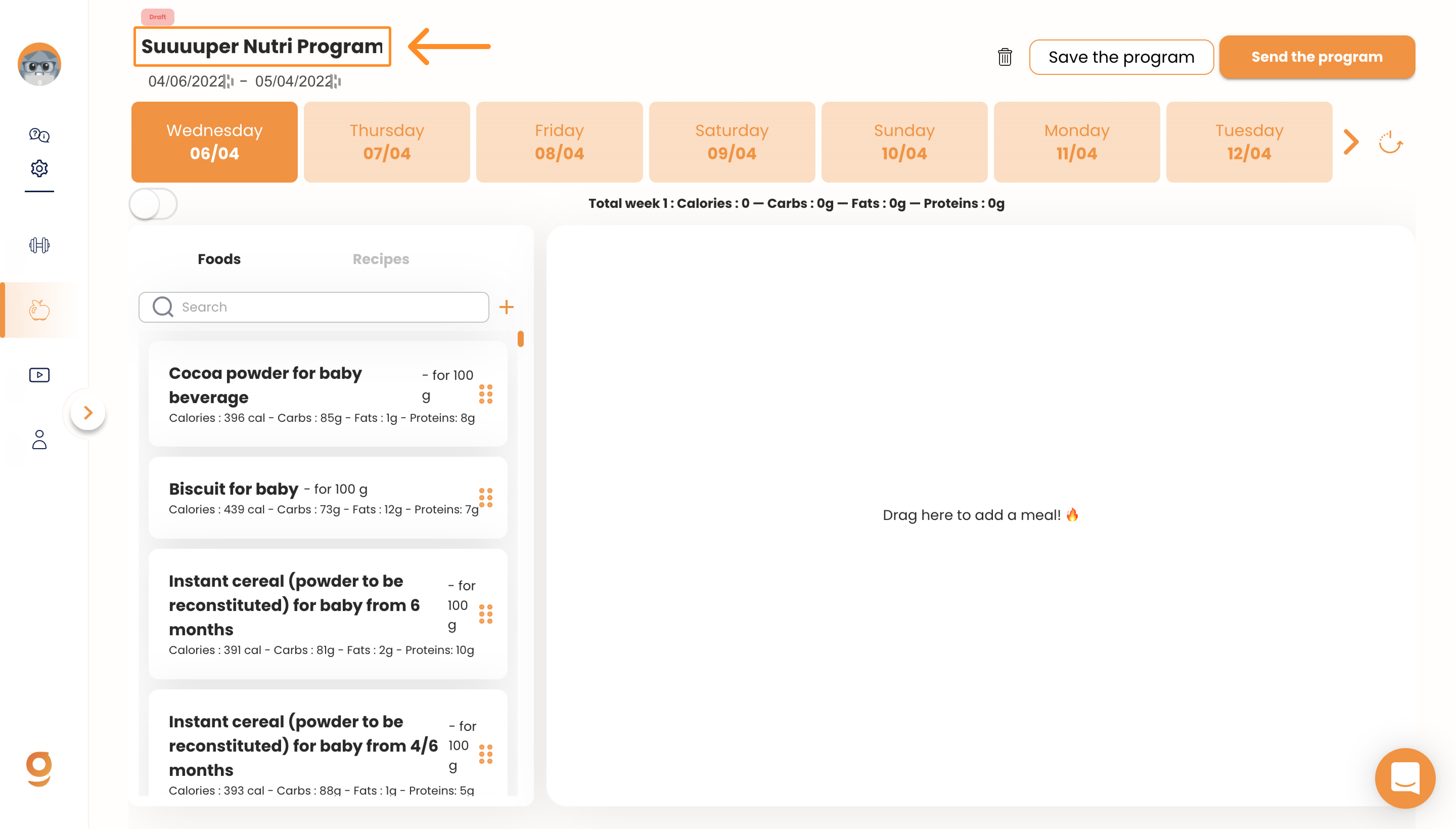
The program name can be changed at any time. It is the element that is at the top left of your screen.
- Program start & end dates
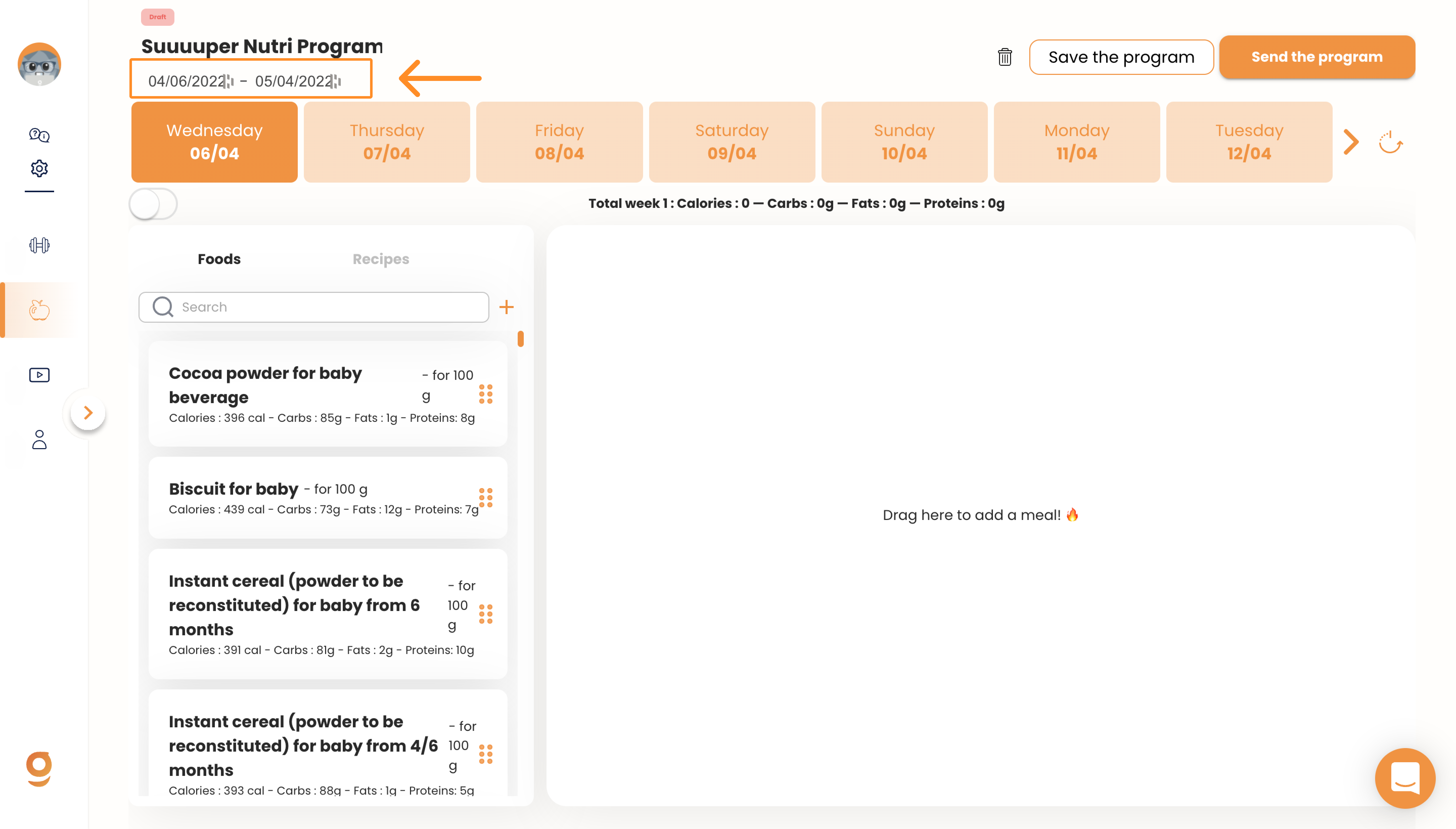
Just below the name of your program, you will find the start date (left) and the end date of your program (right).
When a program has already started, you will not be able to change the start date for data backup reasons.
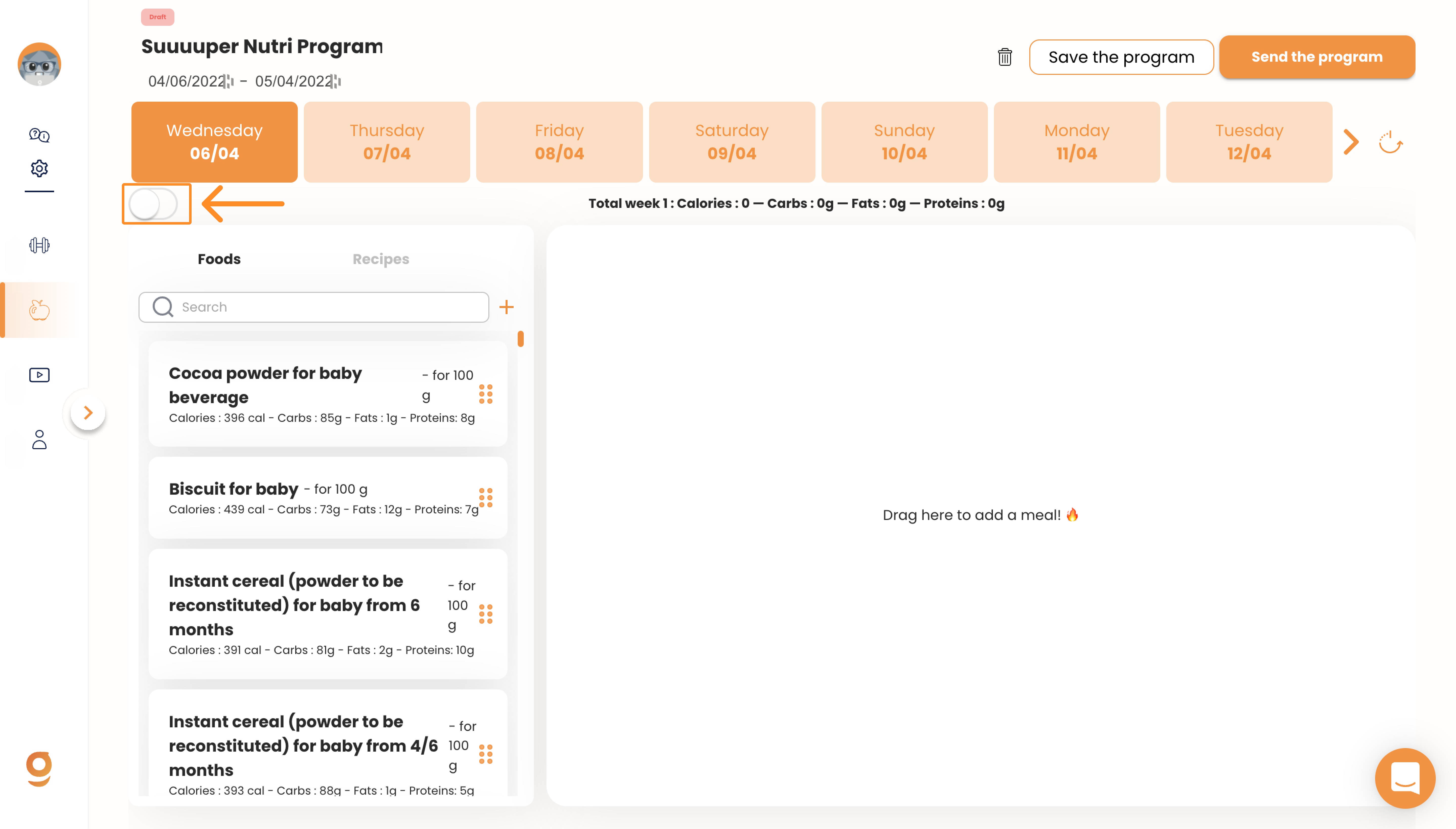
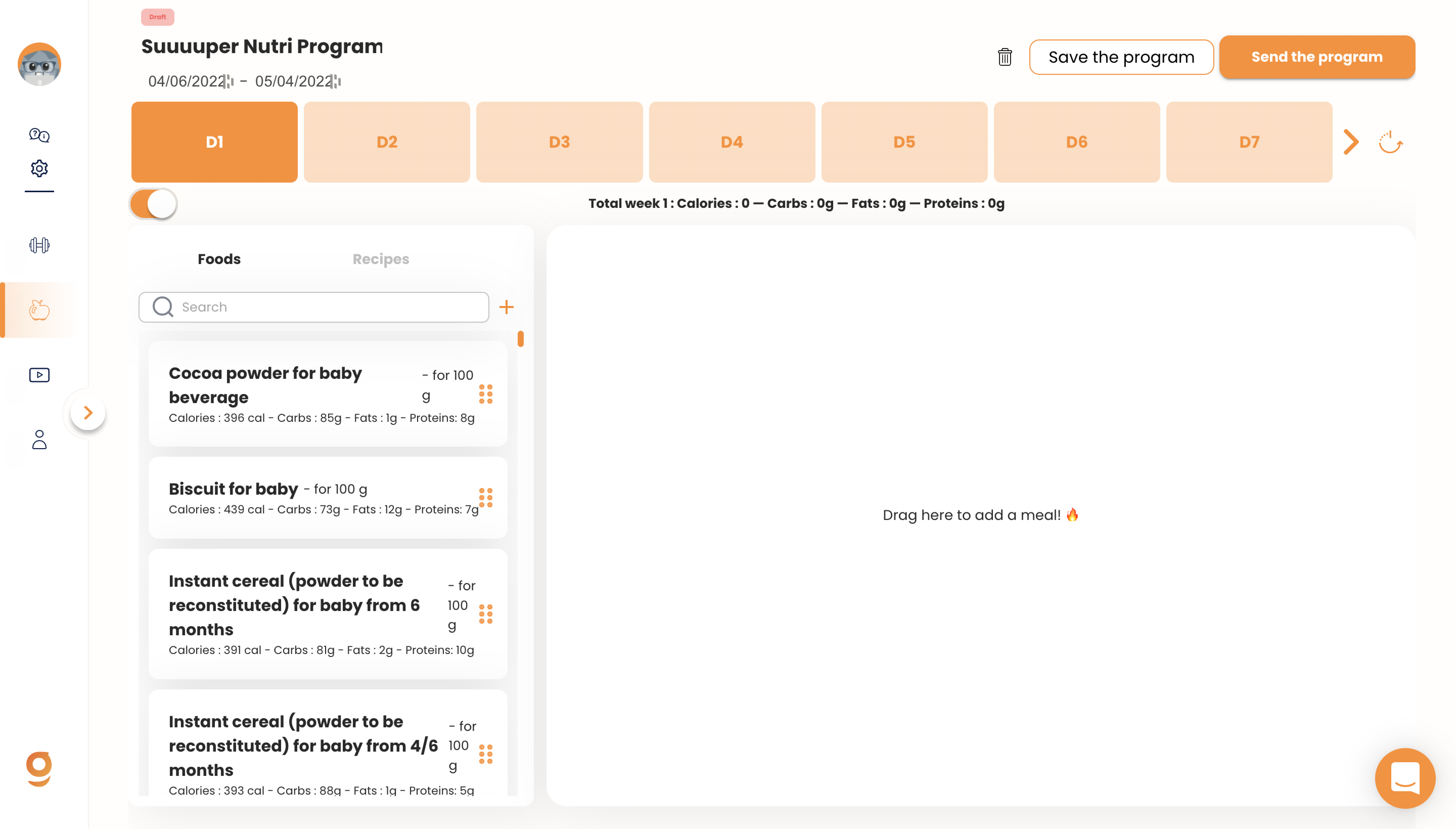
- Programming days
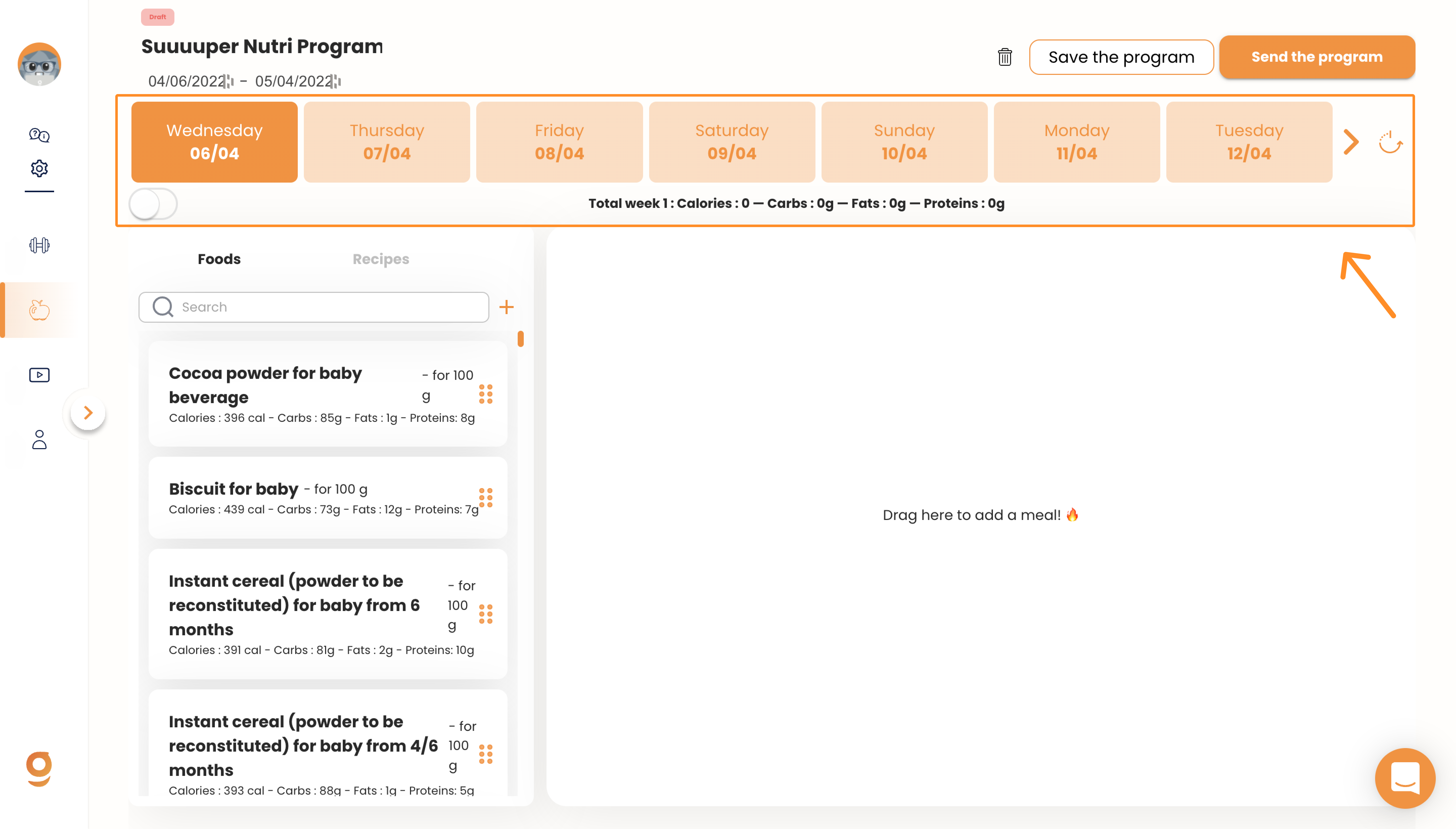
Just below the dates, you will be able to find the different programming days that you can create.
We have 2 types of views to allow you to easily create your programs.
You can display the days in D1, D2, and D3 format or have directly the days with their precise date by clicking on the switch below the calendar.
- Food
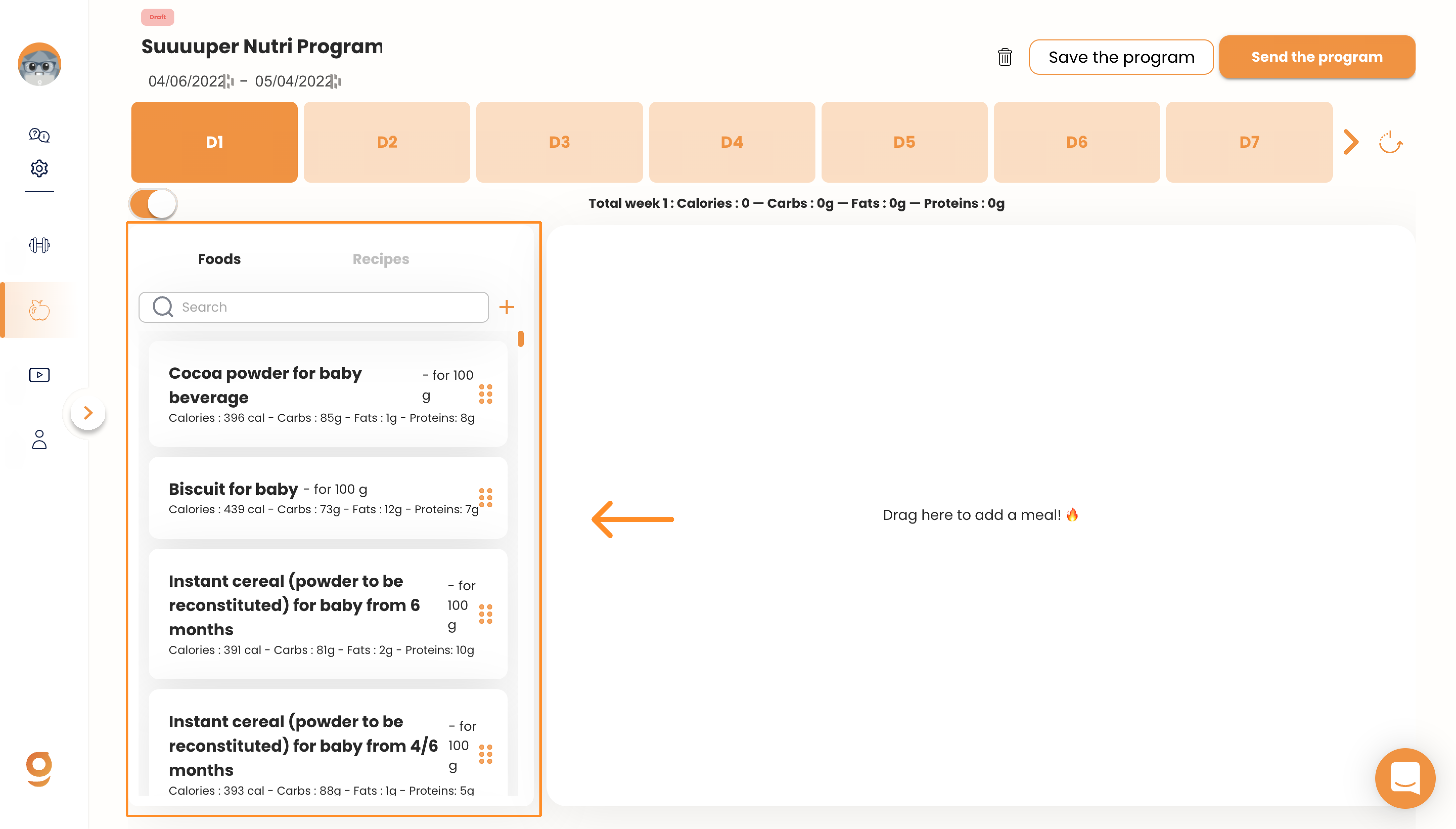
On Gymkee you will be able to find more than 3000 foods and hundreds of thousands of products to create your diet programs.
- Recipes
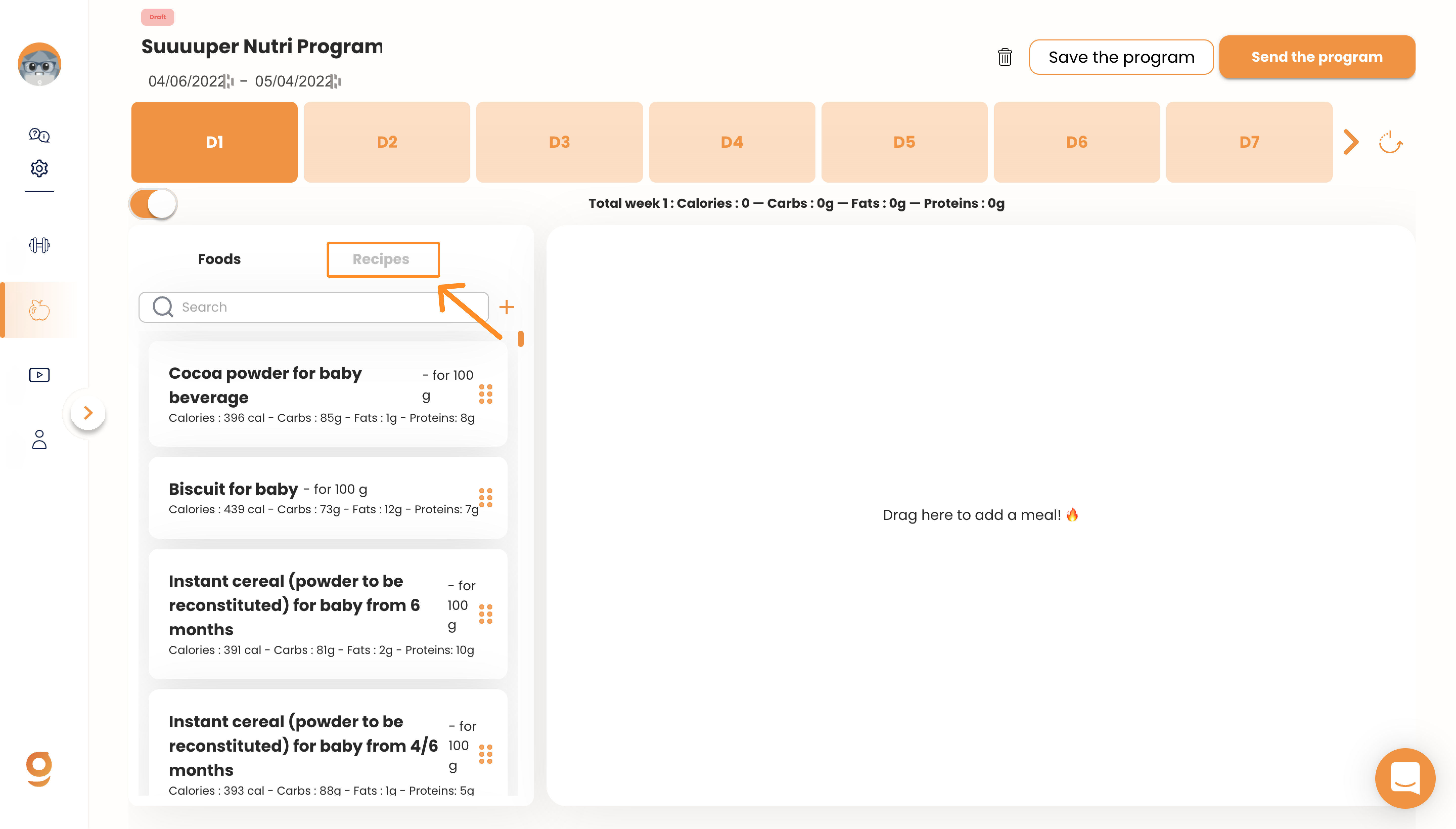
On Gymkee, you have the possibility of adding your own delicious and healthy recipes that you can then add to your programs.
Create your first meal
Now that you know all this, you can add your first meal on the Nutrition Builder!
To do this, nothing could be simpler: click on a food item and drag it to the right side while holding it pressed.
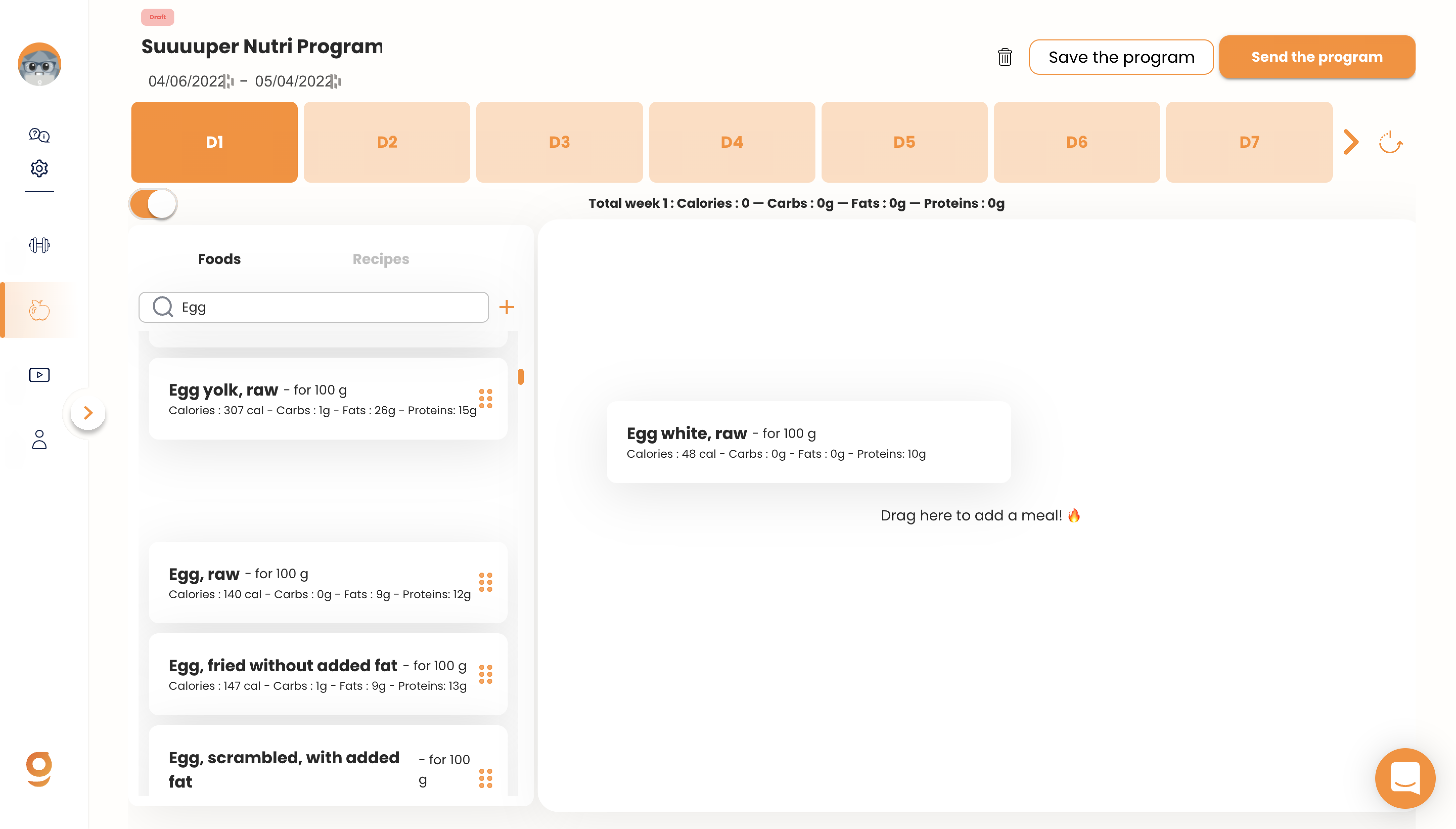
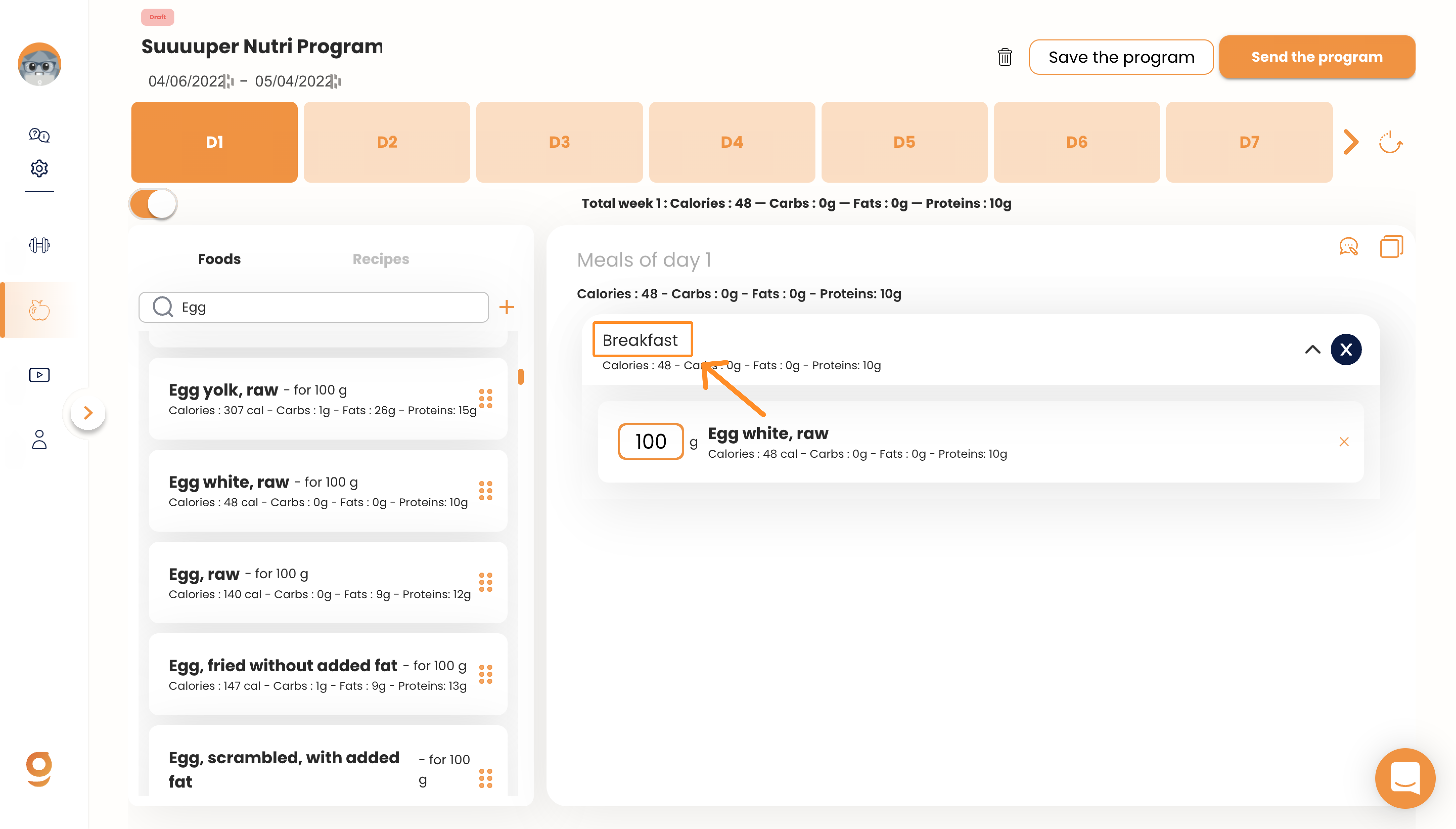
Once you drag & drop your food item, it will automatically give the meal a name.
The first one will automatically be called "Breakfast", the second "Lunch" and so on.
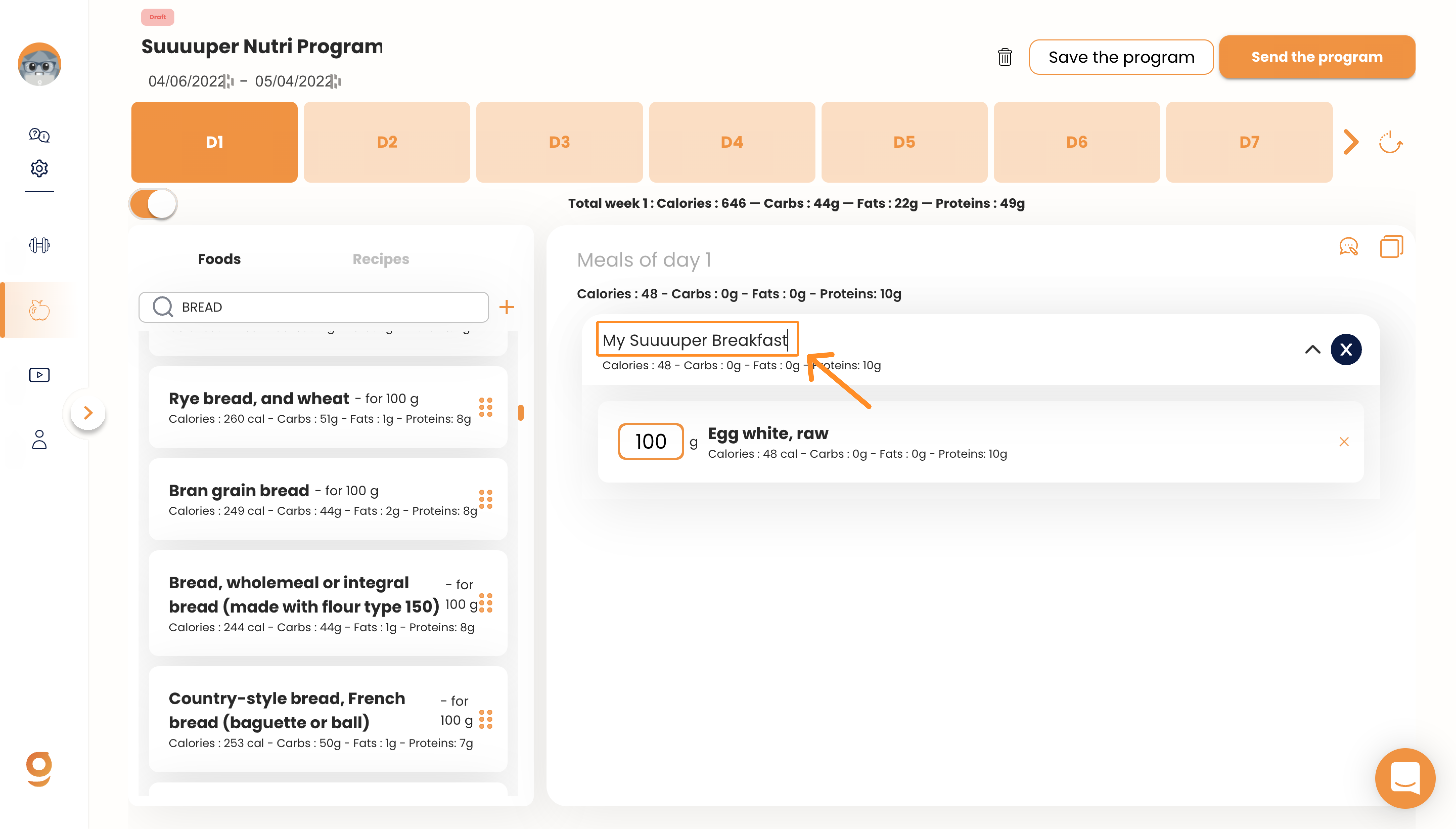
To change the name of the meal, just click on it:
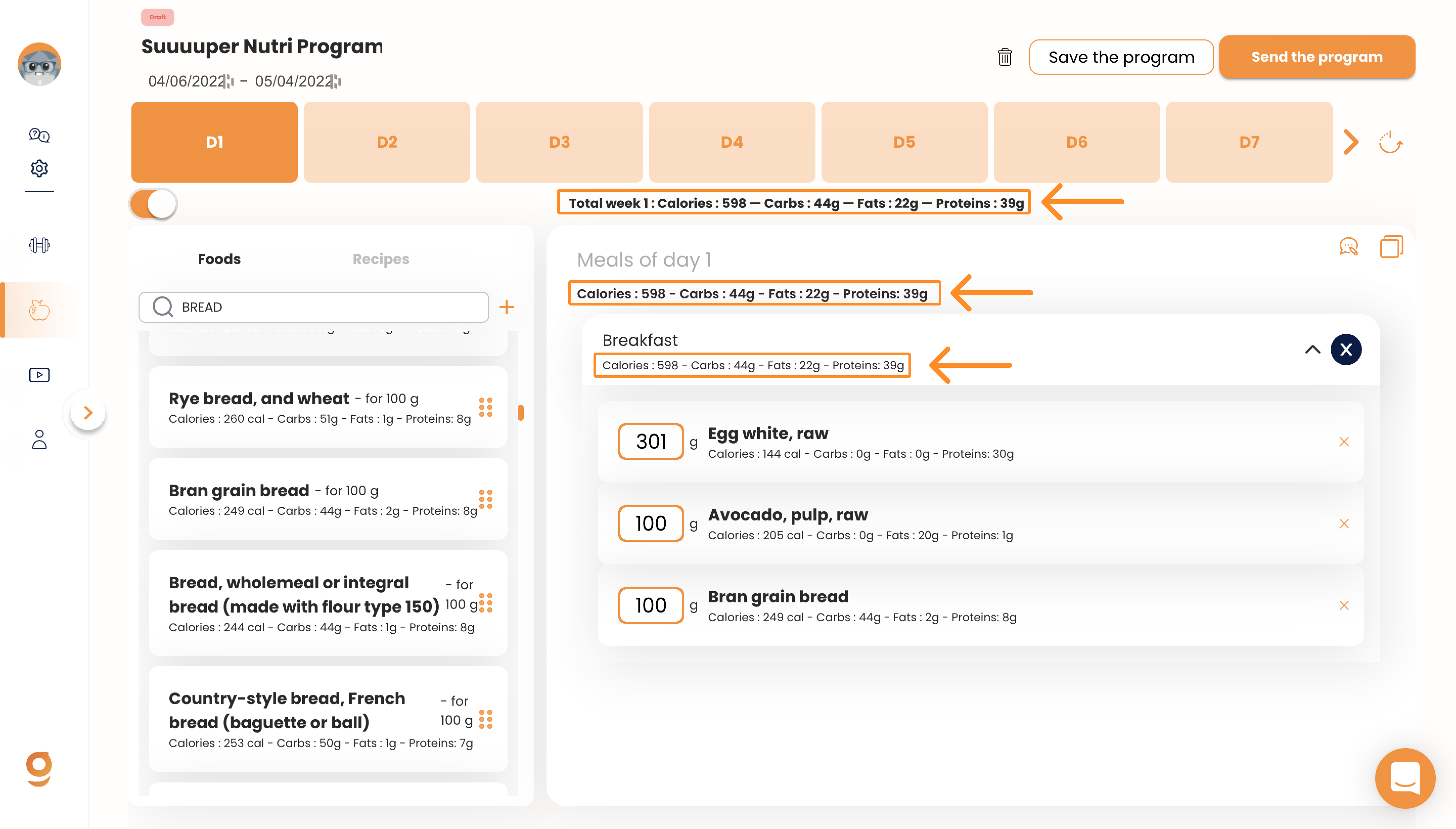
When you are on the Nutrition Builder, you will be able to have visibility on the macros of the meals, the day, and also the week to have a global vision of the program.
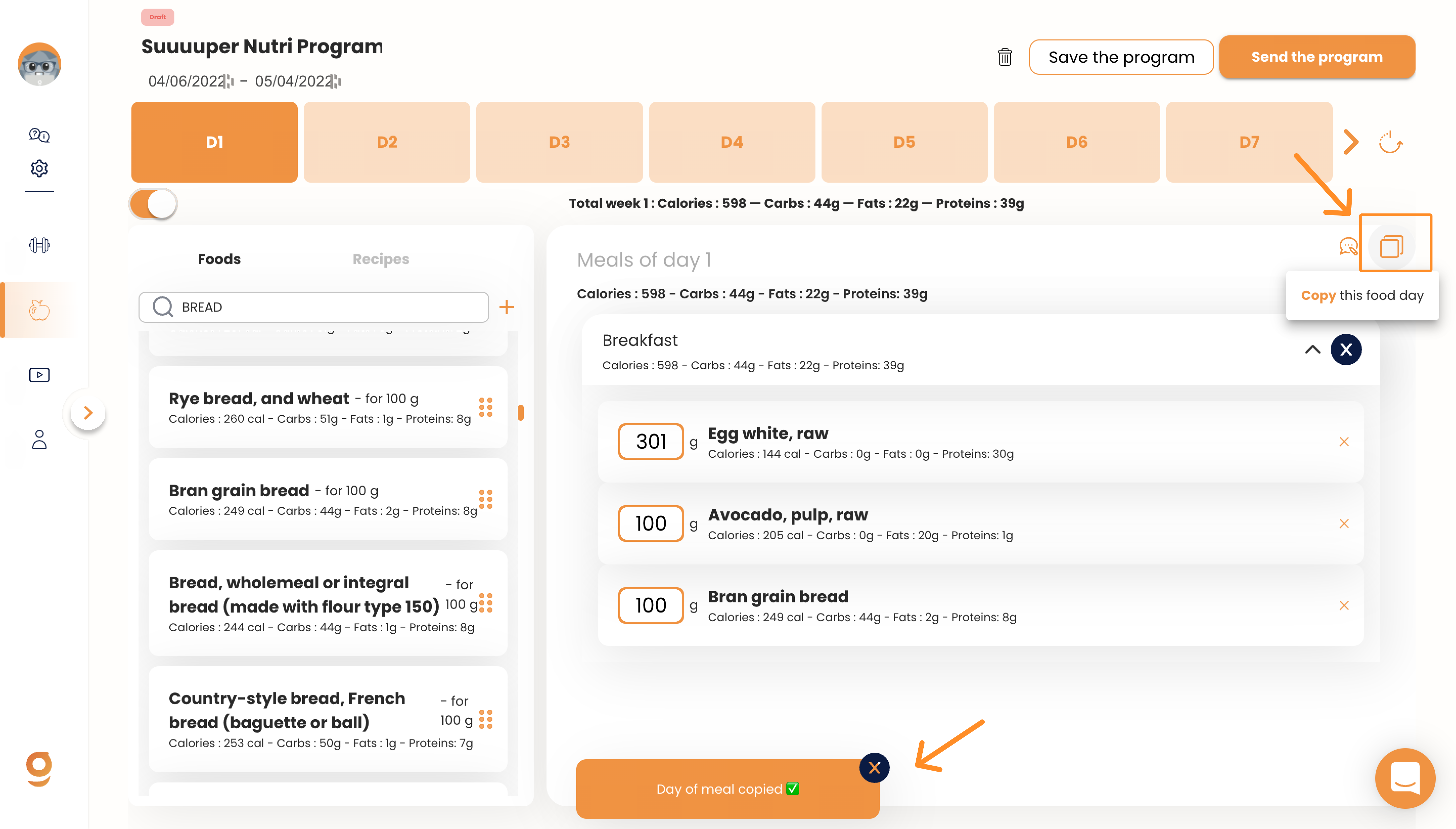
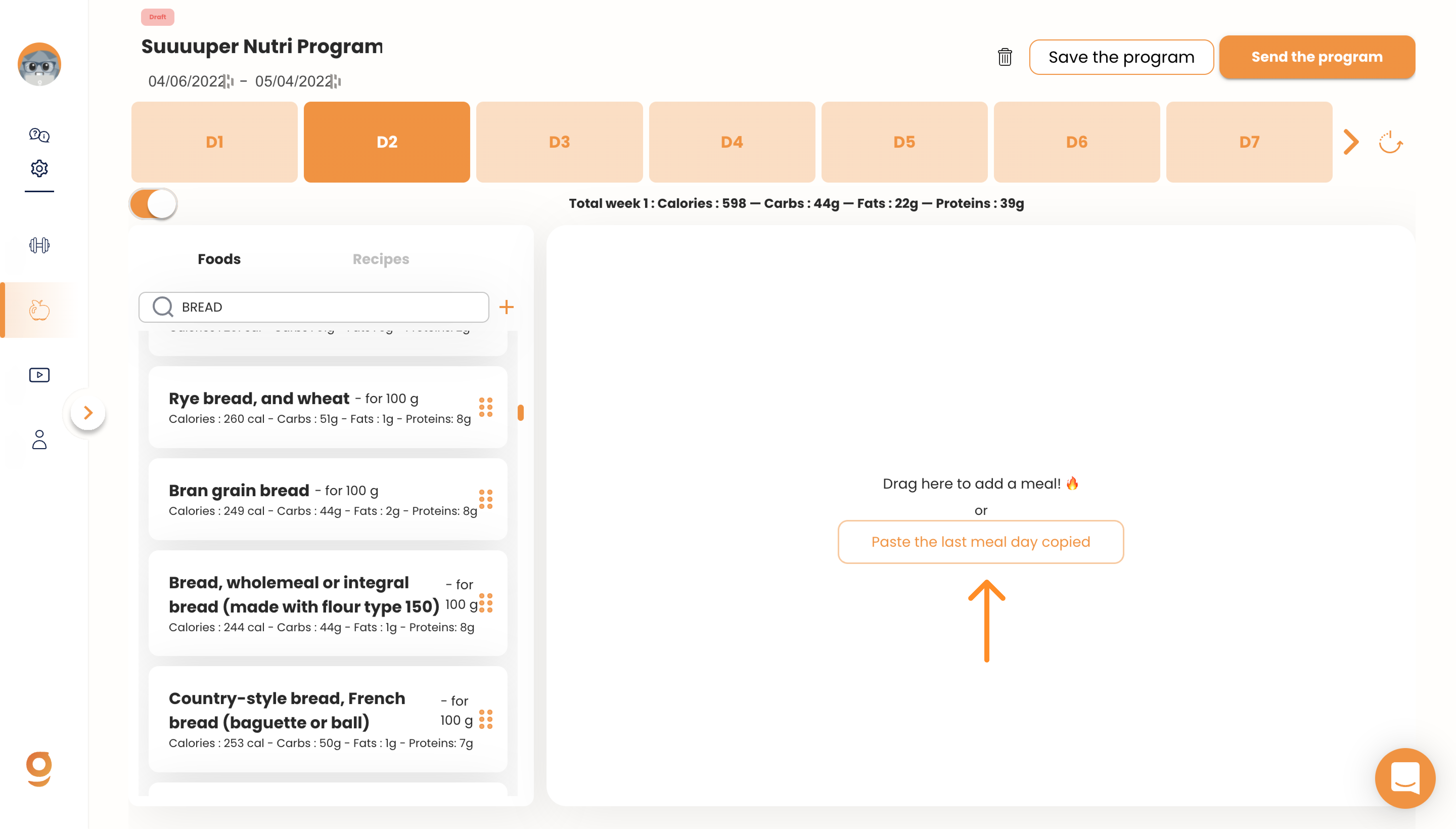
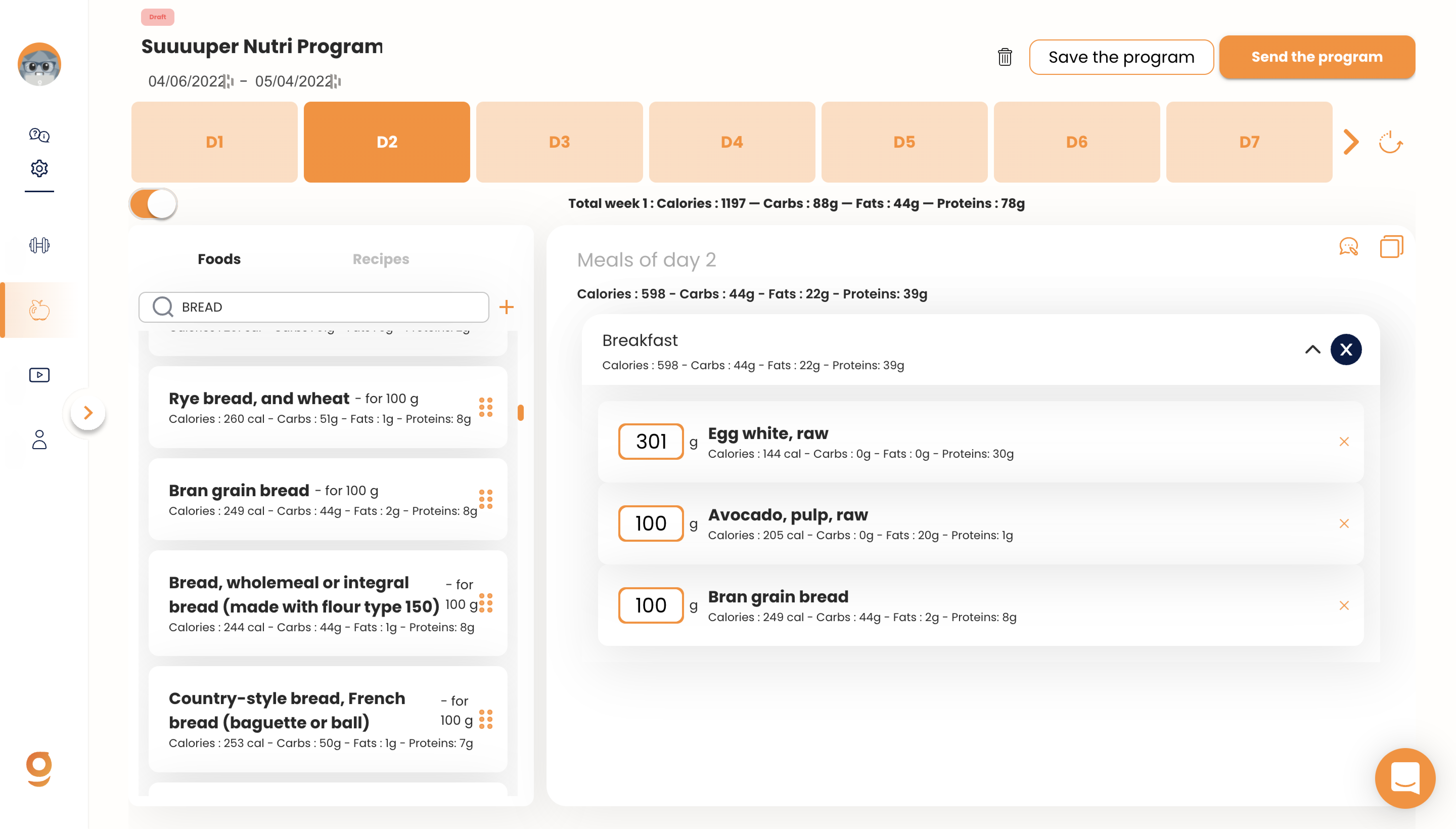
Once you have created your meal, you have the possibility to copy this meal day to other days without having to recreate the meal from scratch!
Once you have completed the creation of your program, you have 3 choices:
- Save the program to edit it later
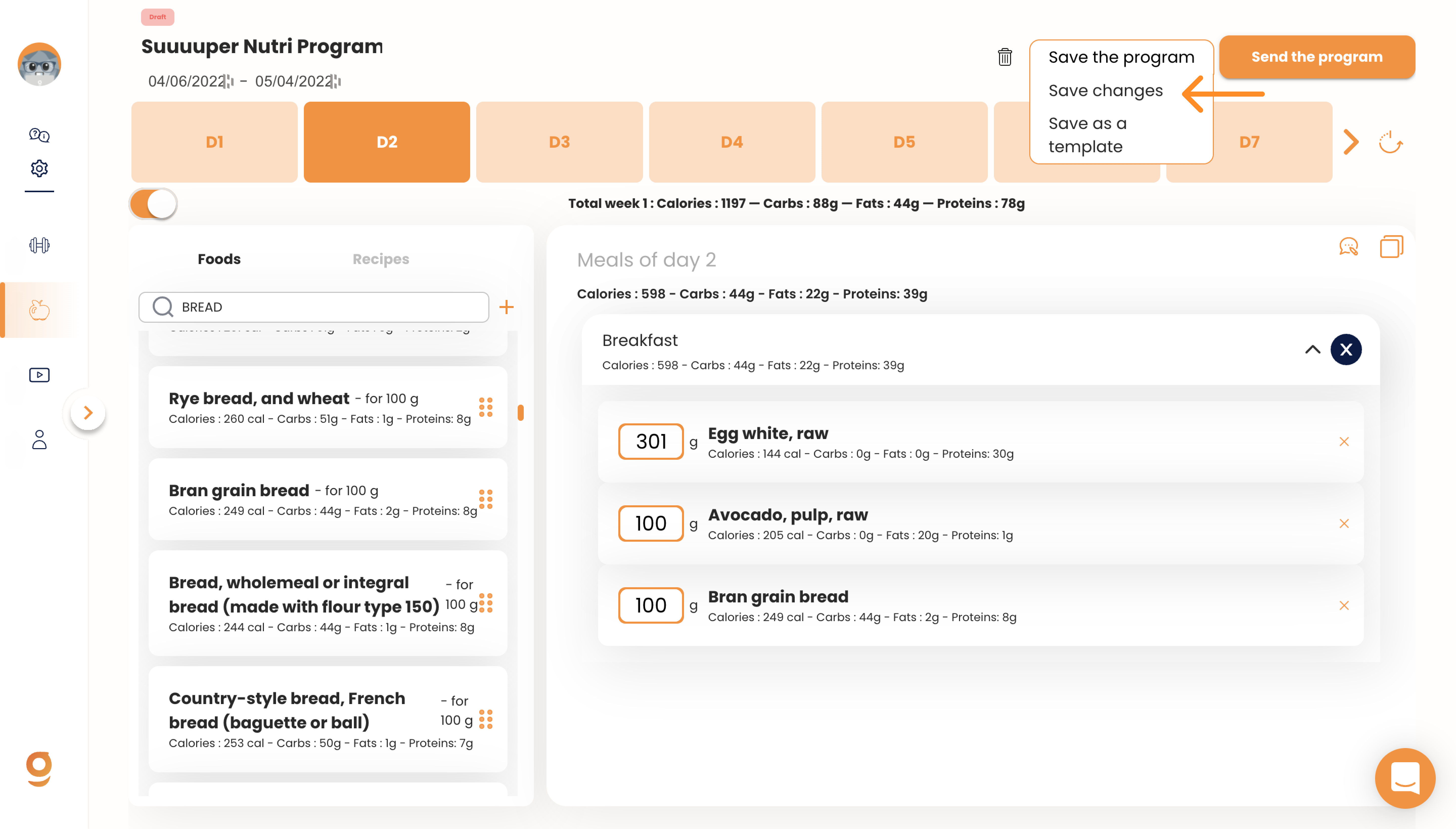
- Save as a template to re-use it multiple times
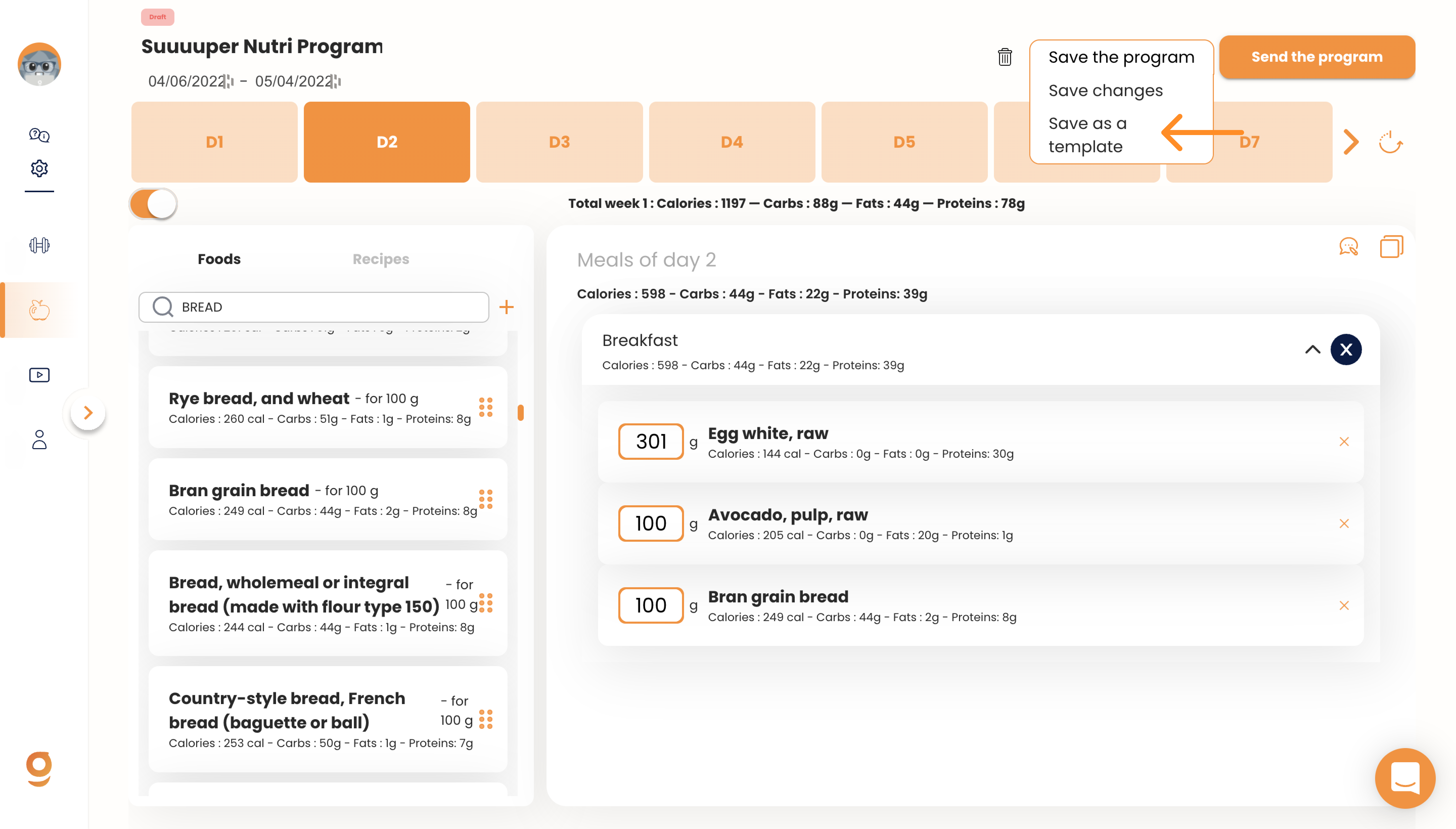
- Send it to one or more clients
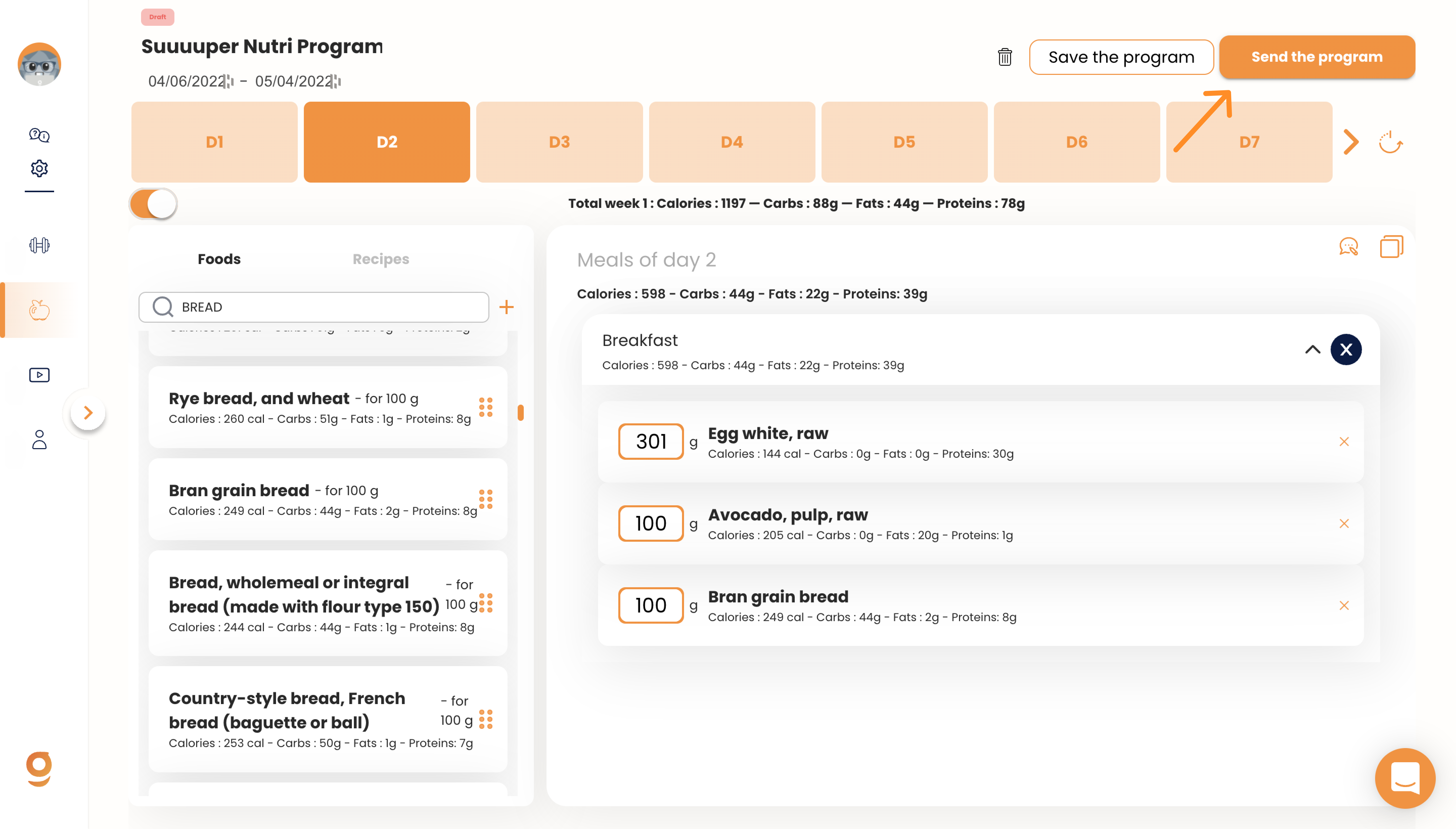
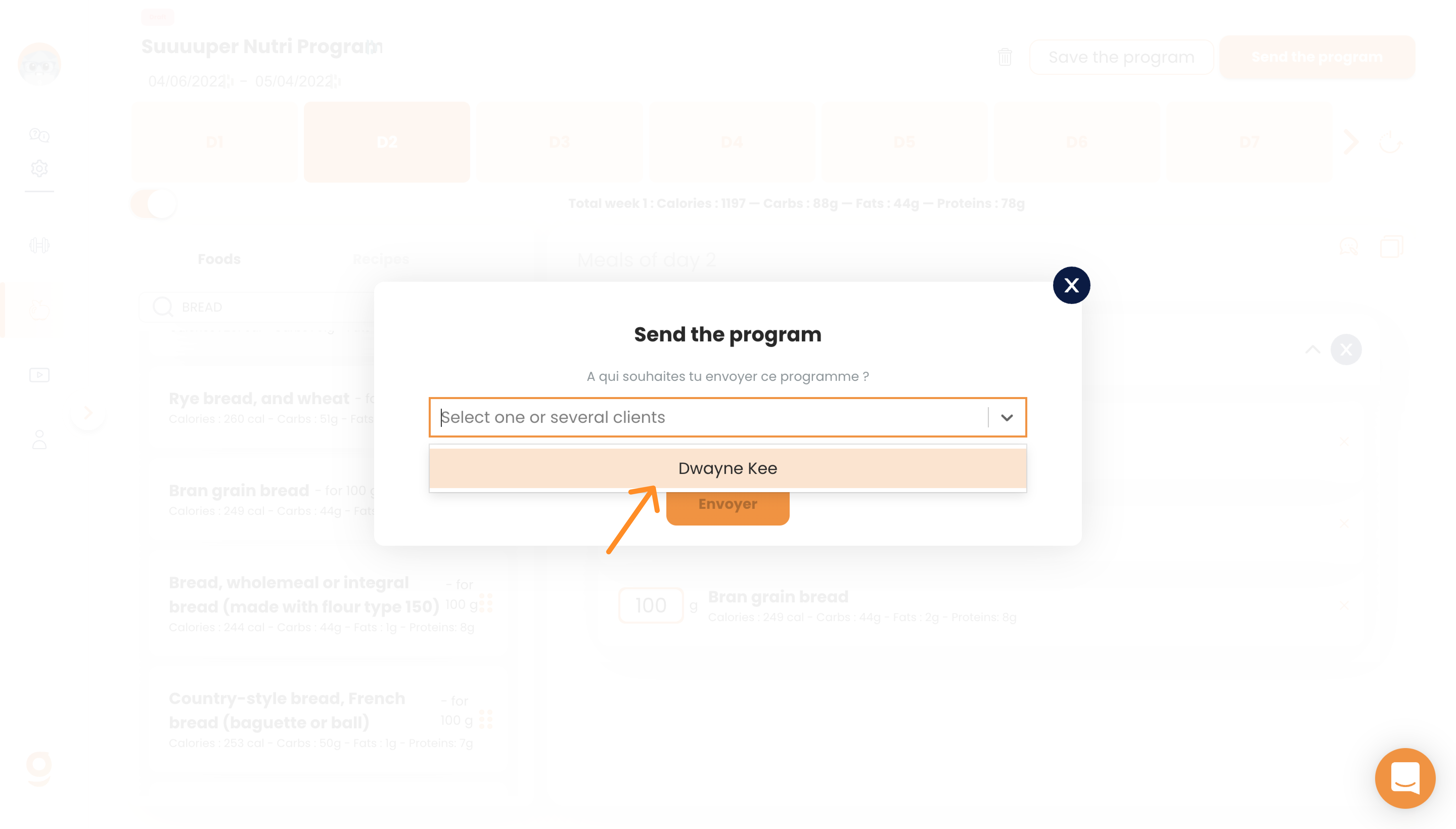
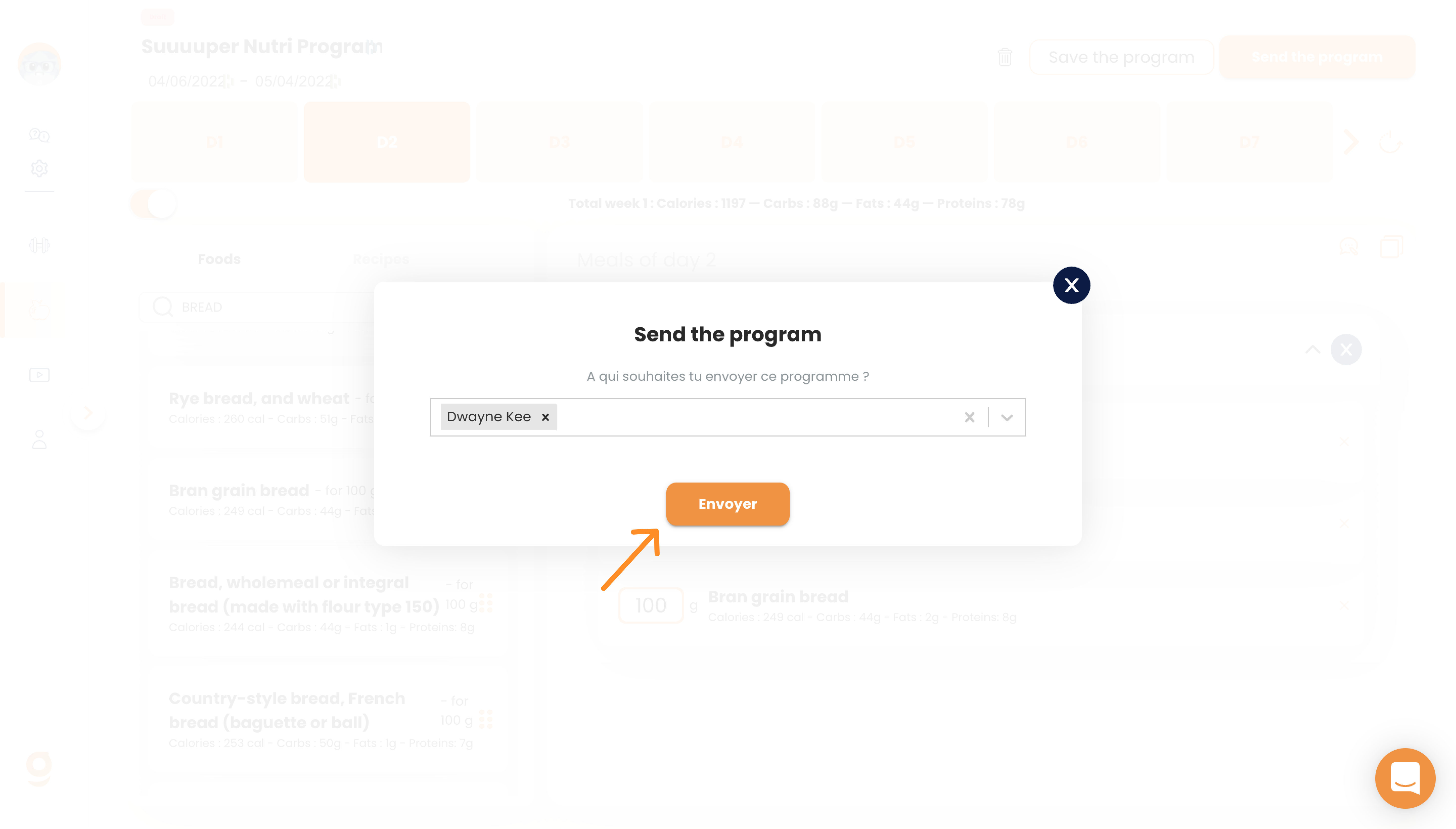
Once sent, your clients will receive it directly on their Gymkee mobile app!
Voilà, you now know how to create your first food program on Gymkee and all the elements that make it up.
If you need anything, feel free to reach out to us using the app's internal chat at the bottom right 😉
Great coachings & take care of yourself ❤️