
At Gymkee, we are always looking for ways to be ahead of the game in sports coaching so that you can develop your coaching business more quickly with us.
Recently we have released a new feature that will allow you to automate the sale of your fitness programs.
In order to use this feature, you must have already created programs saved as "Template".
You can have a look at this article to understand how to register a program as a template:
👉 How to save a problem as a "Template"?
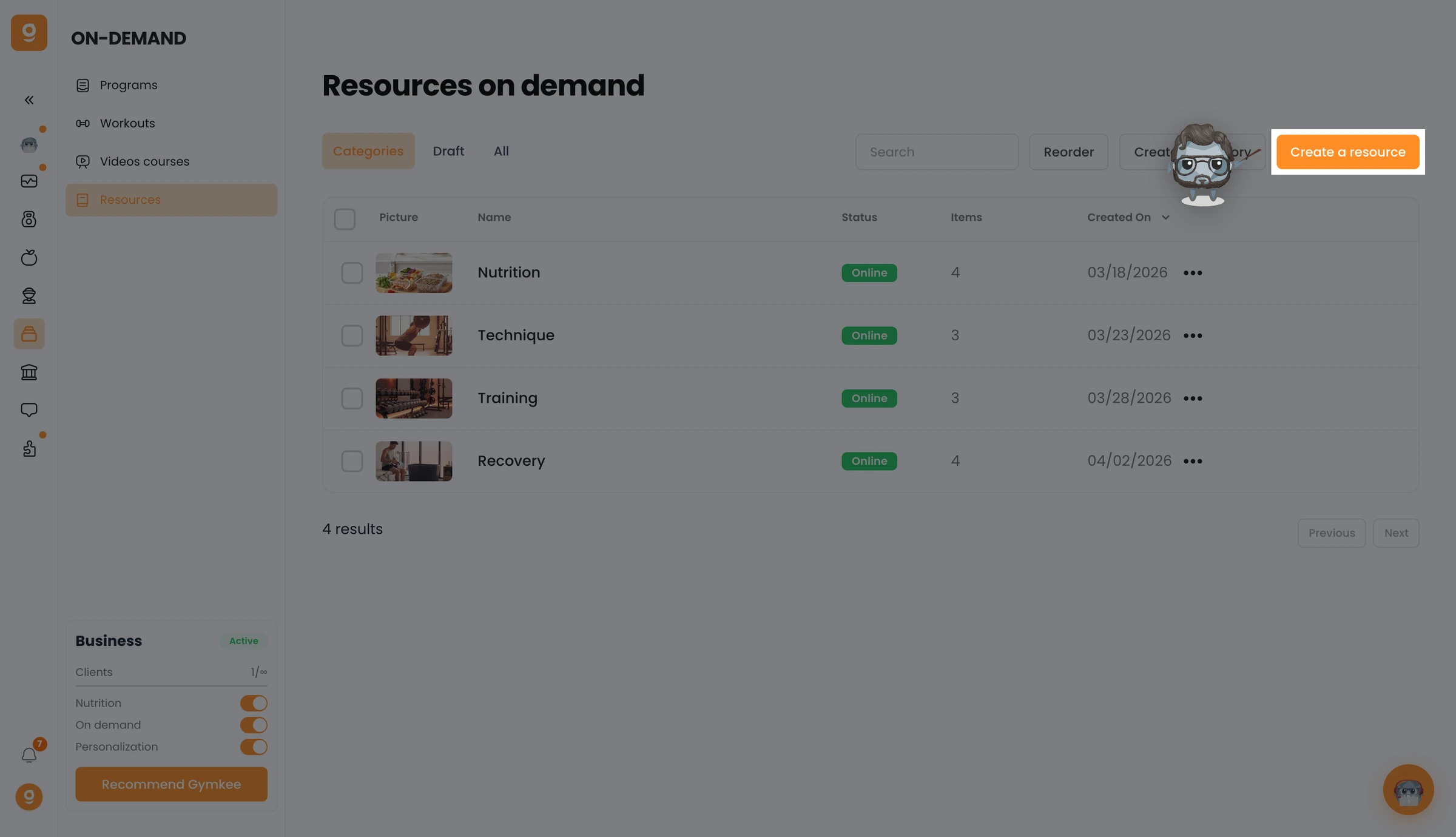
To start, go to the "Auto Prog Sales" section which is located in the "On Demand" category.
The first step is to connect your Stripe account & follow the instructions.
The connection only takes a few minutes.
Once it's done you can create your first program.
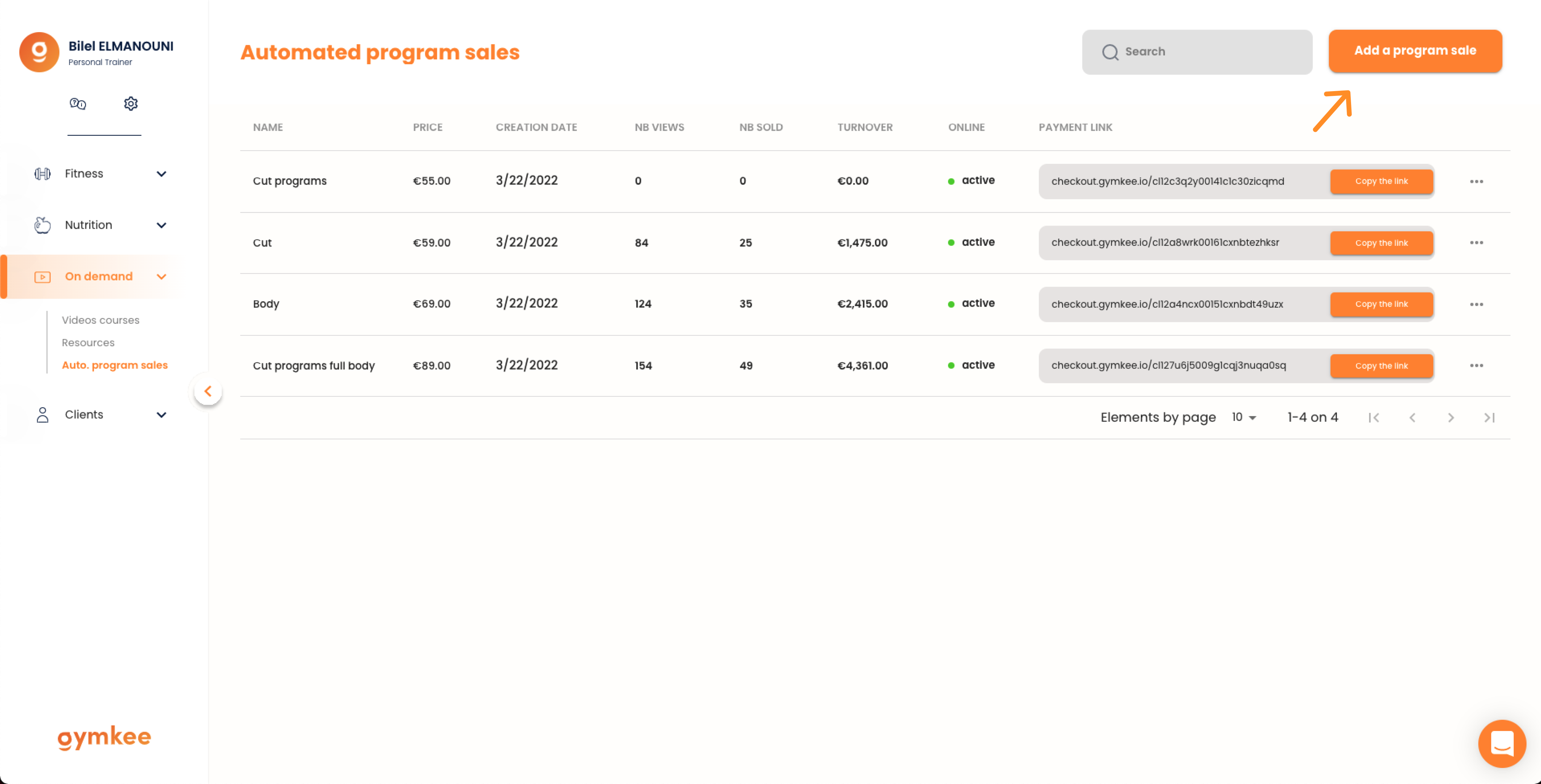
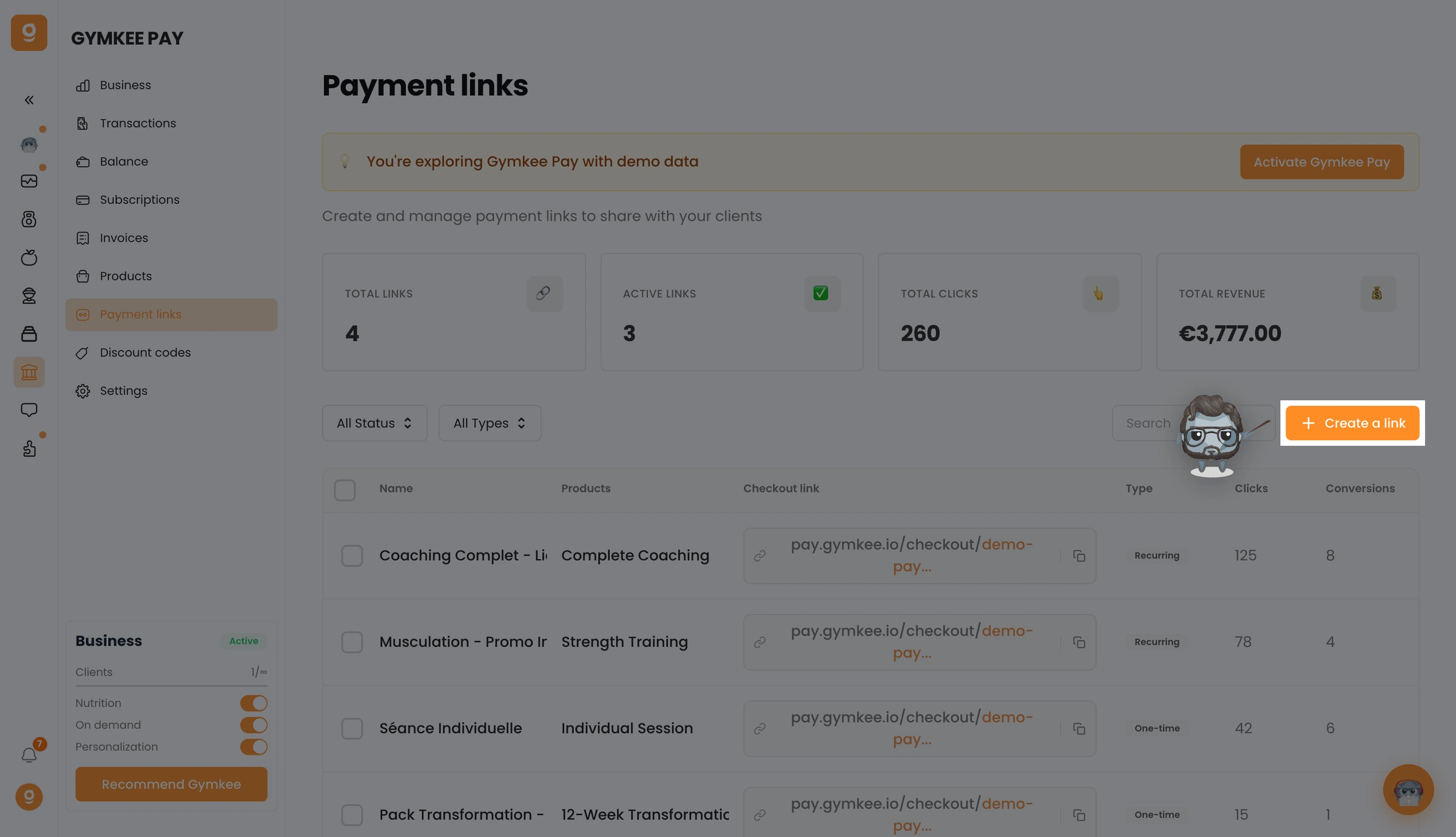
At the top right you will have the button "Add a program sale", click on it to create the creation window.
To configure your program, you will have to fill in the fields that are asked of you:
- Name of the sale
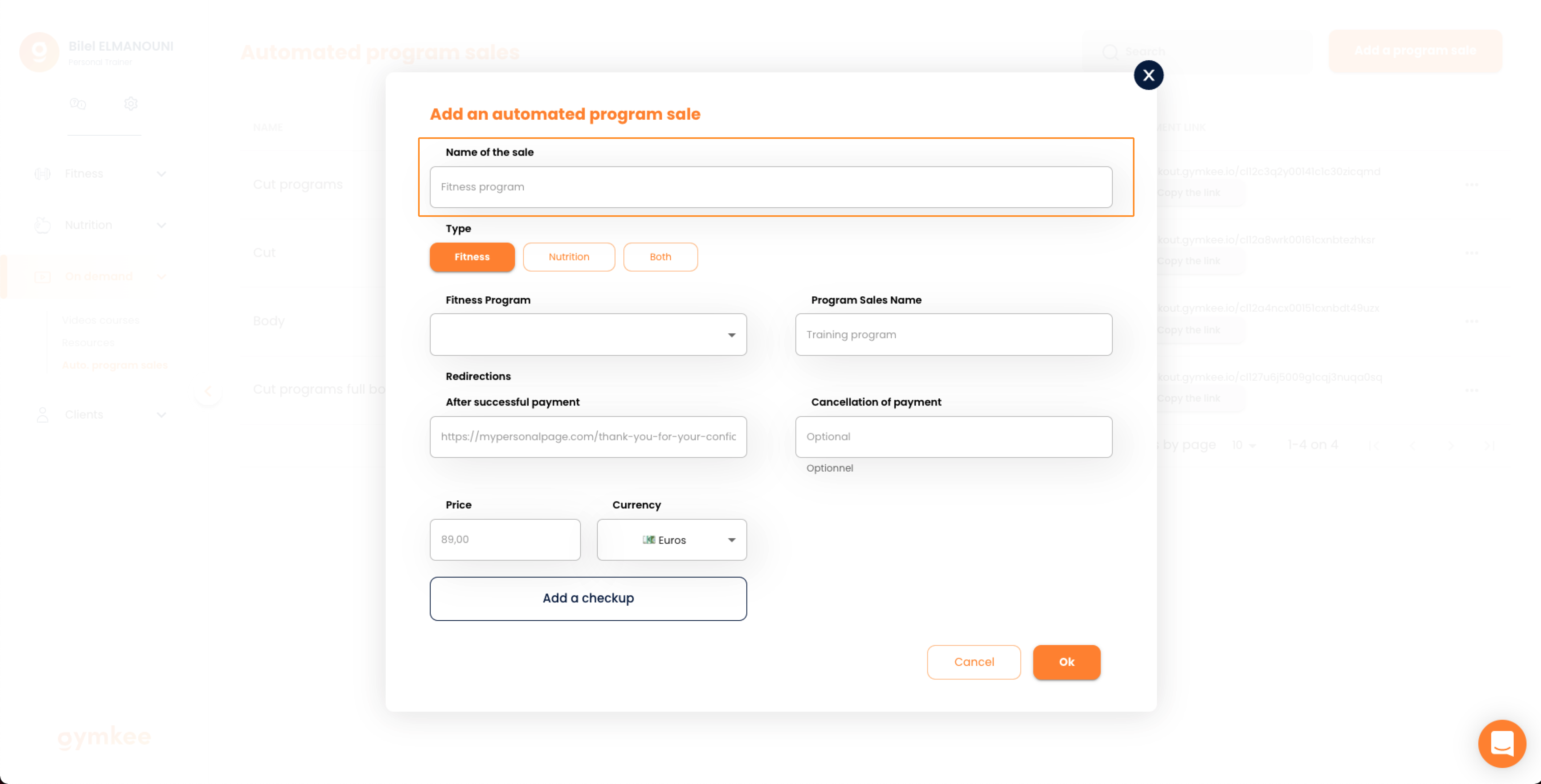
The name of the sale is visible only to you. This is what will allow you to find your program in order to modify or deactivate it.
- Type of program
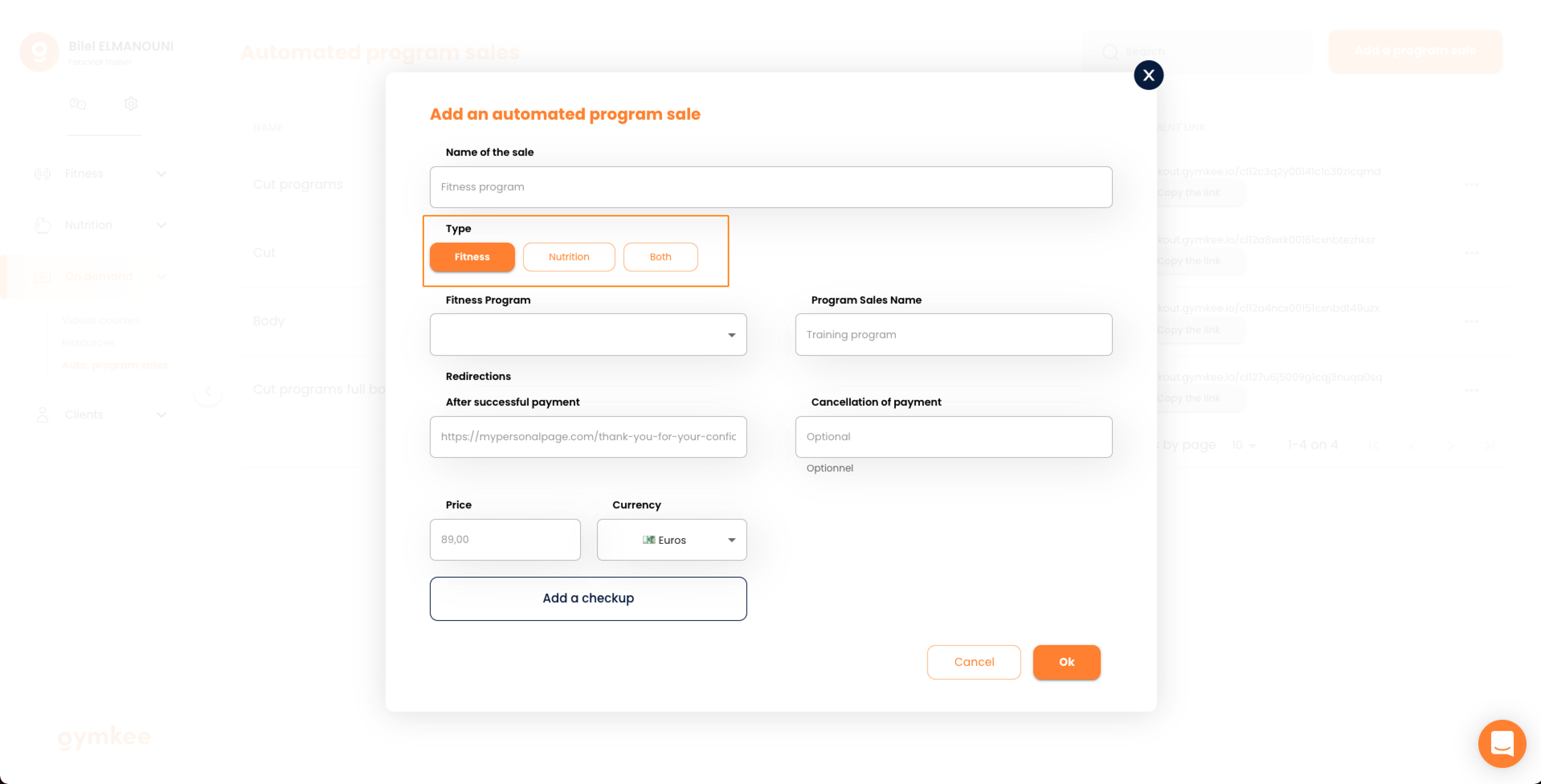
You can sell both a fitness program and a nutrition program or simply sell a package with both directly.
- Program Template
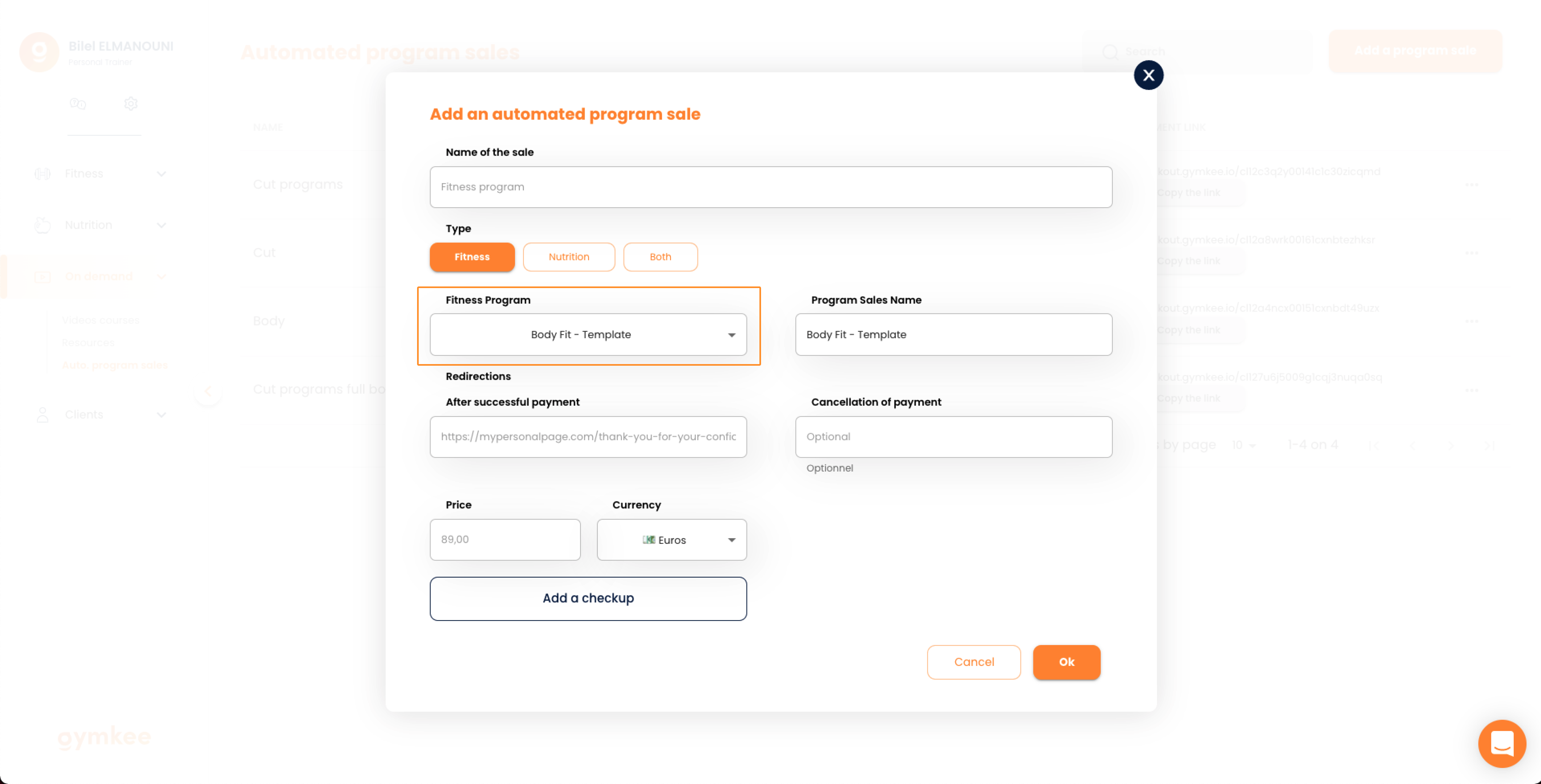
Here you will be able to choose among all the templates of sports programs that you have created the one that you will put on automatic sale.
- Sale name
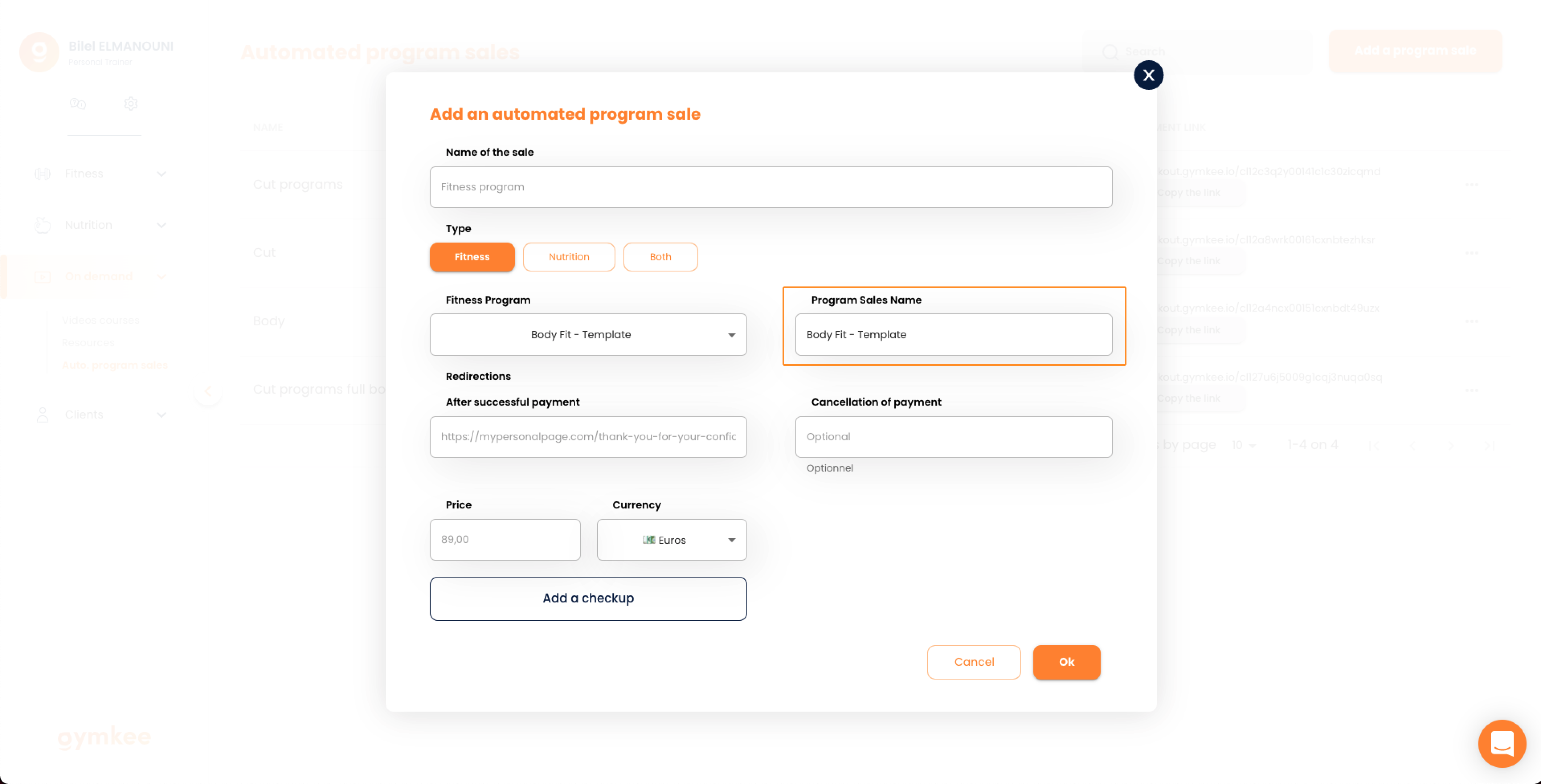
You will be able to give a sales name to your program. This is the one that will be visible by your customers on your website & on the application.
- Redirection after successful payment
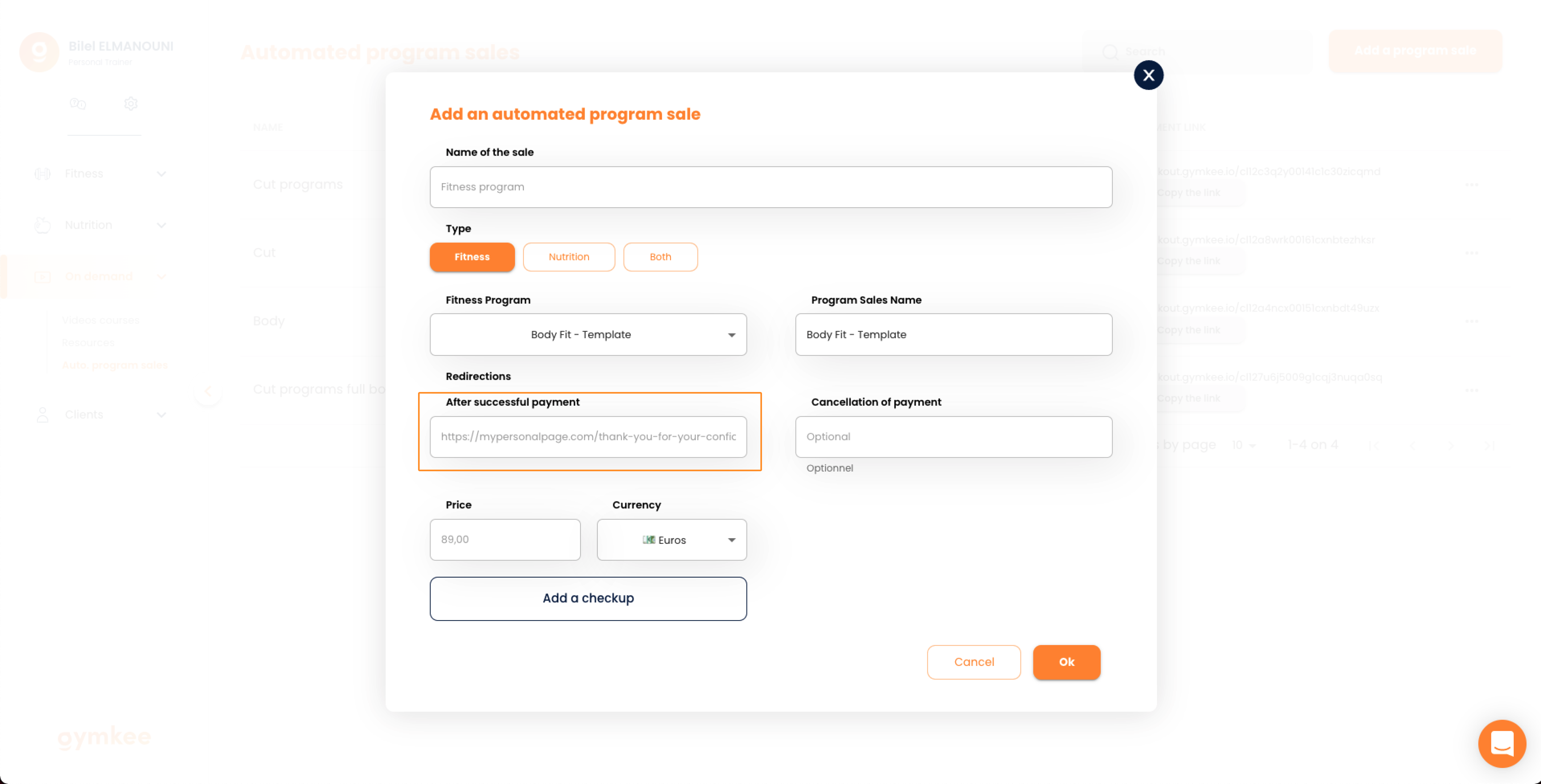
After the payment of your program, this is the page on which your customers will be redirected. You can for example
- Redirect cancel payment
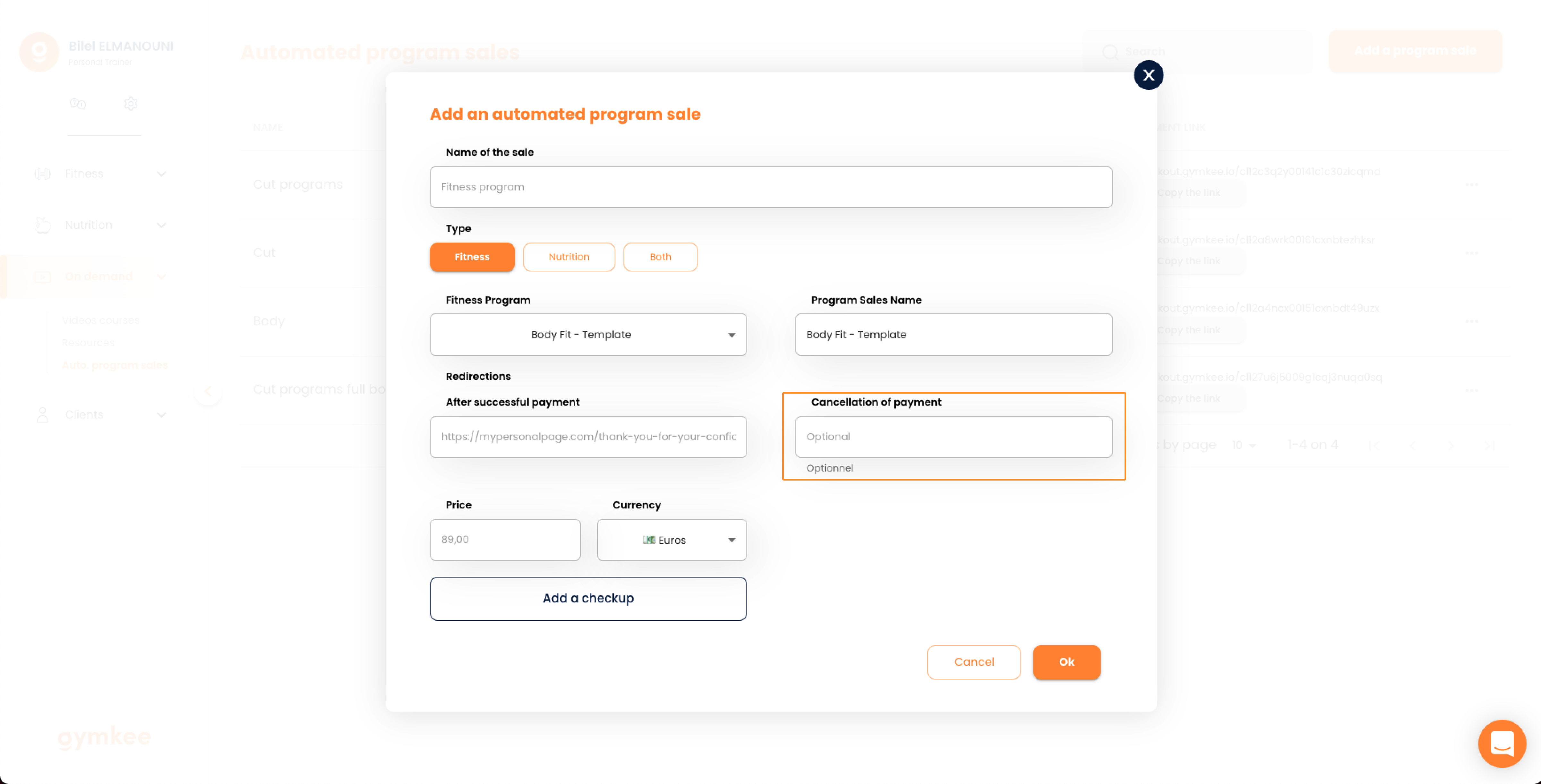
You can put a link here to redirect your potential customer to a page that tells them their payment has not gone through. We generate one by default.
- Selling price of the program
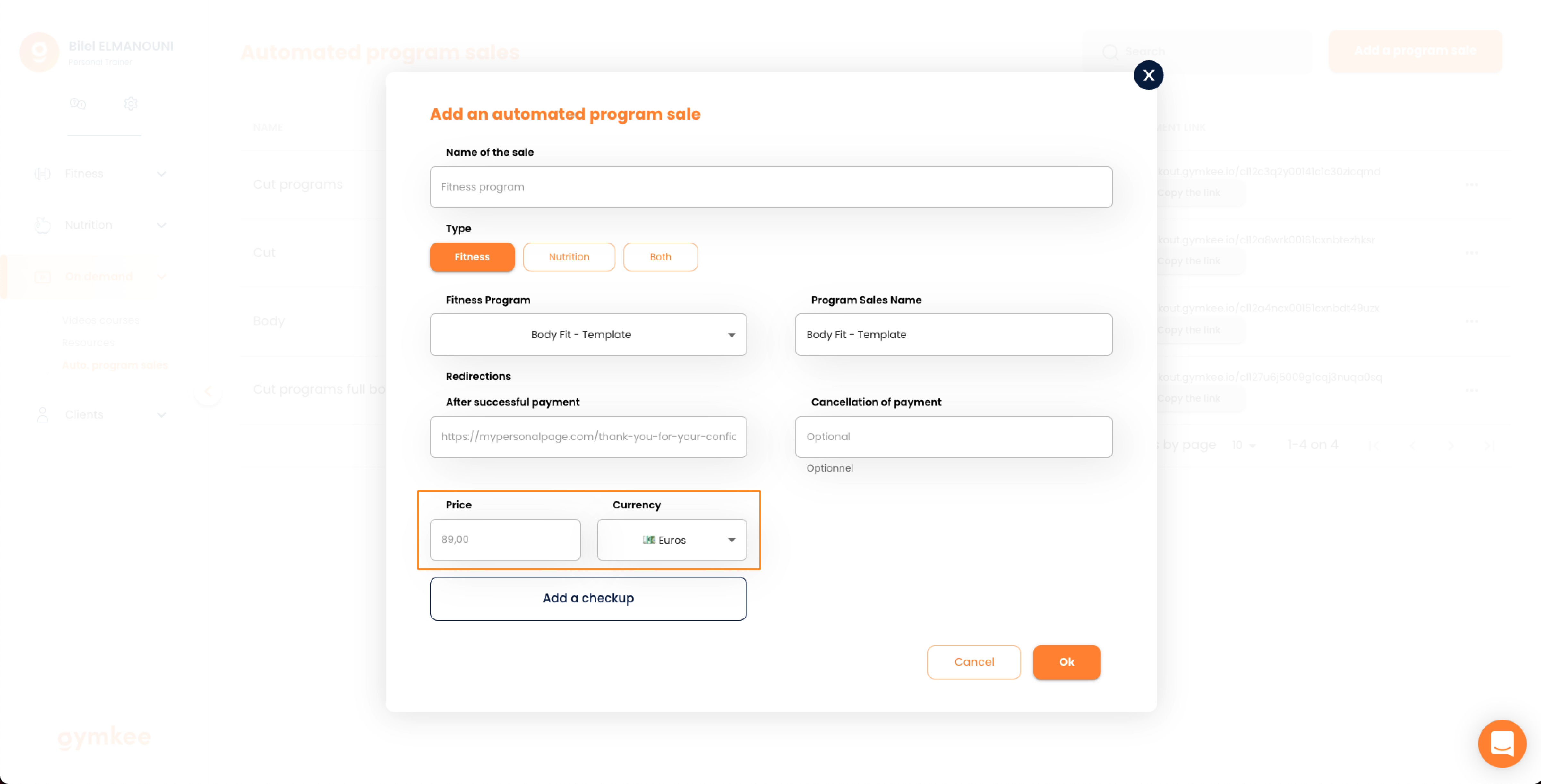
Here you can configure the selling price of your sports program to generate the payment link.
- Assessment
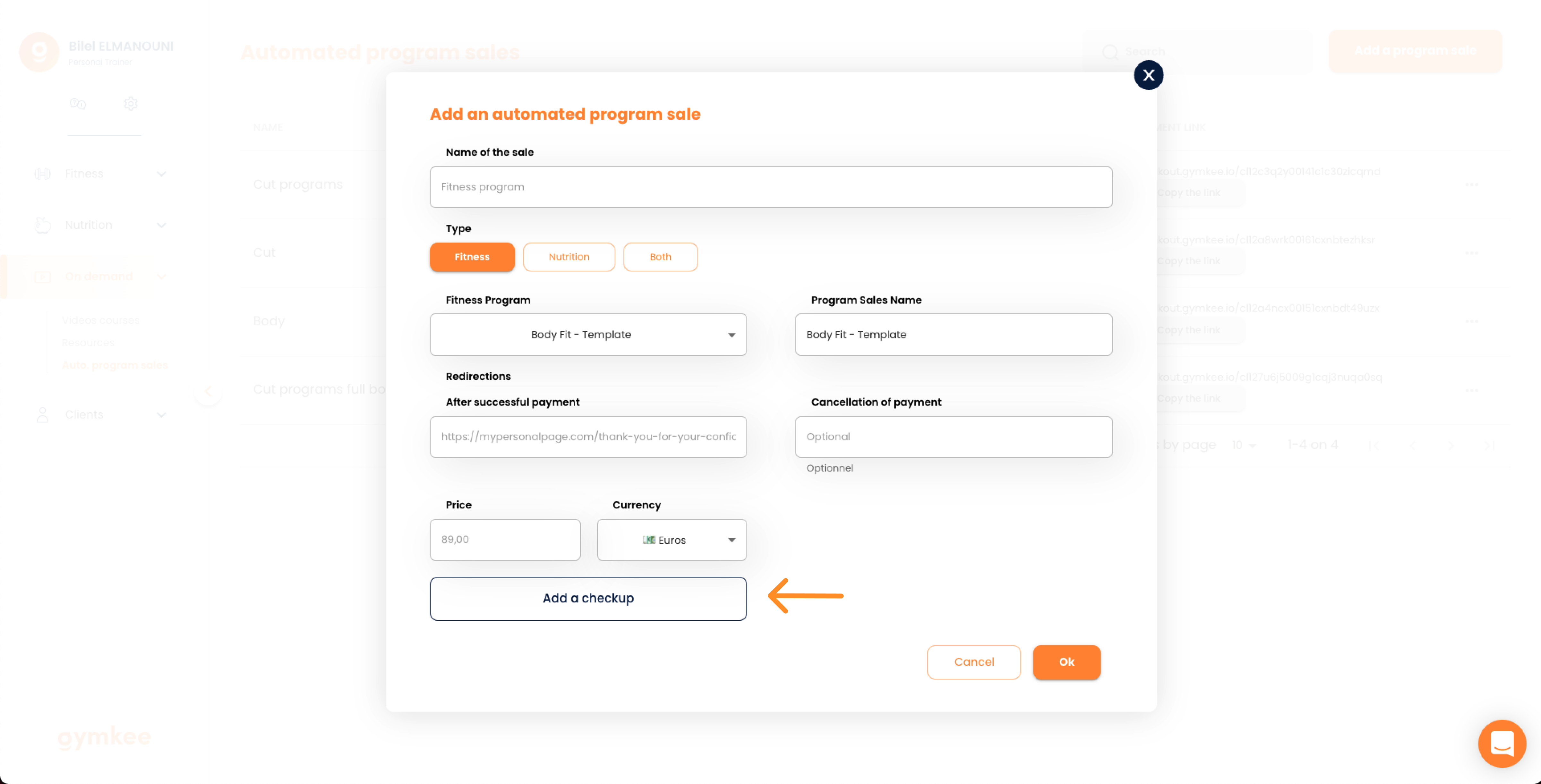
You'll be able to add a balance sheet template to retrieve customer leads & data to use in your marketing.
Once you have configured everything, you can click on "Submit" to generate your payment link.
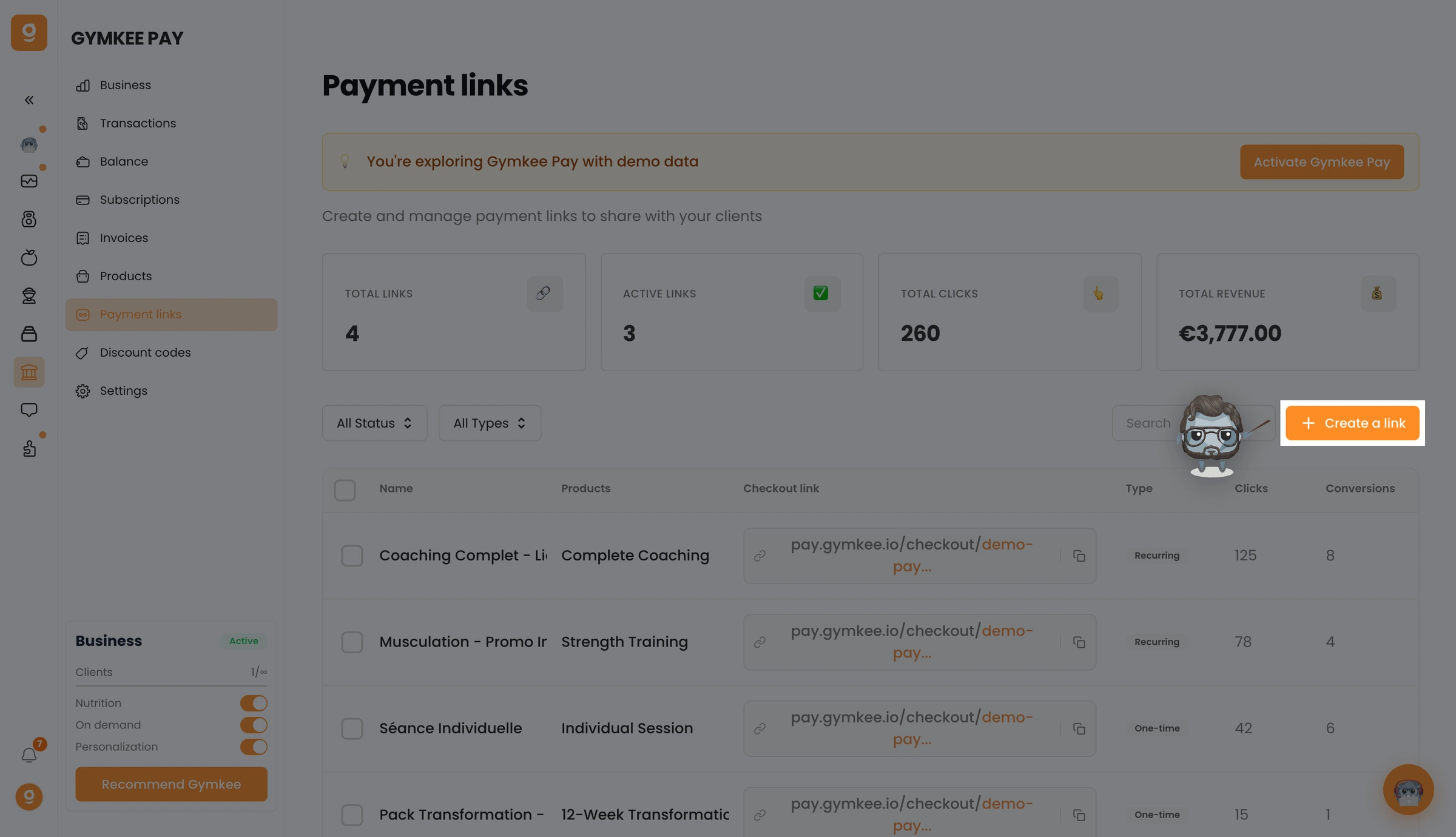
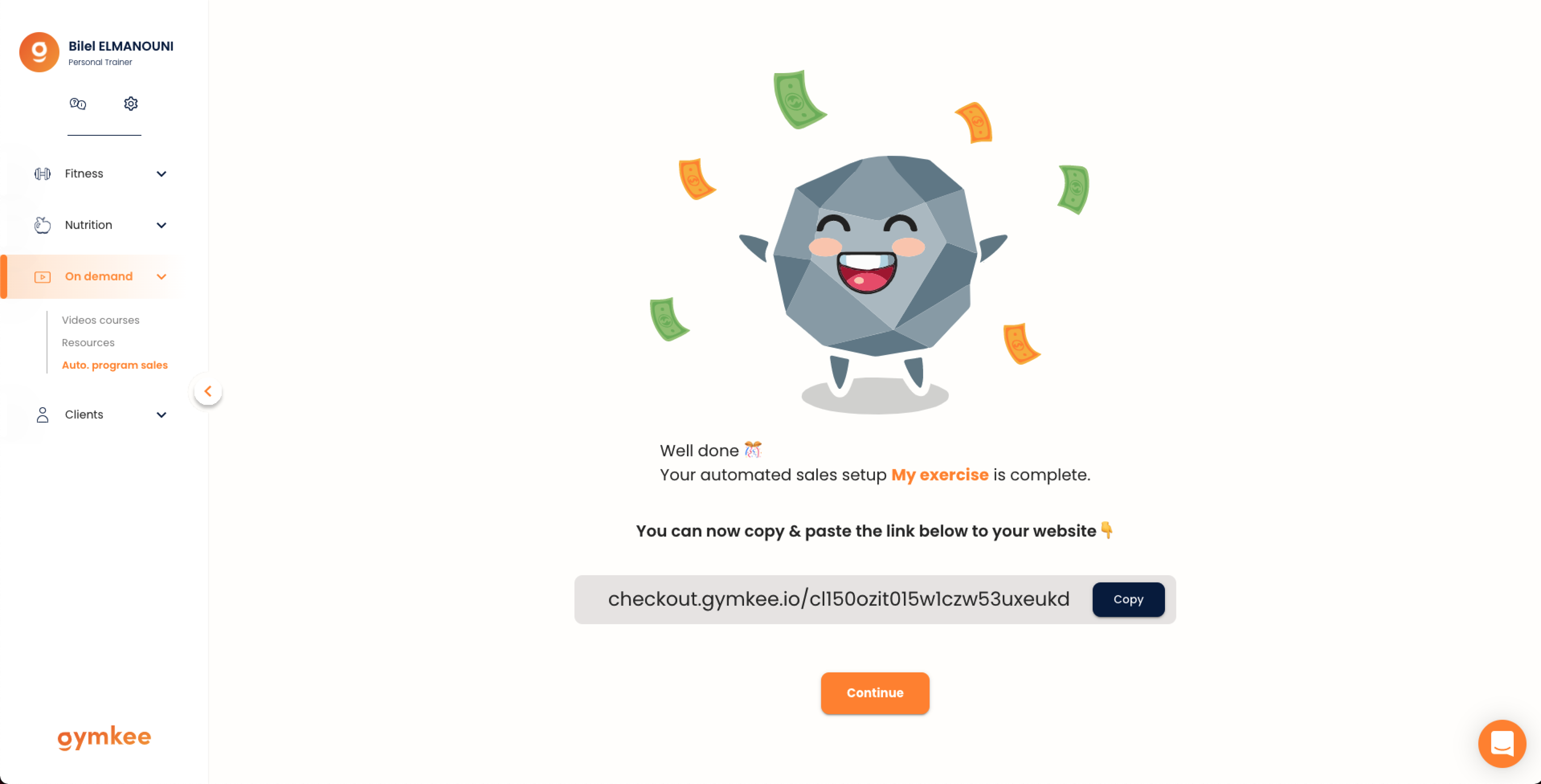
You can now copy the generated link to paste it directly on your website or sales page.
That's it! Now you don't have to do anything :)
When a customer clicks on it, they will automatically be redirected to a Stripe payment link.
When a customer clicks on it, they are automatically redirected to a Stripe payment link.
The start date is not fixed and the program will only start once the client has completed the first session :)
You now know how to create an automated sales program on Gymkee 🎊
If you need anything, don't hesitate to contact us via the app's internal chat on the bottom right 😉
Good coaching & take care of yourself ❤️