Du wurdest gerade bei Gymkee hinzugefügt, herzlichen Glückwunsch 👏
Ab jetzt kannst du die Trainingseinheiten, die dir dein Coach schickt, ganz einfach absolvieren, um deine Ziele zu erreichen.
Aber wie startest du eine Trainingseinheit? Genau das schauen wir uns in diesem Artikel gemeinsam an.
Öffne deine App, die in allen Stores verfügbar ist, und melde dich in deinem Konto an.
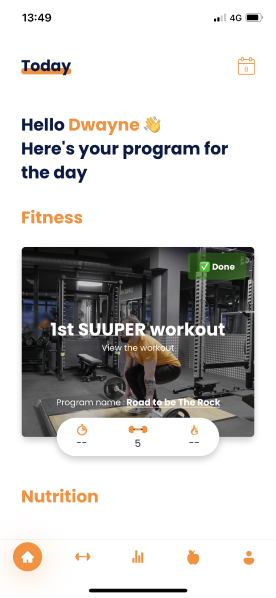
Wenn du auf deiner Startseite bist und eine Trainingseinheit geplant ist, sollte sie im Bereich „Fitness" erscheinen.
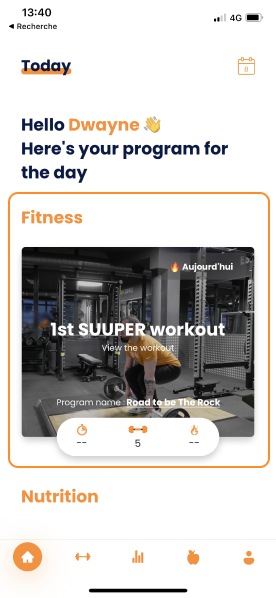
Bevor du deine Trainingseinheit startest, kannst du sie in einer Vorschau ansehen, um zu wissen, was dich erwartet, und dir die Übungsvideos anschauen.
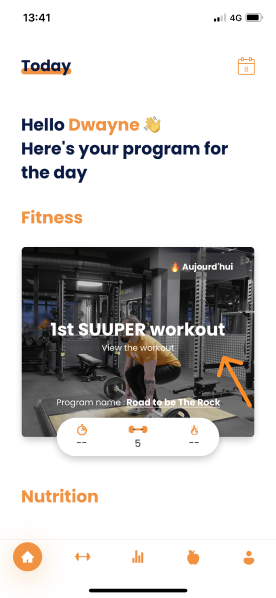
Tippe dazu auf die Trainingseinheit.
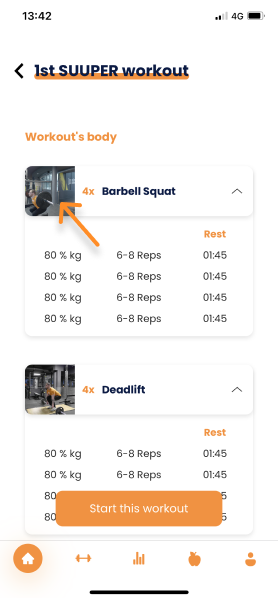
Du landest in der Vorschau deiner Trainingseinheit:
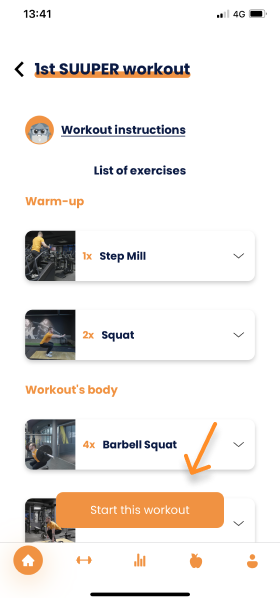
⚠️ Achtung: Hier führst du deine Trainingseinheit noch nicht aus.
Auf diesem Bildschirm kannst du deine gesamte Trainingseinheit in der Vorschau ansehen, bevor du sie startest.
Du kannst dir Folgendes ansehen:
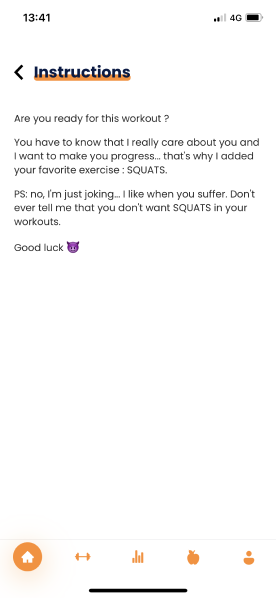
Die Anweisungen zur Trainingseinheit, die dein Coach hinterlassen hat (falls ausgefüllt):
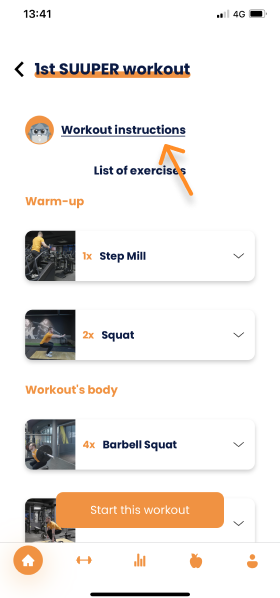
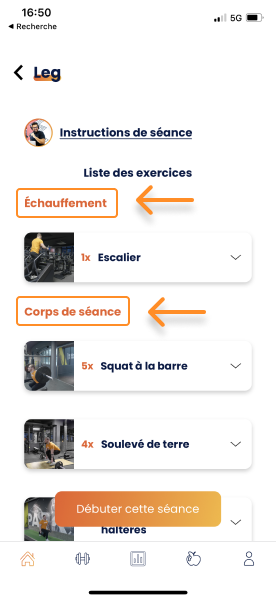
Den gesamten Aufbau deiner Trainingseinheit:
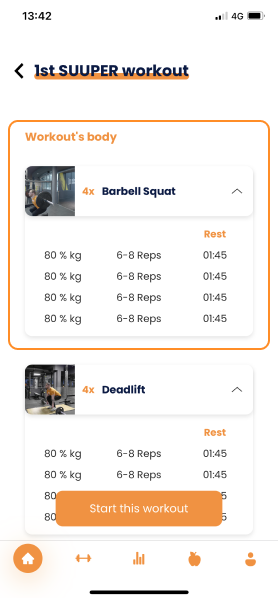
Die Details der Übungen, um die einzusetzenden Gewichte vorauszuplanen
Die Übungsvideos, damit du dir deine Übungen ansehen kannst, bevor du deine Trainingseinheit startest.
💡 Um das Video anzusehen, musst du auf die Miniaturansicht (das Bild) tippen.
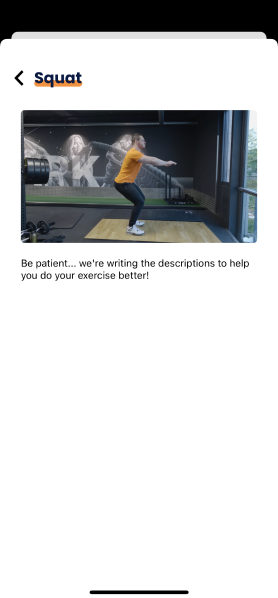
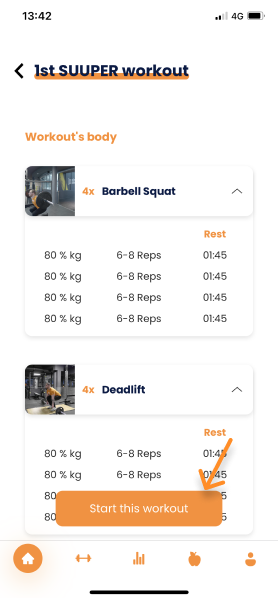
Sobald du dir angesehen hast, was dich in deiner Trainingseinheit erwartet, kannst du sie starten, indem du auf die Schaltfläche „Diese Trainingseinheit starten" tippst.
Deine Trainingseinheit beginnt jetzt!
Wenn du in deine Trainingseinheit kommst, gelangst du direkt zur ersten Übung deines Trainings.
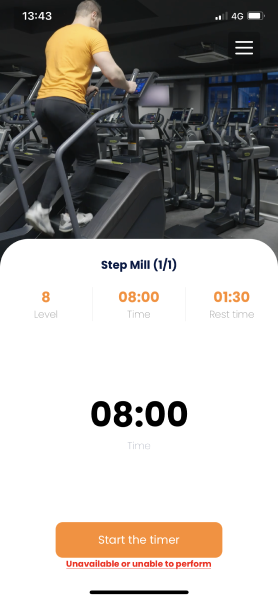
Auch hier gibt es viele Elemente auf diesem Bildschirm, aber es ist ganz leicht zu verstehen, du wirst sehen!
Zuerst hast du das Video deiner Übung:
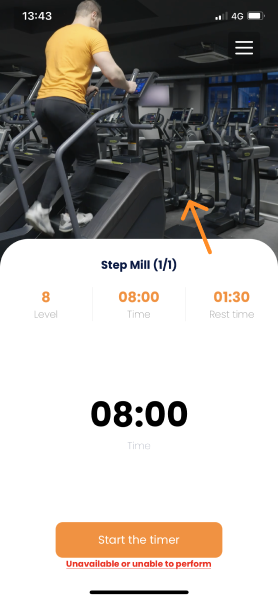
Das Video läuft in einer Schleife, damit du die Bewegung immer vor Augen hast, sie sauber ausführen und Verletzungen vermeiden kannst.
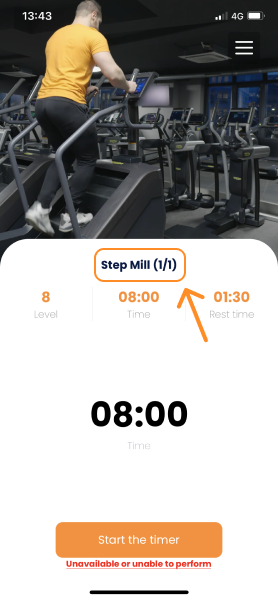
Dann siehst du den Namen deiner Übung sowie den aktuellen Satz und die Anzahl der auszuführenden Sätze:
Direkt darunter findest du die Anweisungen zur Übung:
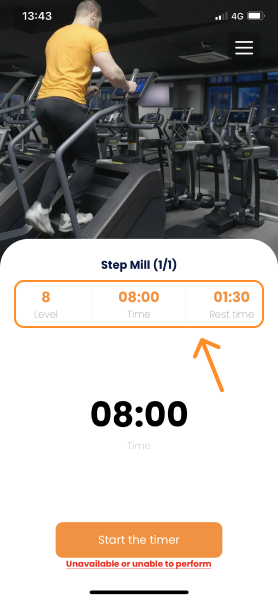
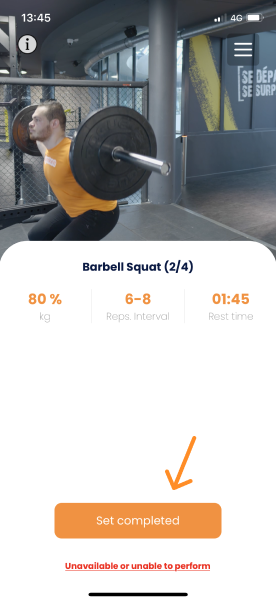
Diese Anweisungen sind in 3 Teile gegliedert:
- Das 1. Feld gibt die Intensität oder das Gewicht deiner Übung an.
- Das 2. Feld gibt die Anzahl der Wiederholungen, die Dauer oder die Distanz deines Trainings an.
- Das 3. und letzte Feld gibt deine Pausenzeit an.
Handelt es sich um eine zeitbasierte Übung, findest du den Timer direkt unter den Übungsanweisungen.
Um den Timer zu starten, tippe auf die Schaltfläche „Timer starten".
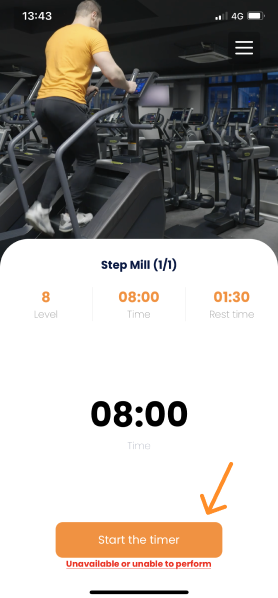
Um den Timer während der Übung zu stoppen, musst du ihn antippen, und der Timer pausiert automatisch.
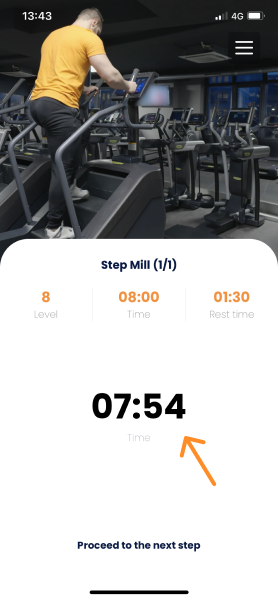
Bei jeder Übung kannst du jederzeit zur nächsten übergehen. Du musst nur auf „Weiter" oder „Zur nächsten Übung" tippen.
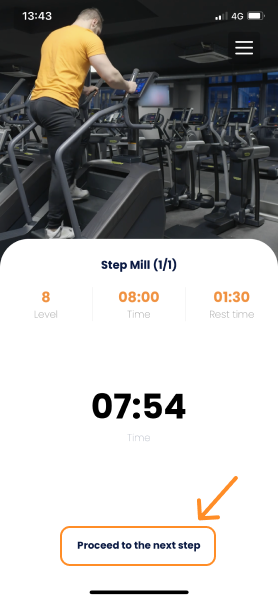
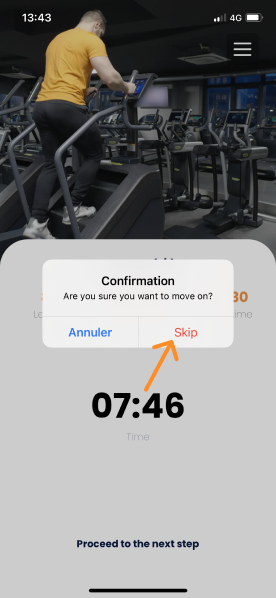
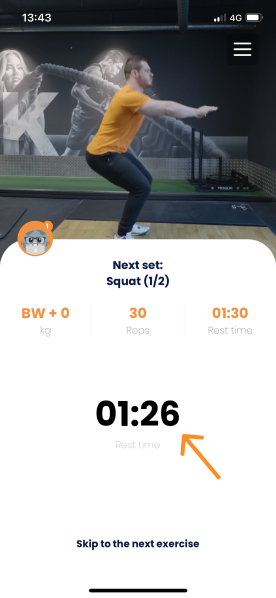
Wenn du von einer Übung zur nächsten wechselst, legst du normalerweise zwischen den beiden Übungen eine Pause ein.
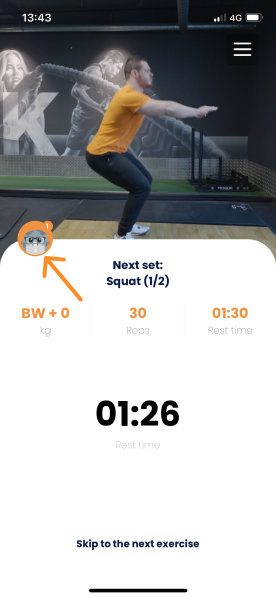
Während deiner Pausenzeit kannst du dir die nächste Übung in der Vorschau ansehen:
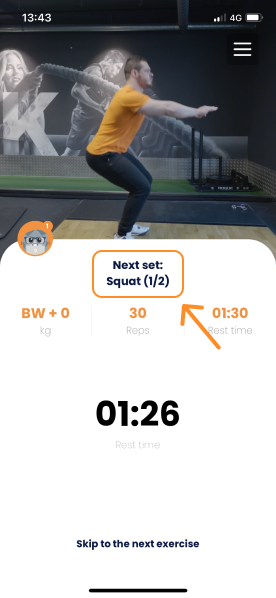
Hier erscheint außerdem ein neues Element: ein Kommentar von deinem Coach.
Dein Coach gibt dir zusätzliche Anweisungen über einen Kommentar, der direkt unter dem Video erscheint. Tippe darauf, um ihn zu sehen:
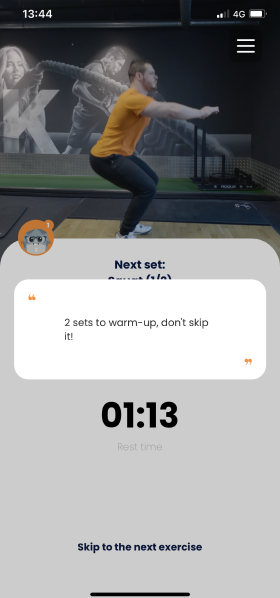
Die App wechselt automatisch zur nächsten Übung, wenn deine Pausenzeit vorbei ist. Es gibt einen Countdown ab 10 Sekunden, damit du dich auf den Neustart vorbereiten und deine neue Übung beginnen kannst.
Das erkennst du am Text, der unter dem Namen der Übung erscheint, sowie am Varianten-Symbol:
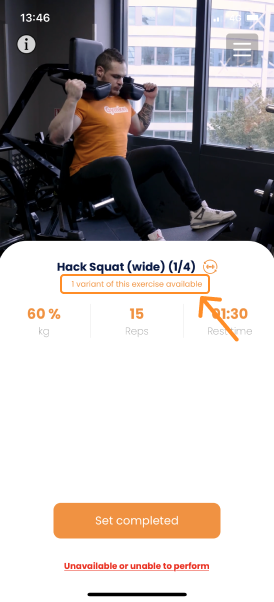
Um die Übung zu wechseln, kannst du auf das Hantel-Symbol daneben tippen und die neue Übung auswählen:
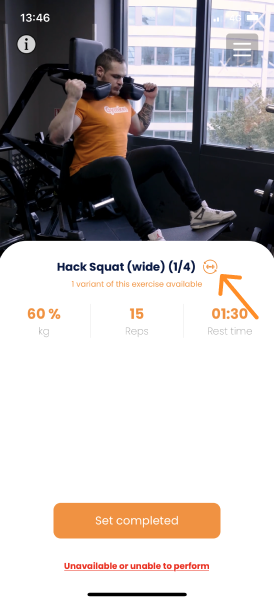
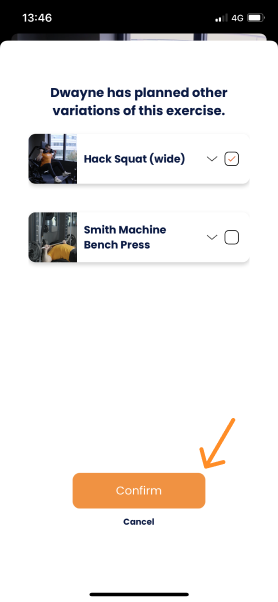
Sobald du deinen Satz beendet hast, tippe einfach auf „Satz abgeschlossen", um die Infos an deinen Coach zu übermitteln:
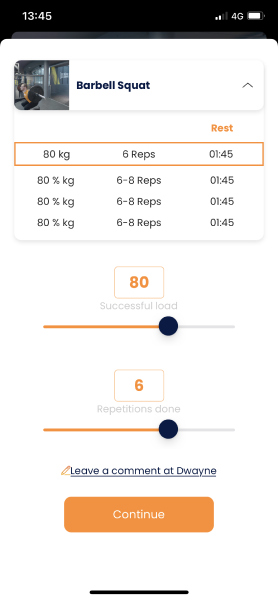
Du erkennst, welchen Satz du gerade bearbeitest, weil er automatisch hervorgehoben wird.
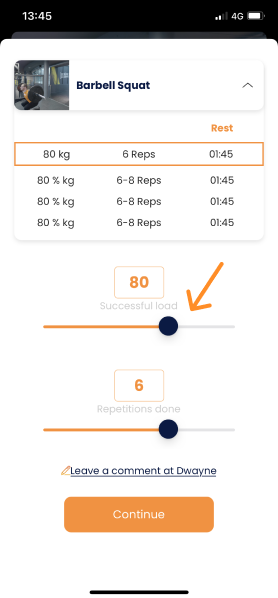
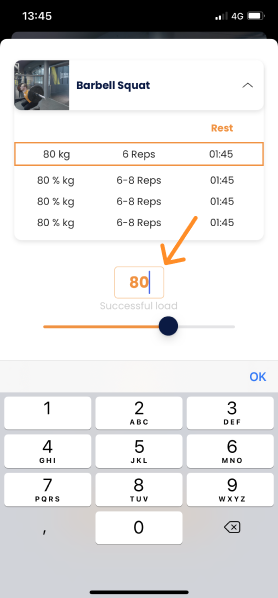
Du hast zwei Möglichkeiten, deinem Coach Rückmeldung zu geben:
- Den Schieberegler verwenden
- Direkt in das Ergebnisfeld eintippen
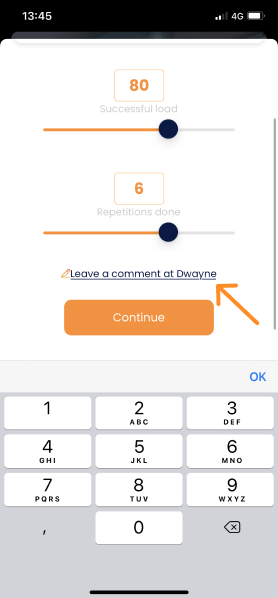
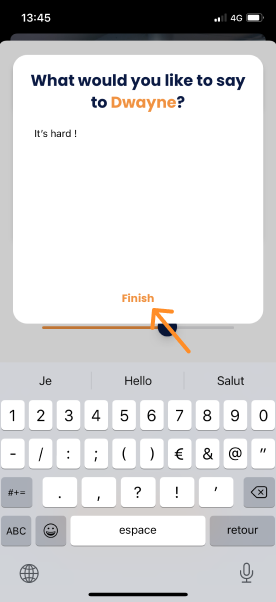
Wenn du deinem Coach noch etwas mitteilen möchtest, kannst du das über einen Kommentar tun:
In deiner Trainingseinheit siehst du deinen Fortschritt und weißt genau, wo du in deinem Training stehst.
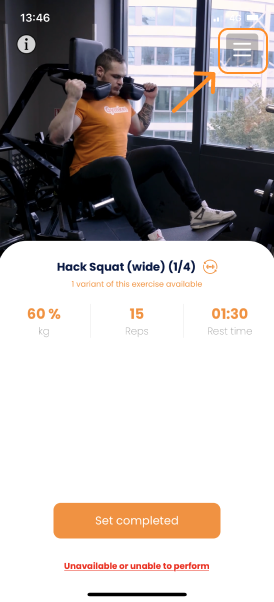
Tippe dazu während deiner Trainingseinheit oben rechts auf deinem Bildschirm auf das Menü:
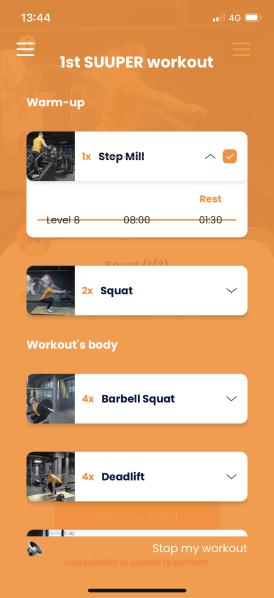
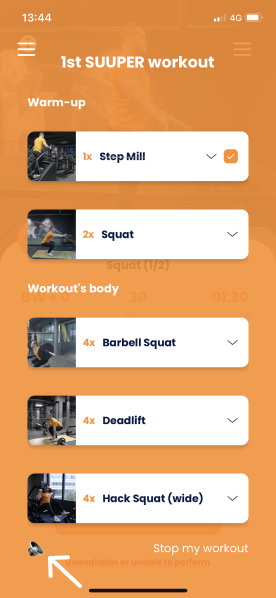
Auf diesem Bildschirm siehst du nicht nur, was während deiner Trainingseinheit noch vor dir liegt, sondern kannst zwei weitere Dinge tun:
- Den Timer stummschalten
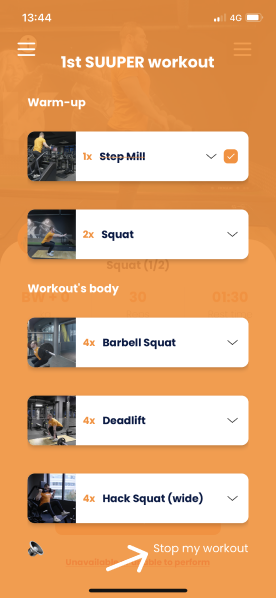
- Deine Trainingseinheit beenden
Sobald deine Trainingseinheit vorbei ist, fülle dein Abschlussformular aus und sende es an deinen Coach, damit er darauf zugreifen kann.
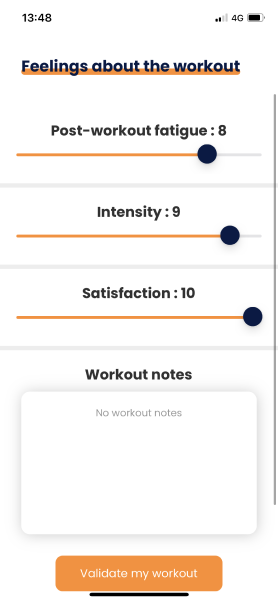
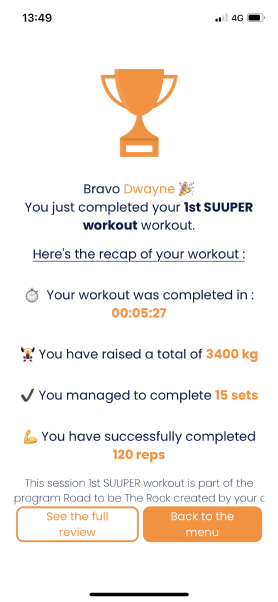
Bravo, du hast gerade deine erste Trainingseinheit beendet 👏
Trau dich, dir auch die anderen Tutorials anzusehen, um Gymkee von A bis Z zu beherrschen und sicherzustellen, dass du gute Fortschritte machst, um deine Ziele zu erreichen. 🎯
Wir sind für dich da, falls du etwas brauchst!
Viel Spaß beim Training und pass gut auf dich auf ❤️