Gymkeeでワークアウトを完了する

How to do a workout on Gymkee?

You have just been added to Gymkee, bravo 👏

From now on, you will easily perform the workouts sent by your trainer to reach your goals.

But how do you start a workout? That's what we're going to see together in this article.

Go to your app available on all the stores and log in to your account.

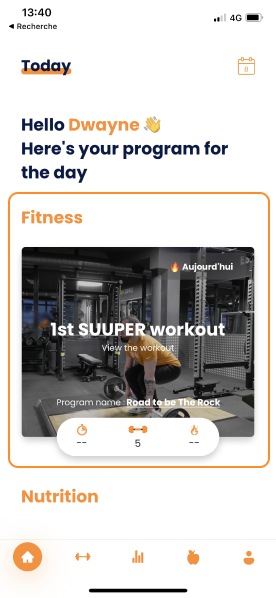
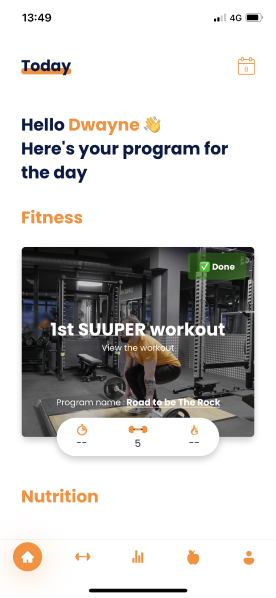
Once on your home page, if you have a workout scheduled, it should appear in the "Fitness" section.

Gymkeeでワークアウトを完了する — screenshot 1

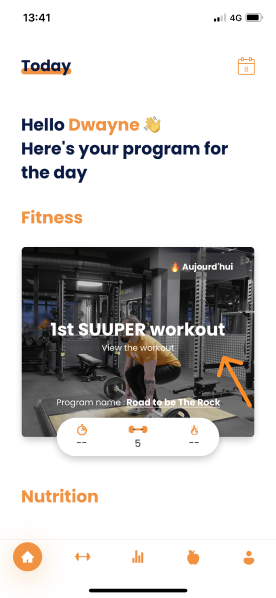
Before you start your workout, you will be able to preview it to see what to expect and watch the exercise videos.

To do this, click on the workout.

Gymkeeでワークアウトを完了する — screenshot 2

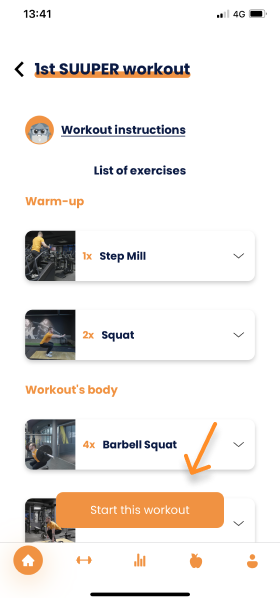
You will land on the preview of your workout:

Gymkeeでワークアウトを完了する — screenshot 3

⚠️ Please note, this is not where you will be doing your workout.

This screen allows you to preview your entire workout before you start it.

You will be able to view:

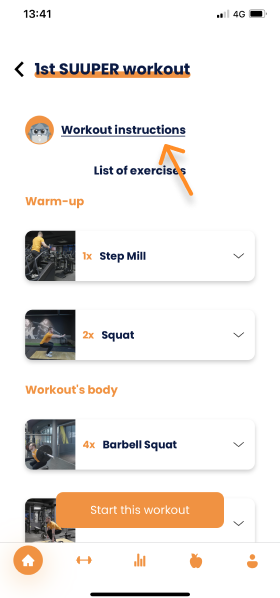
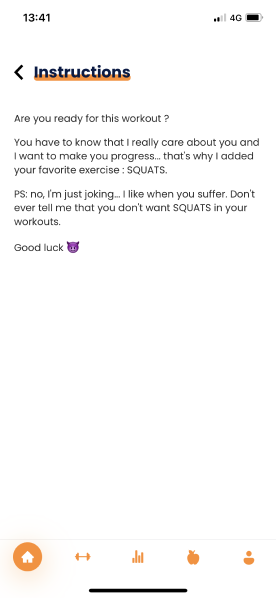
The workout instructions left by your coach (if completed):

Gymkeeでワークアウトを完了する — screenshot 4

Gymkeeでワークアウトを完了する — screenshot 5

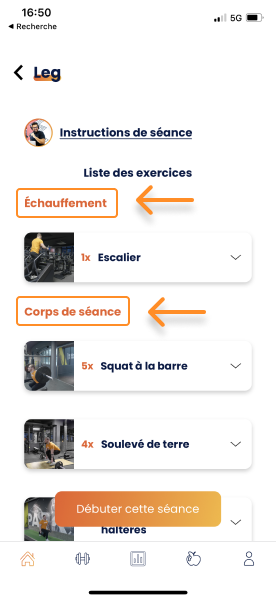
The whole structure of your workout:

Gymkeeでワークアウトを完了する — screenshot 6

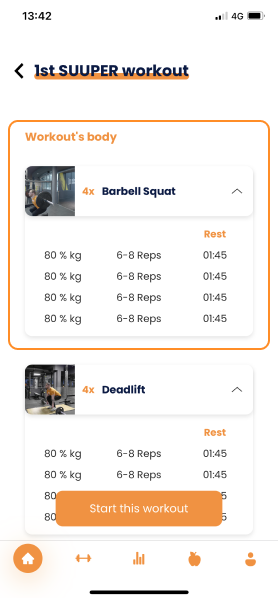
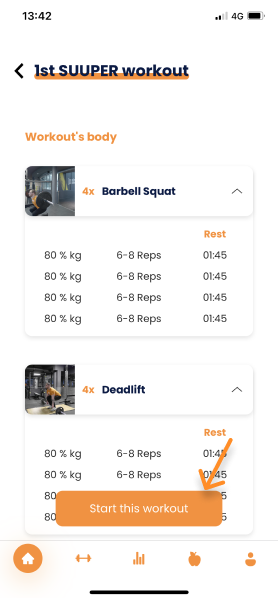
The details of the exercises to anticipate the weights to put in place

Gymkeeでワークアウトを完了する — screenshot 7

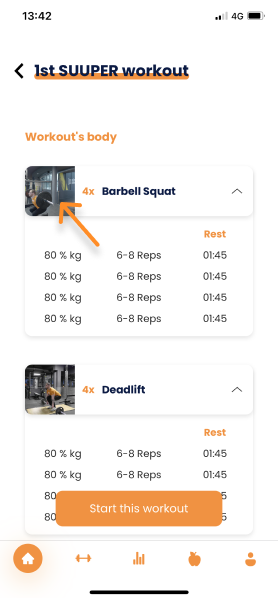
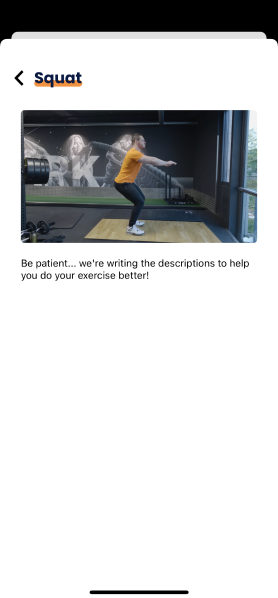
The exercise videos so you can watch your exercises before starting your workout.

💡 To watch the video, you need to click on the thumbnail (the image).

Gymkeeでワークアウトを完了する — screenshot 8

Gymkeeでワークアウトを完了する — screenshot 9

Once you have looked at what is waiting for you in your workout, you will be able to start it by tapping on the "Start this workout" button.

Gymkeeでワークアウトを完了する — screenshot 10

Your workout starts now!

When you arrive on your workout, you will be taken directly to the first exercise of your training.

Gymkeeでワークアウトを完了する — screenshot 11

Once again, there are many elements on this screen, and it is straightforward to understand, you will see!

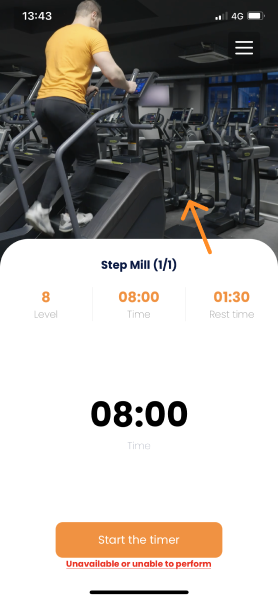
First, you have the video of your exercise:

Gymkeeでワークアウトを完了する — screenshot 12

The video will run in a loop so that you can always visualize the movement to perform it properly and avoid any injury.

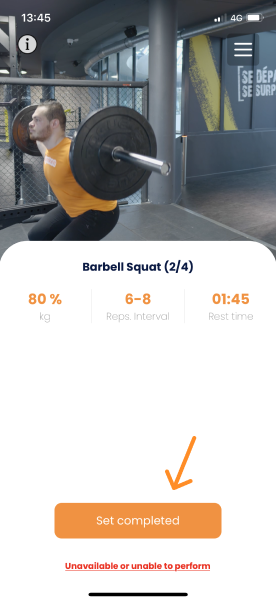
Then, you will have the name of your exercise as well as the actual set and the number of sets to perform:

Gymkeeでワークアウトを完了する — screenshot 13

Just below, you will find the exercise instructions:

Gymkeeでワークアウトを完了する — screenshot 14

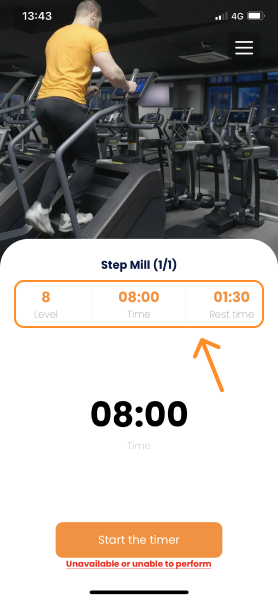
These instructions are divided into 3 :

  • The 1st label is used to indicate the intensity or the weight of your exercise.
  • The 2nd label is used to specify the number of reps, the duration or the distance of your training.
  • The 3rd and last label is used to indicate your rest time.

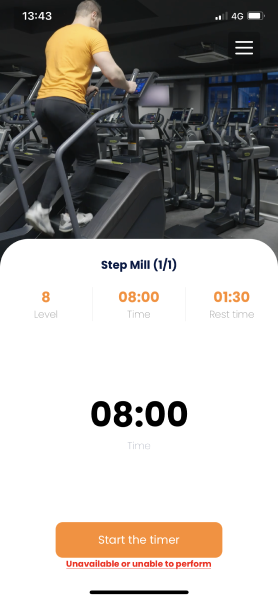
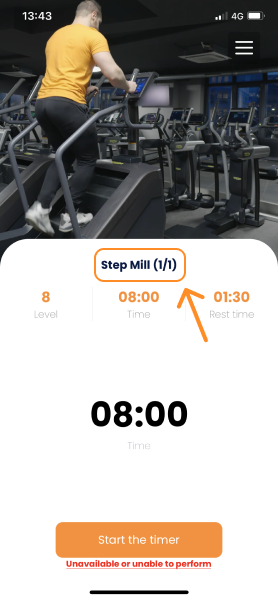
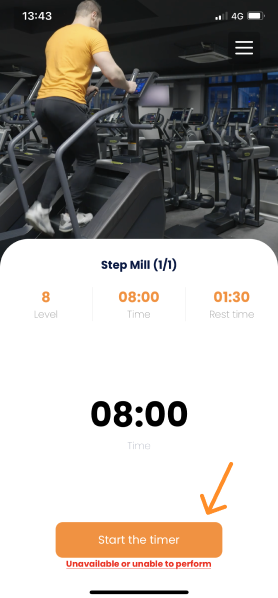
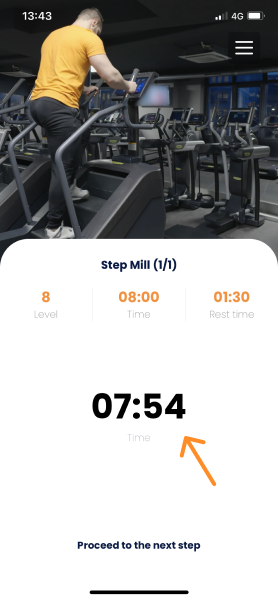
If it is a timed exercise, you will find the timer just below the exercise instructions.

To launch the timer, click on the "Start Timer" button.

Gymkeeでワークアウトを完了する — screenshot 15

To stop the timer during the exercise, you have to tap on it, and the timer will automatically pause.

Gymkeeでワークアウトを完了する — screenshot 16

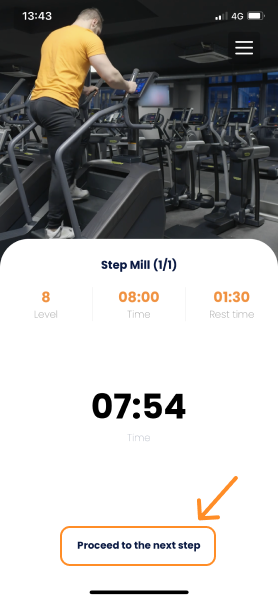
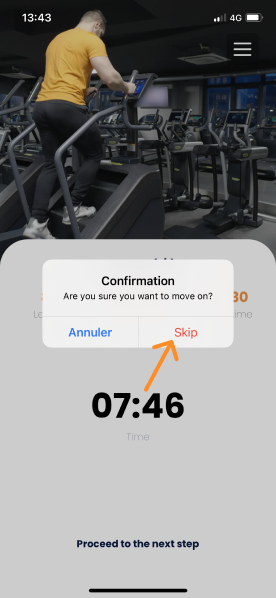
With any exercise, you can move on to the next one at any time. All you have to do is click on "Go to next" or "Go to next exercise."

Gymkeeでワークアウトを完了する — screenshot 17

Gymkeeでワークアウトを完了する — screenshot 18

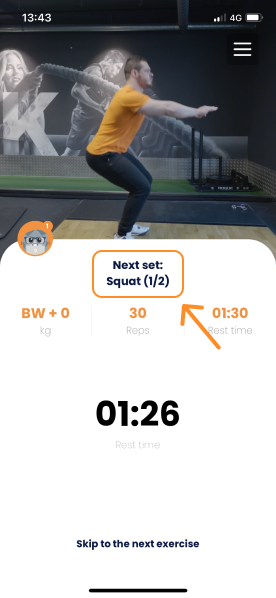
When you go from one exercise to the next, you will usually rest between the two exercises.

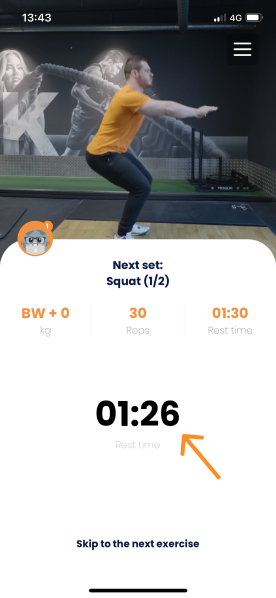
During your rest time, you will be able to preview the following exercise:

Gymkeeでワークアウトを完了する — screenshot 19

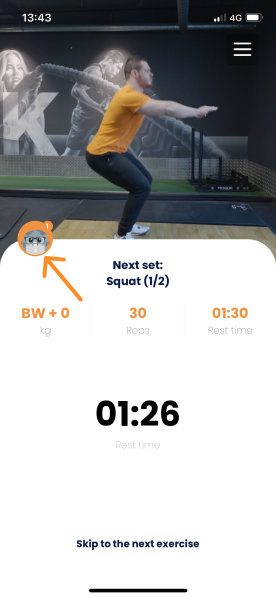
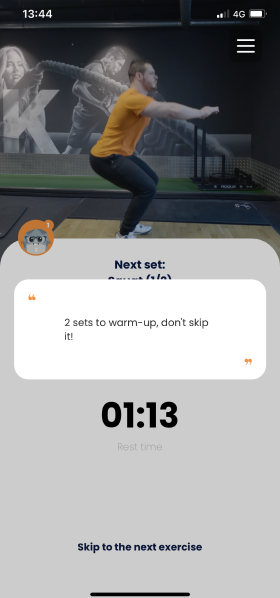
Here, a new element also appears a comment from your coach.

Your coach will give you additional instructions thanks to a comment that will appear just below the video. Tap on it to see it:

Gymkeeでワークアウトを完了する — screenshot 20

Gymkeeでワークアウトを完了する — screenshot 21

The app will automatically switch to the next exercise when your rest time is over. There is a countdown from 10 seconds to anticipate the restart and start your new exercise.

Gymkeeでワークアウトを完了する — screenshot 22

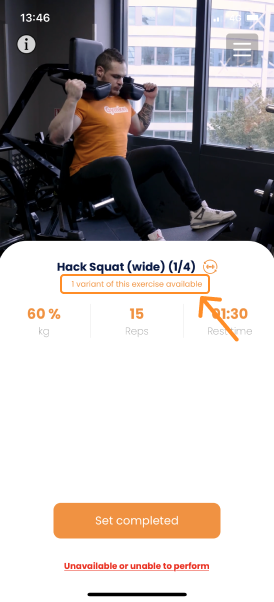
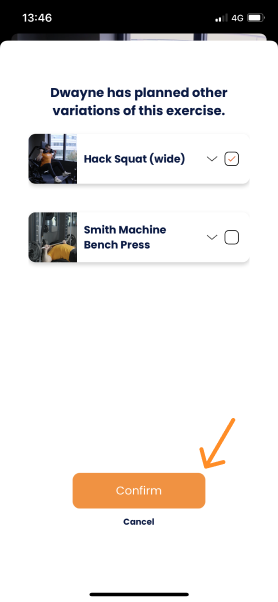
You will be able to know this thanks to the text indicates that will appear below the name of the exercise and thanks to the variant icon:

Gymkeeでワークアウトを完了する — screenshot 23

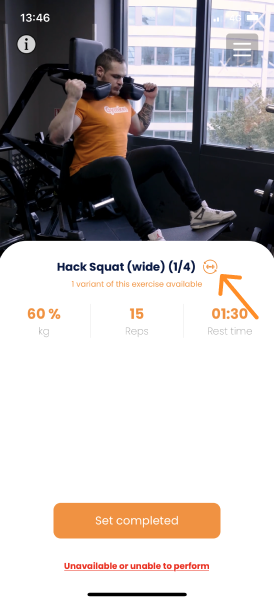
To change the exercise, you can click on the barbell icon next to it and choose the new exercise:

Gymkeeでワークアウトを完了する — screenshot 24

Gymkeeでワークアウトを完了する — screenshot 25

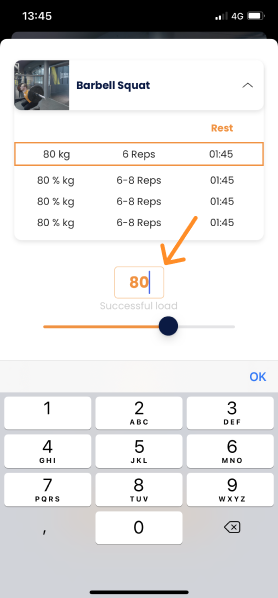
Once you have finished your set, just put "Set completed" to complete the information to your trainer:

Gymkeeでワークアウトを完了する — screenshot 26

Gymkeeでワークアウトを完了する — screenshot 27

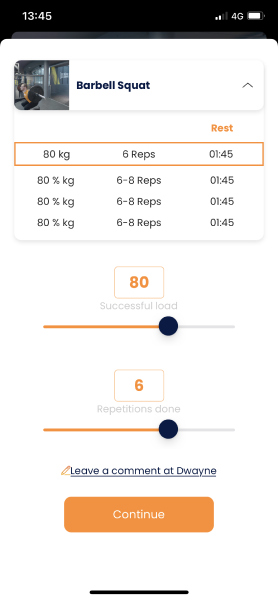
You will know which set you are editing because it is automatically highlighted.

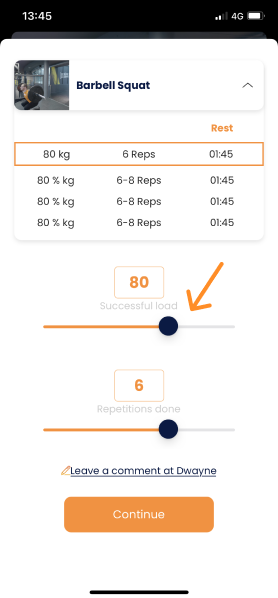
You have two options to give feedback to your trainer:

  • Use the slider

Gymkeeでワークアウトを完了する — screenshot 28

  • Type directly into the result box

Gymkeeでワークアウトを完了する — screenshot 29

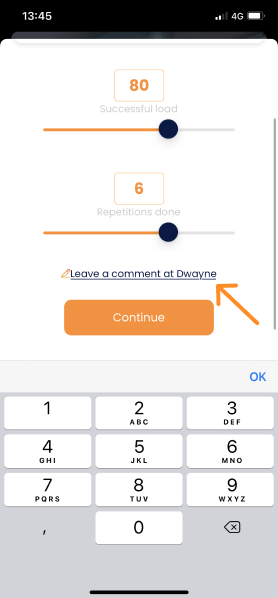
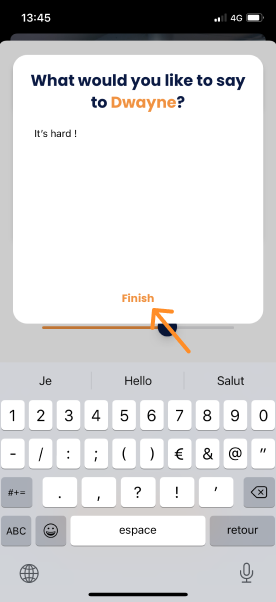
If you have extra things to add to your trainer, you can do so with a comment:

Gymkeeでワークアウトを完了する — screenshot 30

Gymkeeでワークアウトを完了する — screenshot 31

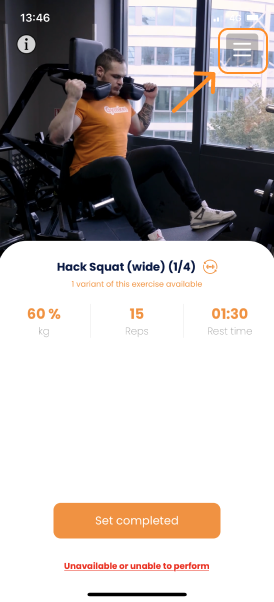
In your workout, you will check your progression and know precisely where you are in your training.

To do this, click on the menu at the top right of your screen during your workout:

Gymkeeでワークアウトを完了する — screenshot 32

Gymkeeでワークアウトを完了する — screenshot 33

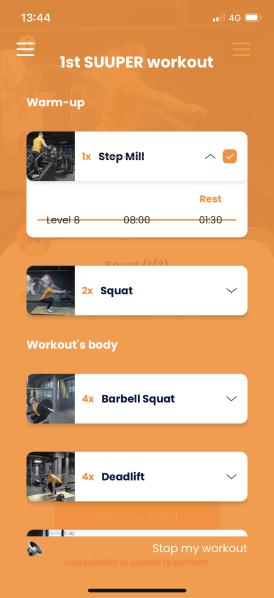
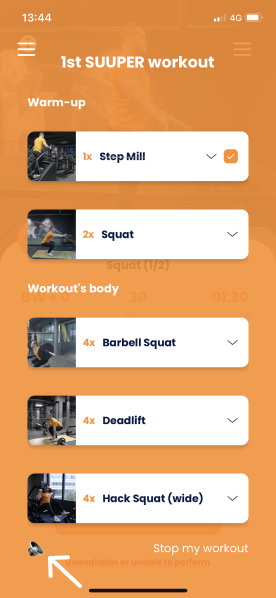
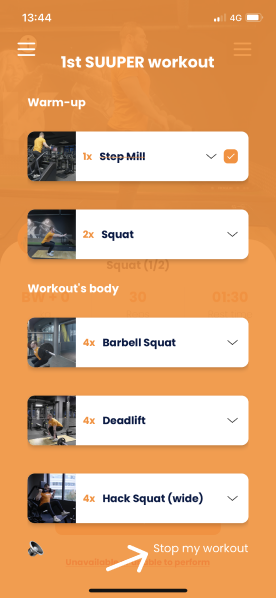
On this screen, besides seeing what you have left to do during your workout, you will be able to do two more things:

  1. Mute the timer

Gymkeeでワークアウトを完了する — screenshot 34

  1. Stop your workout

Gymkeeでワークアウトを完了する — screenshot 35

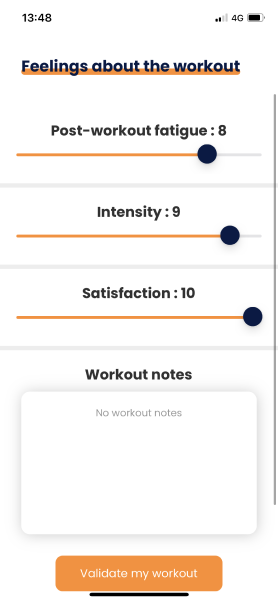
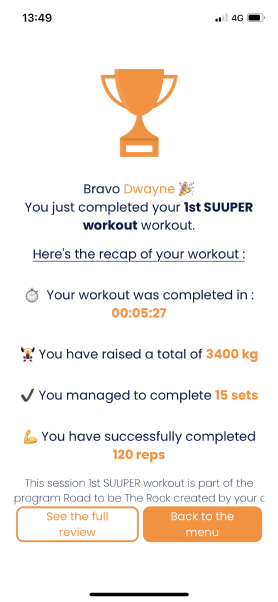
Once your workout is over, fill out your end-of-workout form and send it to your trainer so he or she can access it.

Gymkeeでワークアウトを完了する — screenshot 36

Bravo, you just finished your first workout 👏

Gymkeeでワークアウトを完了する — screenshot 37

Gymkeeでワークアウトを完了する — screenshot 38

Don't be afraid to look at the other tutorials to master Gymkee from A to Z and make sure you are progressing well to reach your goals. 🎯

We're here for you if you need anything!

Have great workouts and take care of yourself ❤️

この記事は役に立ちましたか?

まだサポートが必要ですか?

私たちのチームとGymkeeのAIアシスタントDwayneがサポートします。

Dwayneに聞く