Je bent net toegevoegd aan Gymkee, bravo 👏
Vanaf nu voer je gemakkelijk de trainingen uit die je coach je stuurt om je doelen te bereiken.
Maar hoe start je een training? Dat gaan we samen bekijken in dit artikel.
Ga naar je app, verkrijgbaar in alle stores, en log in op je account.
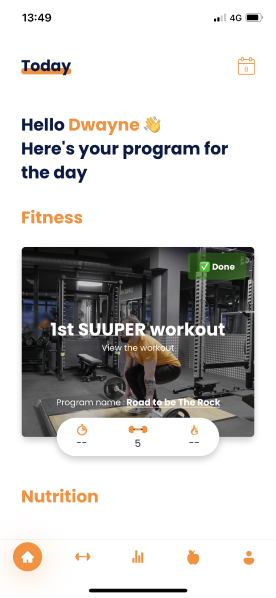
Als je op je startpagina bent en je hebt een training ingepland, dan verschijnt die in het gedeelte "Fitness".
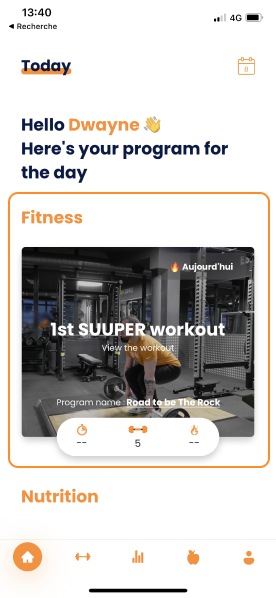
Voordat je aan je training begint, kun je die vooraf bekijken om te zien wat je te wachten staat en de oefeningvideo's bekijken.
Klik daarvoor op de training.
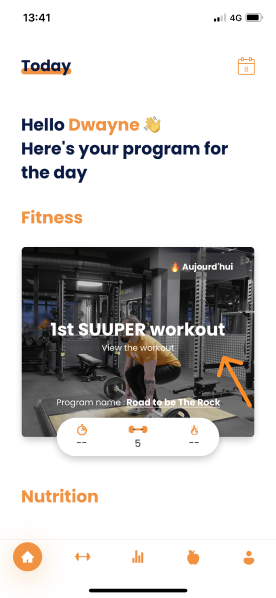
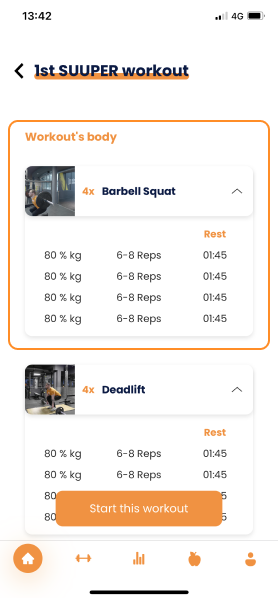
Je komt uit op het voorbeeld van je training:
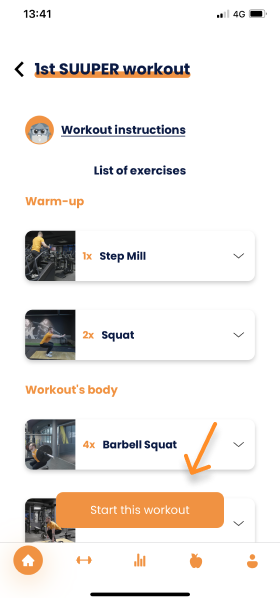
⚠️ Let op: dit is niet de plek waar je je training uitvoert.
Op dit scherm kun je je hele training bekijken voordat je begint.
Je kunt het volgende bekijken:
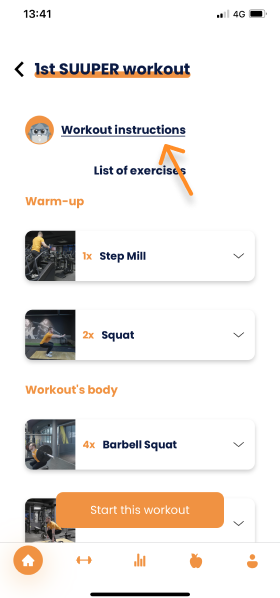
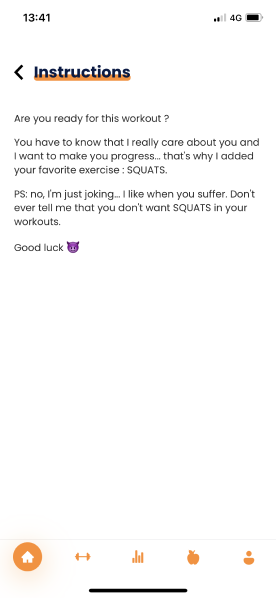
De trainingsinstructies die je coach heeft achtergelaten (als die zijn ingevuld):
De volledige structuur van je training:
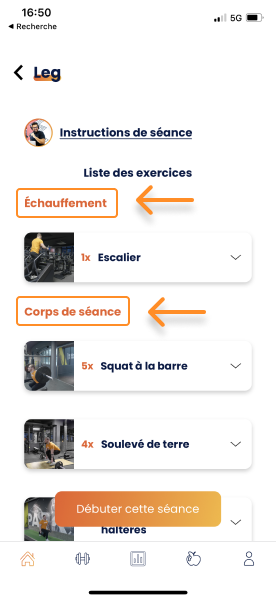
De details van de oefeningen om te anticiperen op de gewichten die je klaar moet zetten
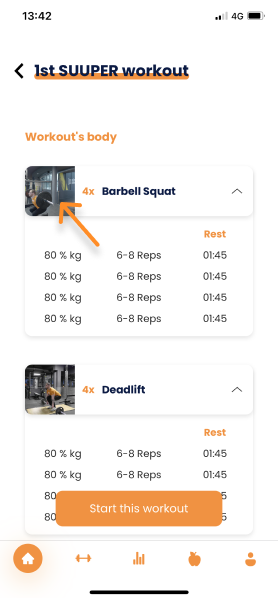
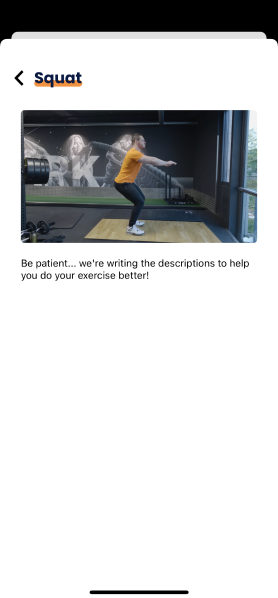
De oefeningvideo's zodat je je oefeningen kunt bekijken voordat je aan je training begint.
💡 Om de video te bekijken, klik je op de thumbnail (de afbeelding).
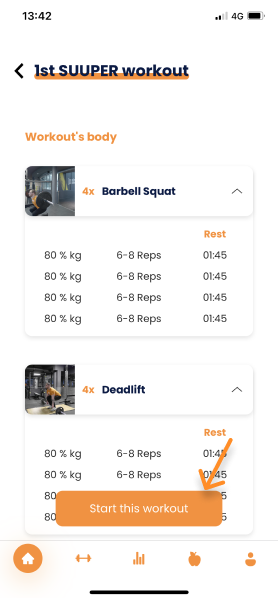
Zodra je hebt bekeken wat je in je training te wachten staat, kun je die starten door op de knop "Start deze training" te tikken.
Je training begint nu!
Wanneer je in je training aankomt, ga je meteen naar de eerste oefening van je training.
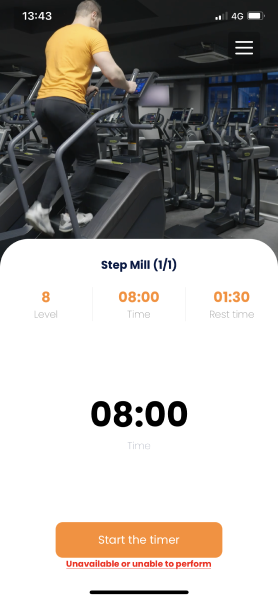
Ook hier staan veel elementen op het scherm, en het is heel eenvoudig te begrijpen, je zult het zien!
Eerst heb je de video van je oefening:
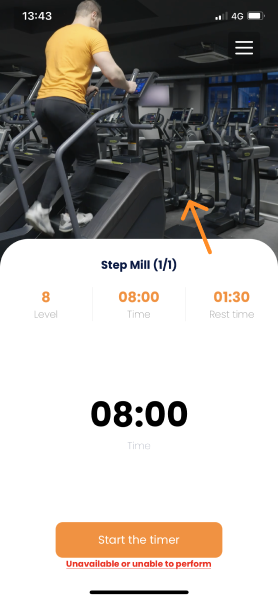
De video loopt in een lus zodat je de beweging altijd kunt visualiseren om die goed uit te voeren en blessures te voorkomen.
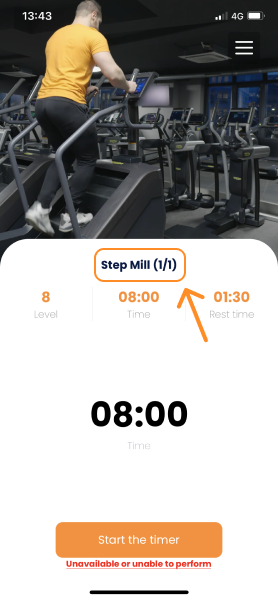
Daarna heb je de naam van je oefening, evenals de huidige set en het aantal sets dat je moet uitvoeren:
Net daaronder vind je de instructies van de oefening:
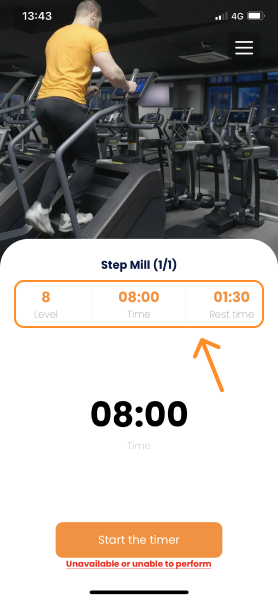
Deze instructies zijn in 3 onderdelen verdeeld:
- Het 1e label geeft de intensiteit of het gewicht van je oefening aan.
- Het 2e label geeft het aantal herhalingen, de duur of de afstand van je training aan.
- Het 3e en laatste label geeft je rusttijd aan.
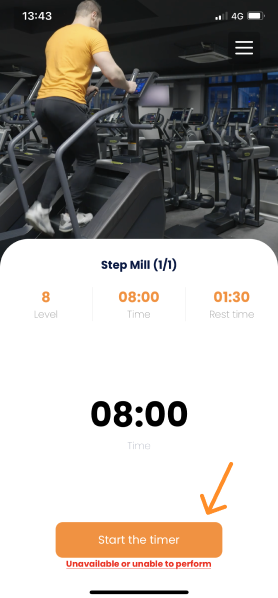
Als het een oefening op tijd is, vind je de timer net onder de instructies van de oefening.
Om de timer te starten, klik je op de knop "Start timer".
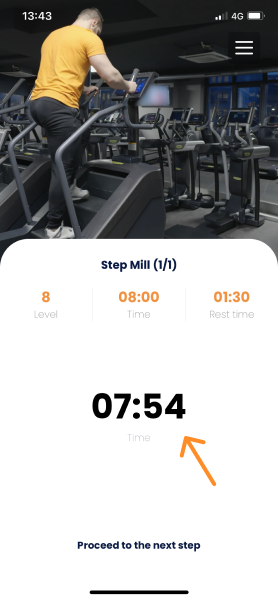
Om de timer tijdens de oefening te stoppen, tik je erop en pauzeert de timer automatisch.
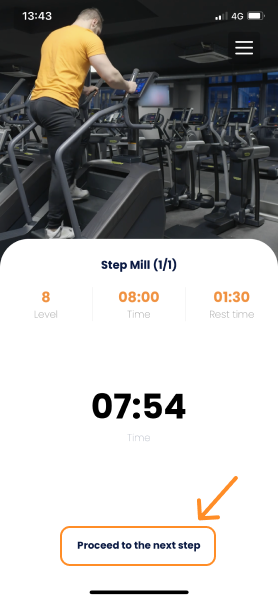
Bij elke oefening kun je op elk moment naar de volgende gaan. Je hoeft alleen maar op "Ga naar de volgende" of "Ga naar de volgende oefening" te klikken.
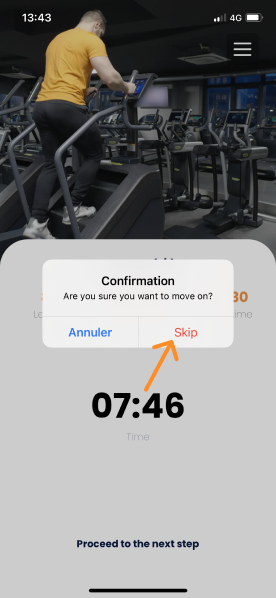
Wanneer je van de ene oefening naar de volgende gaat, rust je meestal tussen de twee oefeningen.
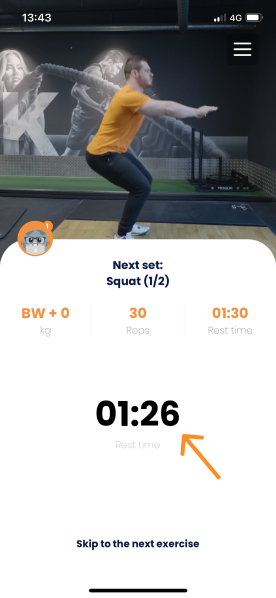
Tijdens je rusttijd kun je de volgende oefening vooraf bekijken:
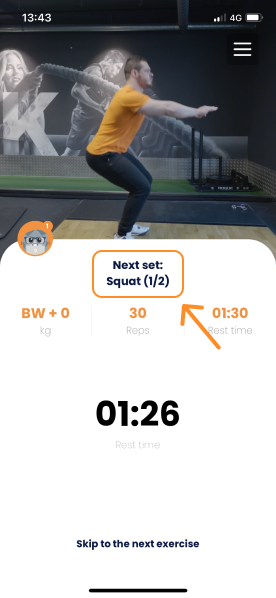
Hier verschijnt ook een nieuw element: een opmerking van je coach.
Je coach geeft je aanvullende instructies via een opmerking die net onder de video verschijnt. Tik erop om die te bekijken:
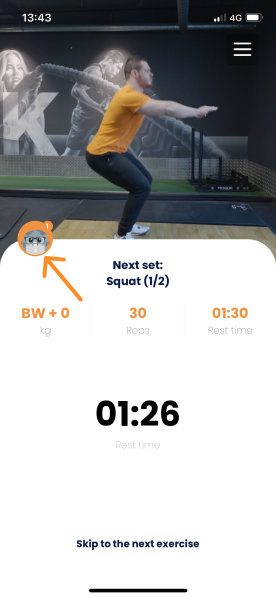
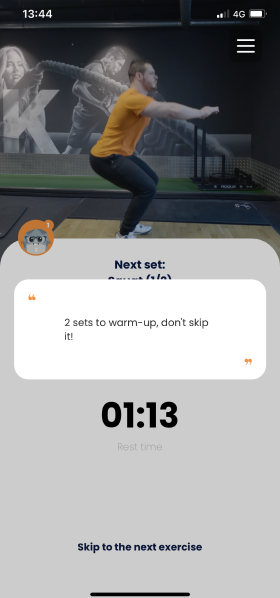
De app schakelt automatisch over naar de volgende oefening wanneer je rusttijd voorbij is. Er is een aftelling vanaf 10 seconden zodat je op de herstart kunt anticiperen en aan je nieuwe oefening kunt beginnen.
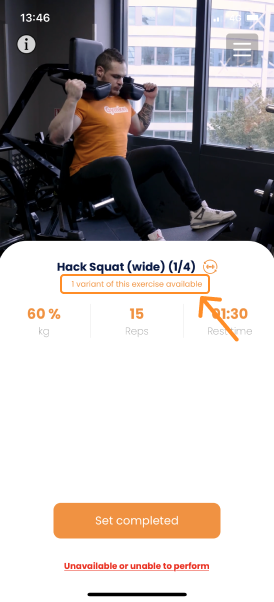
Je weet dit dankzij de tekst die onder de naam van de oefening verschijnt en dankzij het variant-icoon:
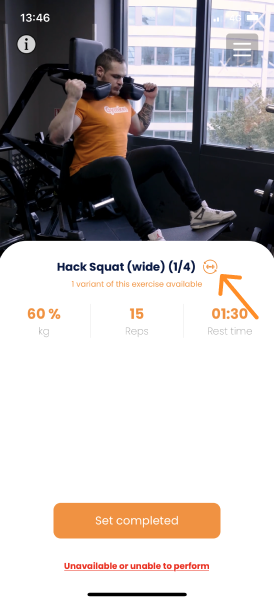
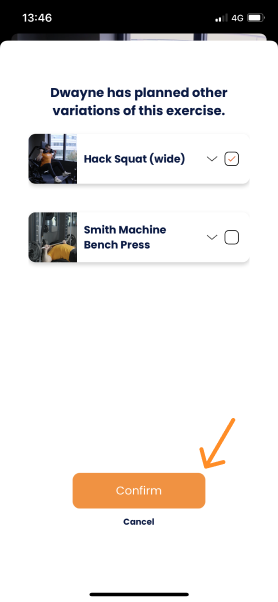
Om de oefening te wijzigen, klik je op het halter-icoon ernaast en kies je de nieuwe oefening:
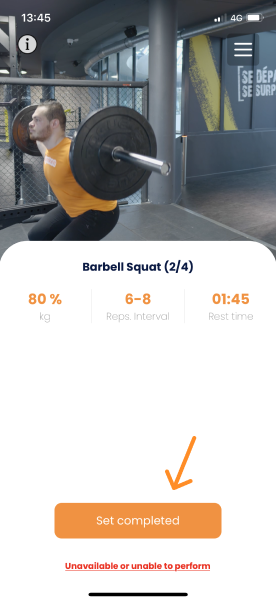
Zodra je je set hebt afgerond, tik je gewoon op "Set voltooid" om de informatie voor je coach in te vullen:
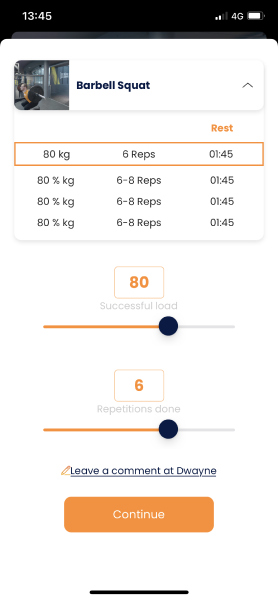
Je ziet welke set je aan het invullen bent, omdat die automatisch wordt gemarkeerd.
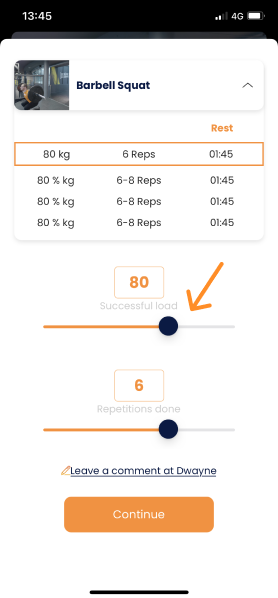
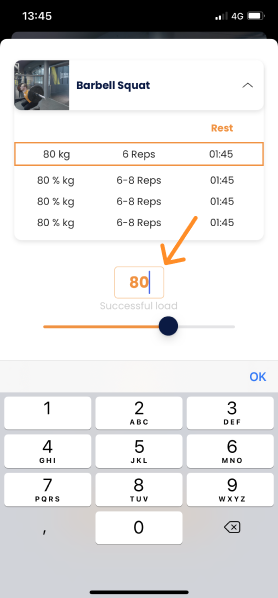
Je hebt twee manieren om feedback aan je coach te geven:
- Gebruik de schuifregelaar
- Typ rechtstreeks in het resultaatvak
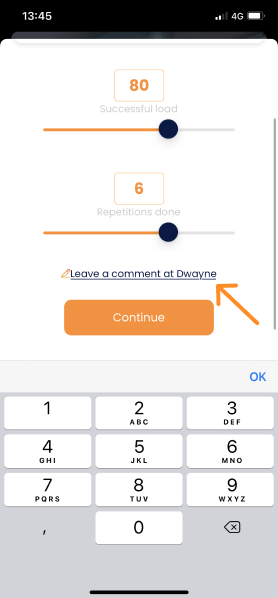
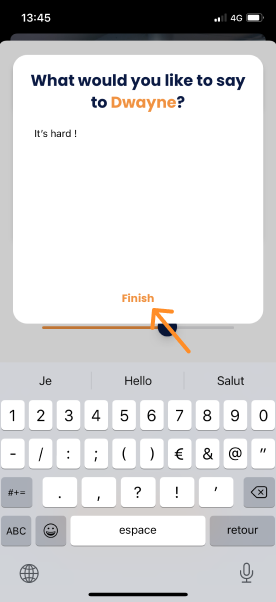
Heb je nog extra dingen om aan je coach door te geven? Dan kun je dat doen met een opmerking:
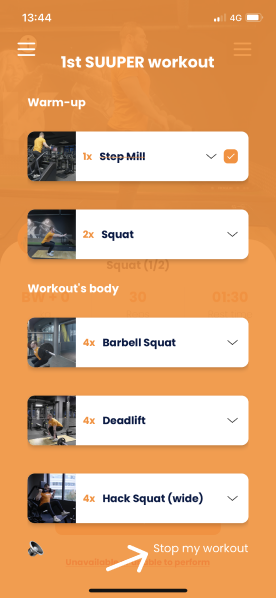
Tijdens je training controleer je je voortgang en weet je precies waar je in je training bent.
Klik daarvoor tijdens je training op het menu rechtsboven in je scherm:
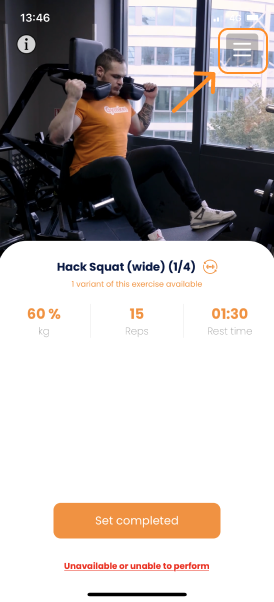
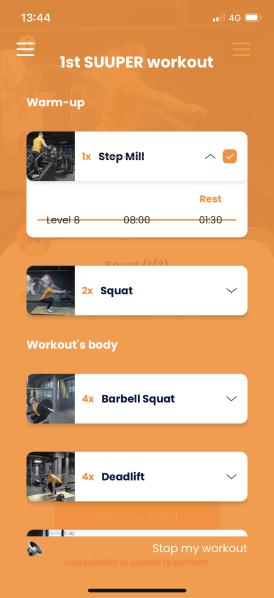
Op dit scherm kun je, naast zien wat je nog moet doen tijdens je training, nog twee dingen doen:
- De timer dempen
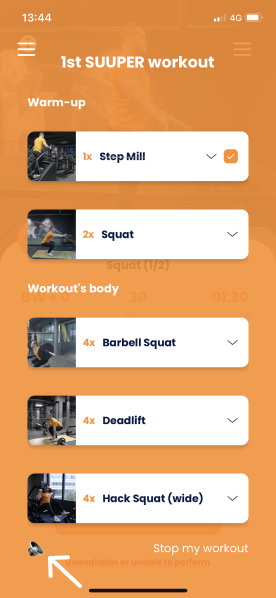
- Je training stoppen
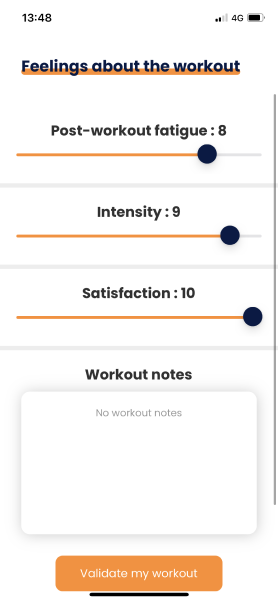
Zodra je training voorbij is, vul je je formulier na de training in en stuur je het naar je coach zodat hij of zij het kan bekijken.
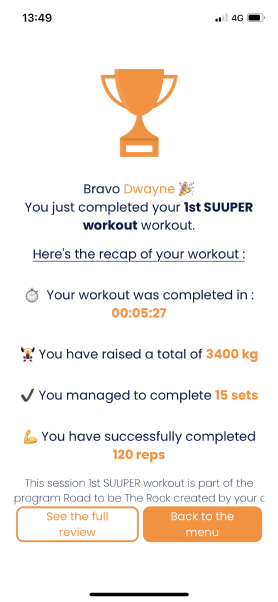
Bravo, je hebt zojuist je eerste training afgerond 👏
Wees niet bang om de andere tutorials te bekijken om Gymkee van A tot Z onder de knie te krijgen en er zeker van te zijn dat je goed vooruitgaat om je doelen te bereiken. 🎯
We staan voor je klaar als je ergens hulp bij nodig hebt!
Fijne trainingen en zorg goed voor jezelf ❤️