
Elke set van een oefening heeft 4 instructielabels die je kunt invullen: belasting, herhalingen, rust en tempo. Vouw een oefening uit met de pijl om ze te zien en klik daarna op de naam van een label om te wijzigen wat het meet.
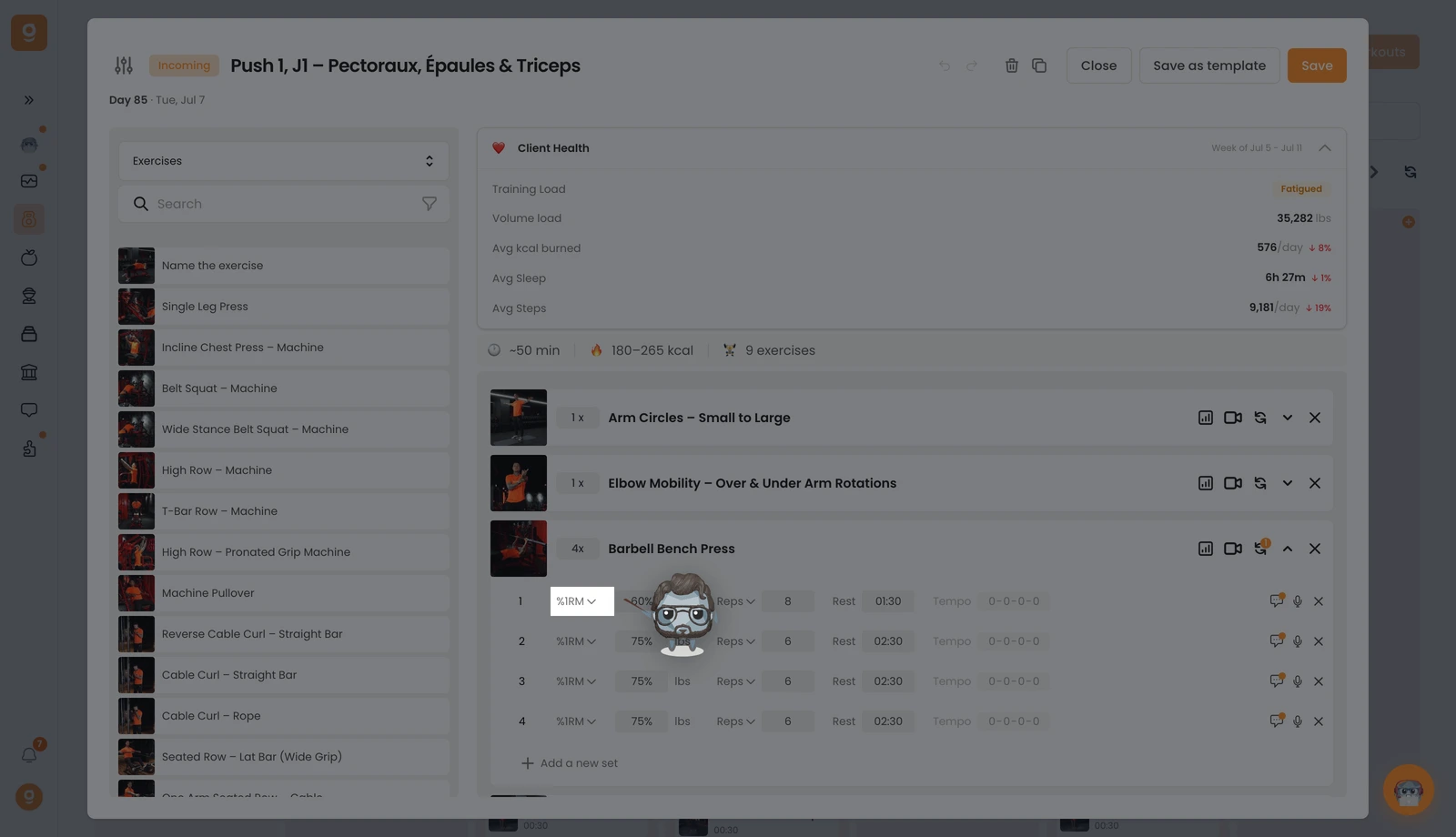
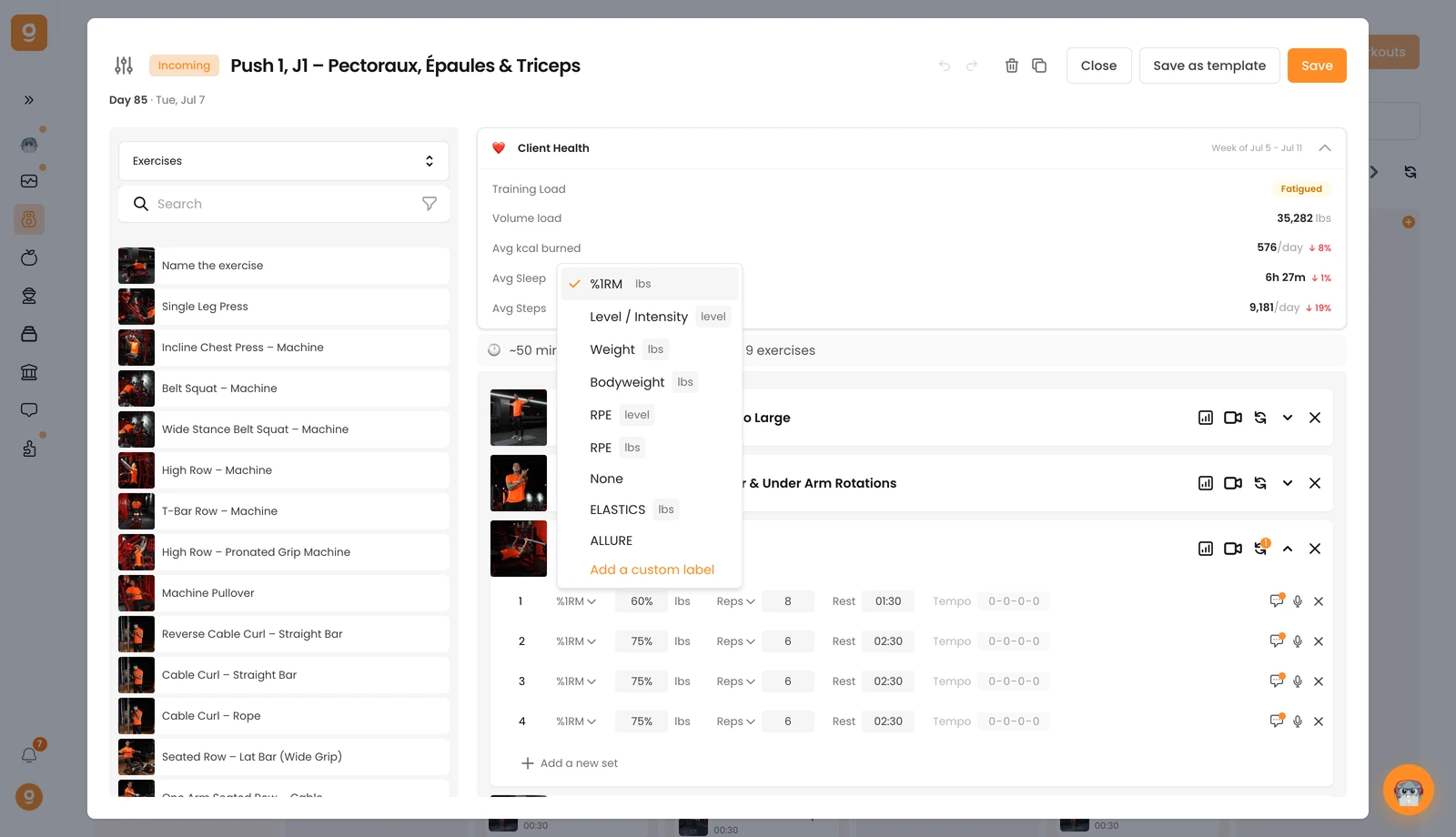
1, Belasting & intensiteit. Het eerste label bepaalt hoe zwaar de set is. Standaard staat het op Gewicht. Klik erop om in plaats daarvan %1RM, Niveau / Intensiteit (ideaal voor cardiomachines), Lichaamsgewicht, RPE (per niveau of per gewicht) of Geen te kiezen als er geen belasting wordt verwacht. Alle labels onder de scheidingslijn zijn eigen labels, voeg die van jezelf toe met Een eigen label toevoegen.
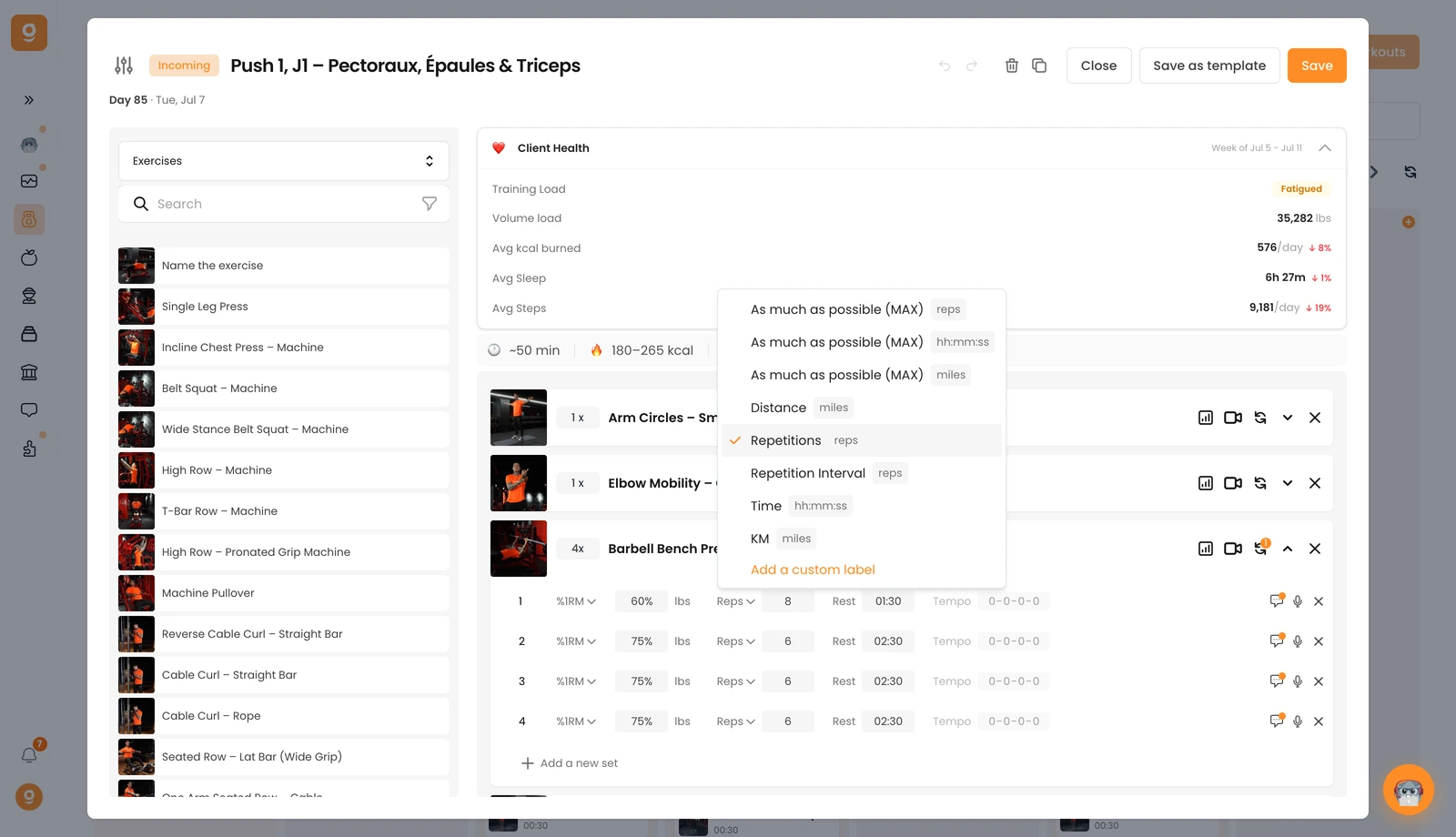
2, Herhalingen, tijd of afstand. Het tweede label staat standaard op Herhalingen. Klik erop om over te schakelen naar zoveel mogelijk (MAX) in herhalingen, tijd of afstand, een vaste Afstand, een Herhalingsinterval (bijv. 8-10 herhalingen), een Tijd-doel of KM, en ook hier kun je eigen labels toevoegen.
3, Rust. Het derde label is de rusttijd tussen sets, typ die gewoon in.
4, Tempo. Het vierde is het tempo (standaard 0-0-0-0 = uit). Klik op de waarden om je tempo te activeren en in te stellen.
Je kunt ook een opmerking bij een set toevoegen met het opmerkingen-icoon om extra aanwijzingen te geven, en een set verwijderen met de ✕. Nu ben je klaar om je klanten precieze, duidelijke instructies te geven.