
Every set of an exercise has 4 instruction labels you can fill: load, reps, rest, and tempo. Expand an exercise with the chevron to see them, then click any label name to change what it measures.
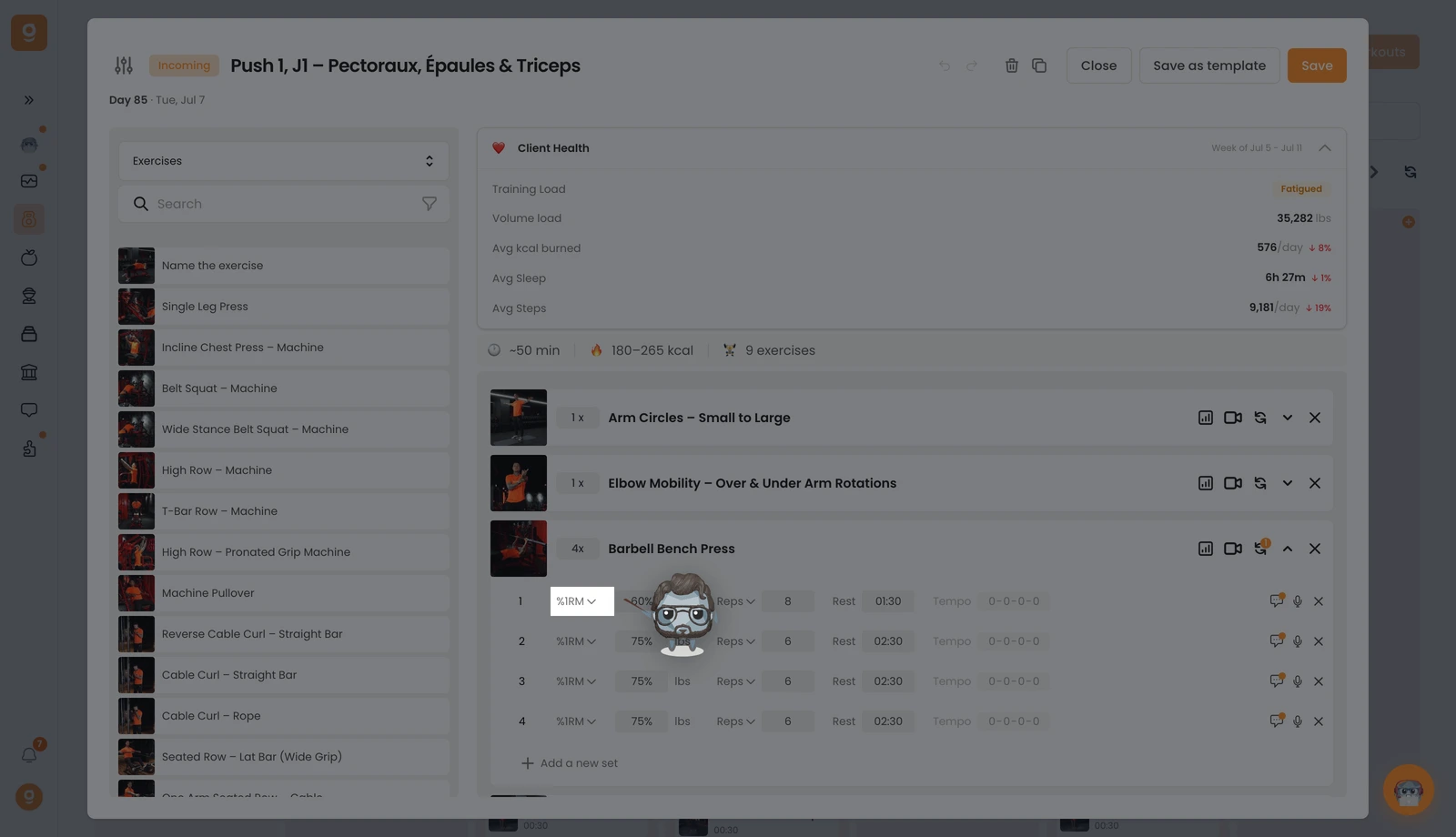
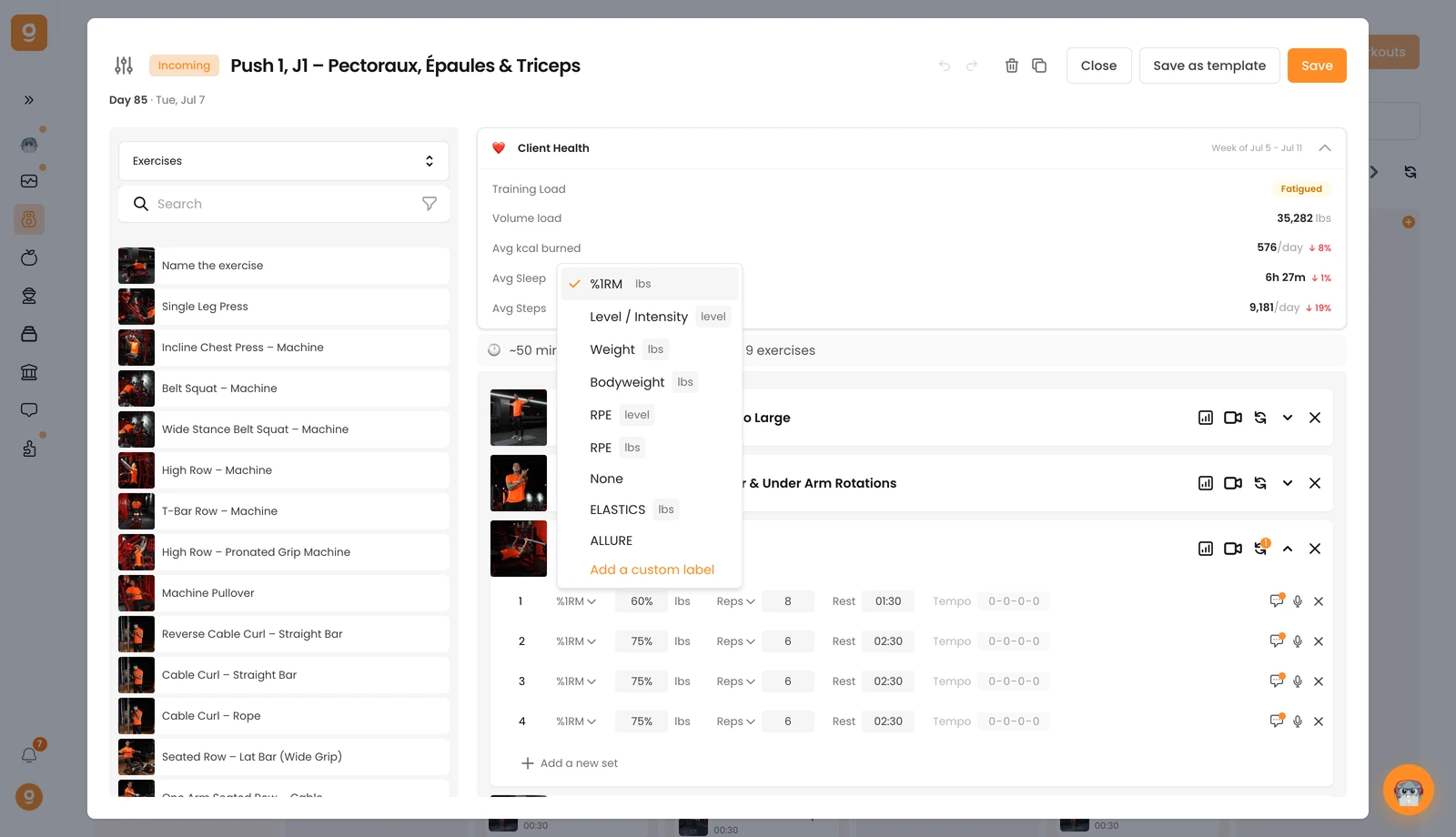
1, Load & intensity. The first label sets how hard the set is. It defaults to Weight. Click it to choose instead %1RM, Level / Intensity (great for cardio machines), Bodyweight, RPE (by level or by weight), or None if no load is expected. Any labels below the line are custom ones, add your own with Add a custom label.
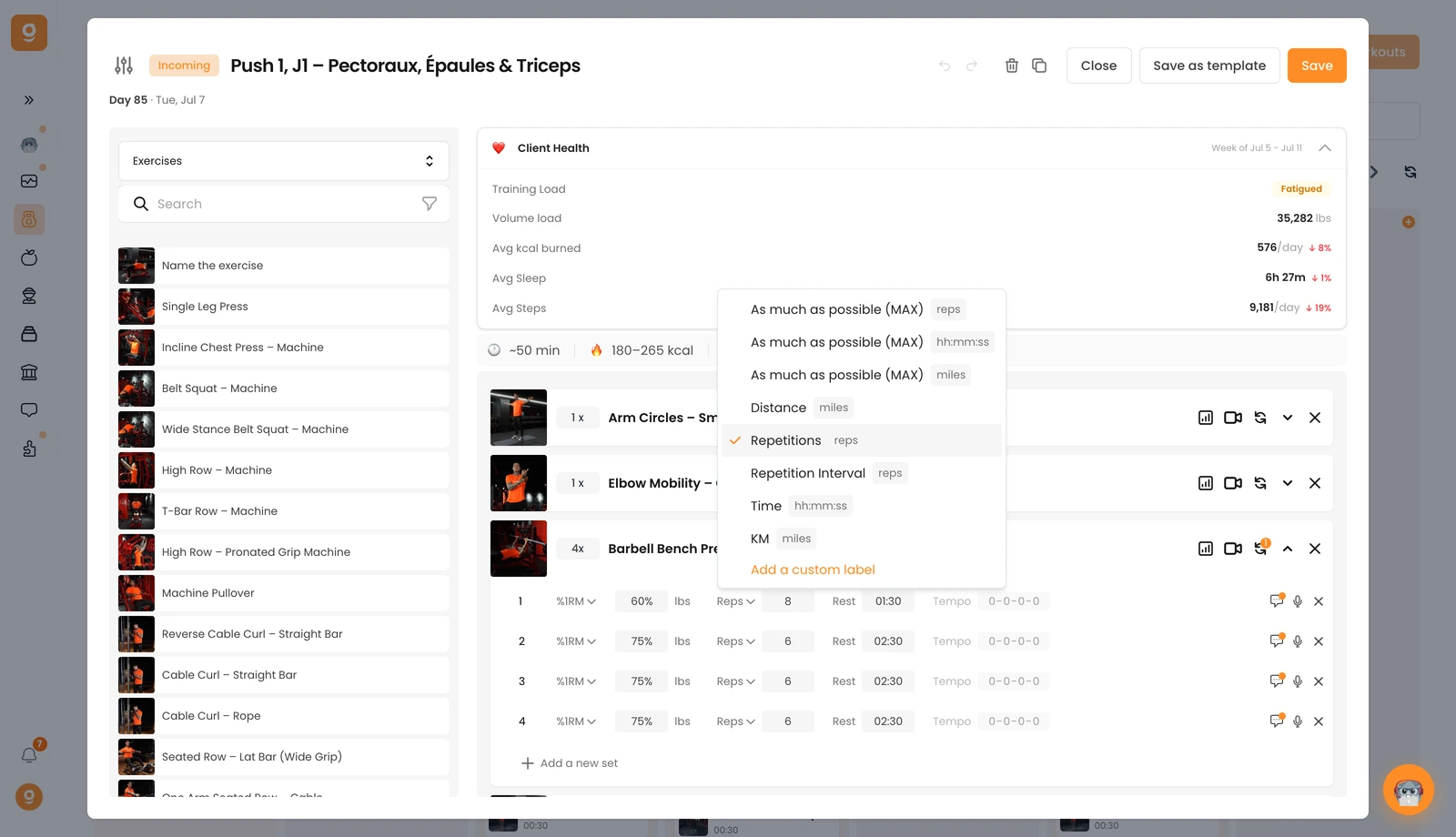
2, Reps, time or distance. The second label defaults to Repetitions. Click it to switch to as much as possible (MAX) in reps, time or distance, a fixed Distance, a Repetition Interval (e.g. 8–10 reps), a Time target, or KM, and you can add custom labels here too.
3, Rest. The third label is the rest time between sets, just type it in.
4, Tempo. The fourth is the tempo (0-0-0-0 by default = off). Click the values to activate and set your tempo.
You can also add a comment on any set with the comment icon to give extra guidance, and remove a set with its ✕. Now you're set up to give your clients precise, clear instructions.