
Każda seria ćwiczenia ma 4 etykiety instrukcji, które możesz uzupełnić: obciążenie, powtórzenia, odpoczynek i tempo. Rozwiń ćwiczenie za pomocą strzałki, aby je zobaczyć, a następnie kliknij nazwę dowolnej etykiety, aby zmienić to, co mierzy.
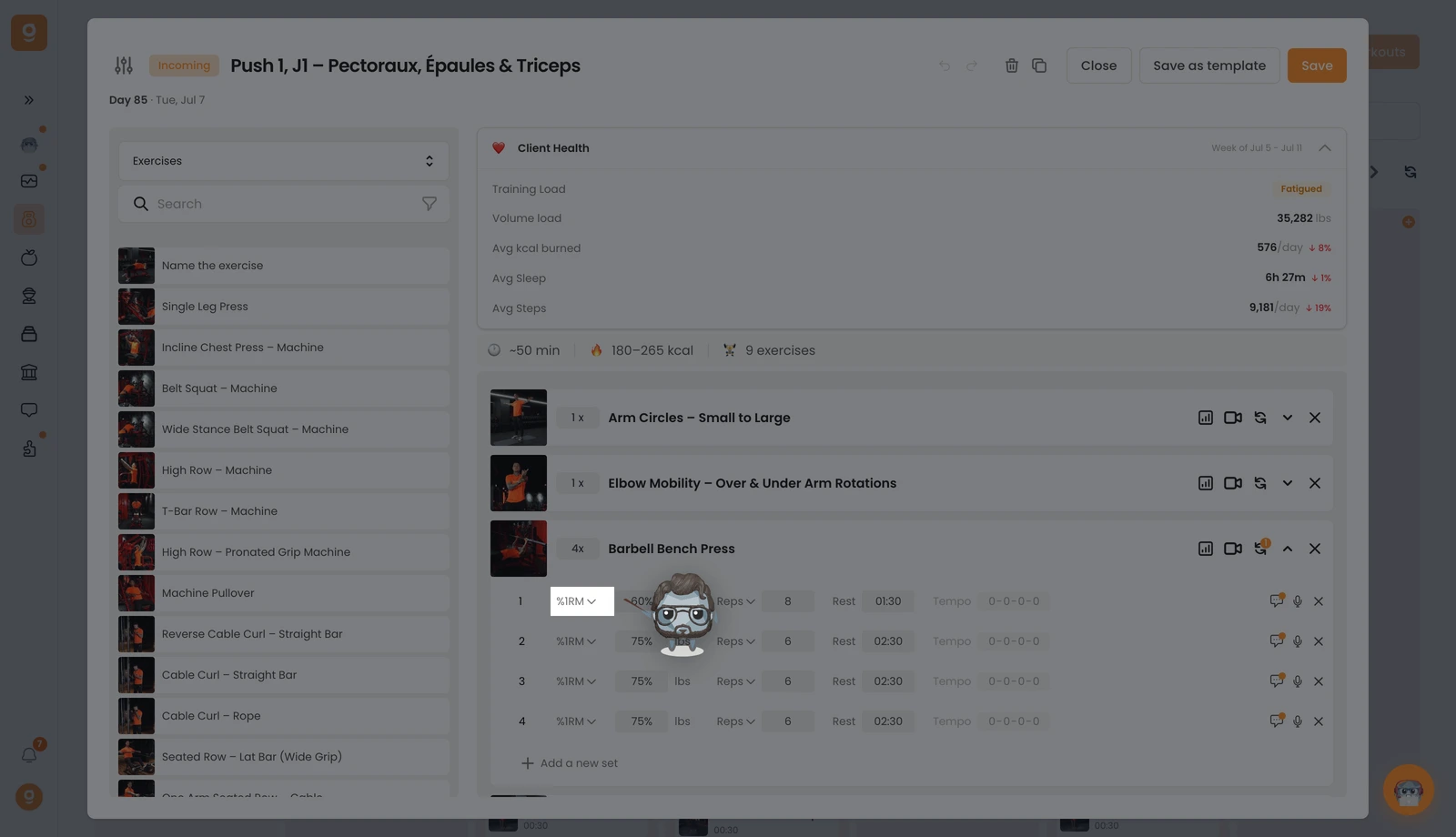
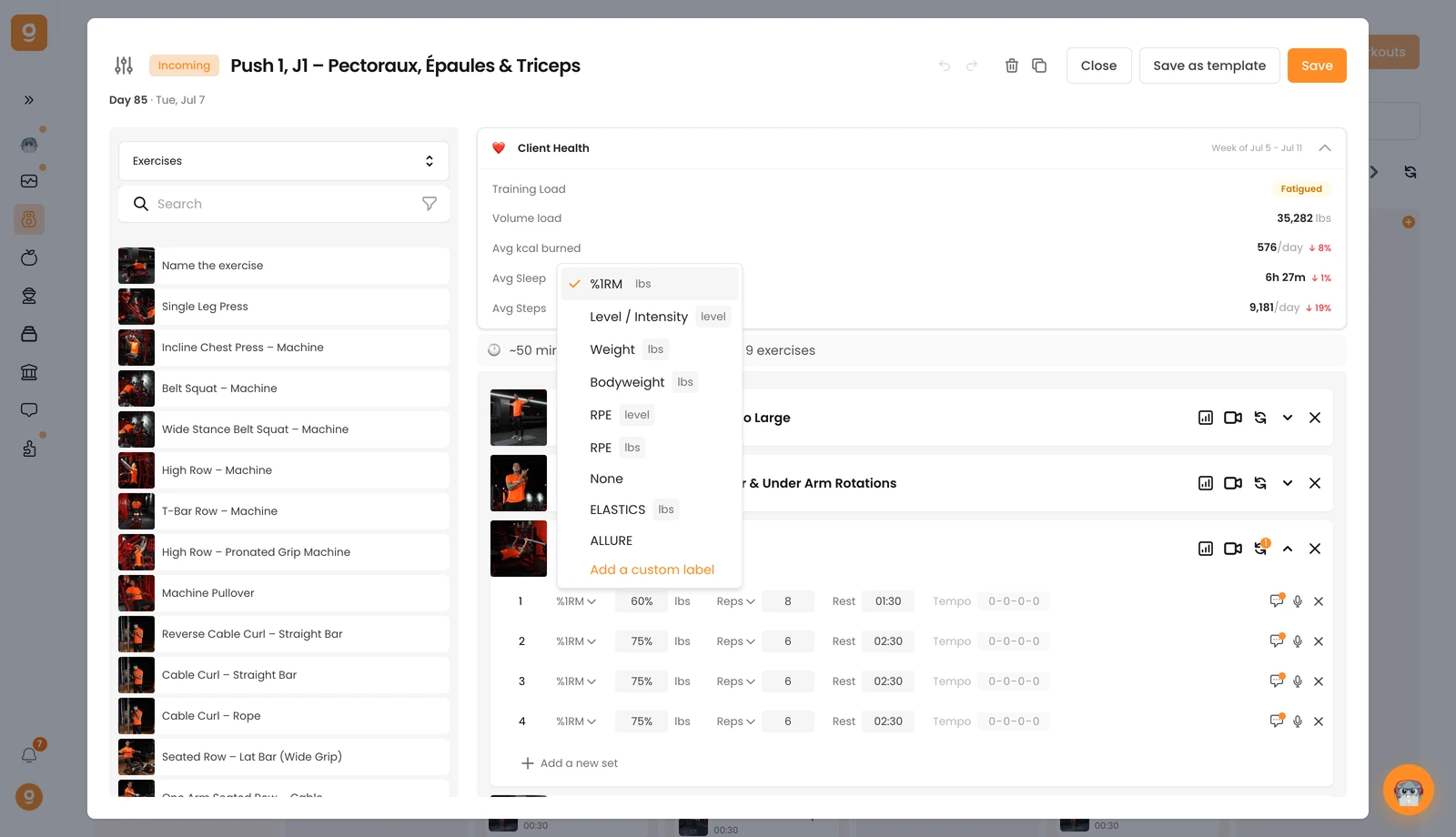
1, Obciążenie i intensywność. Pierwsza etykieta określa, jak ciężka jest seria. Domyślnie to Ciężar. Kliknij ją, aby wybrać zamiast tego %1RM, Poziom / Intensywność (świetne do maszyn cardio), Masę ciała, RPE (według poziomu lub według ciężaru) albo Brak, jeśli nie przewidujesz obciążenia. Wszystkie etykiety poniżej linii są niestandardowe, dodaj własne za pomocą Dodaj niestandardową etykietę.
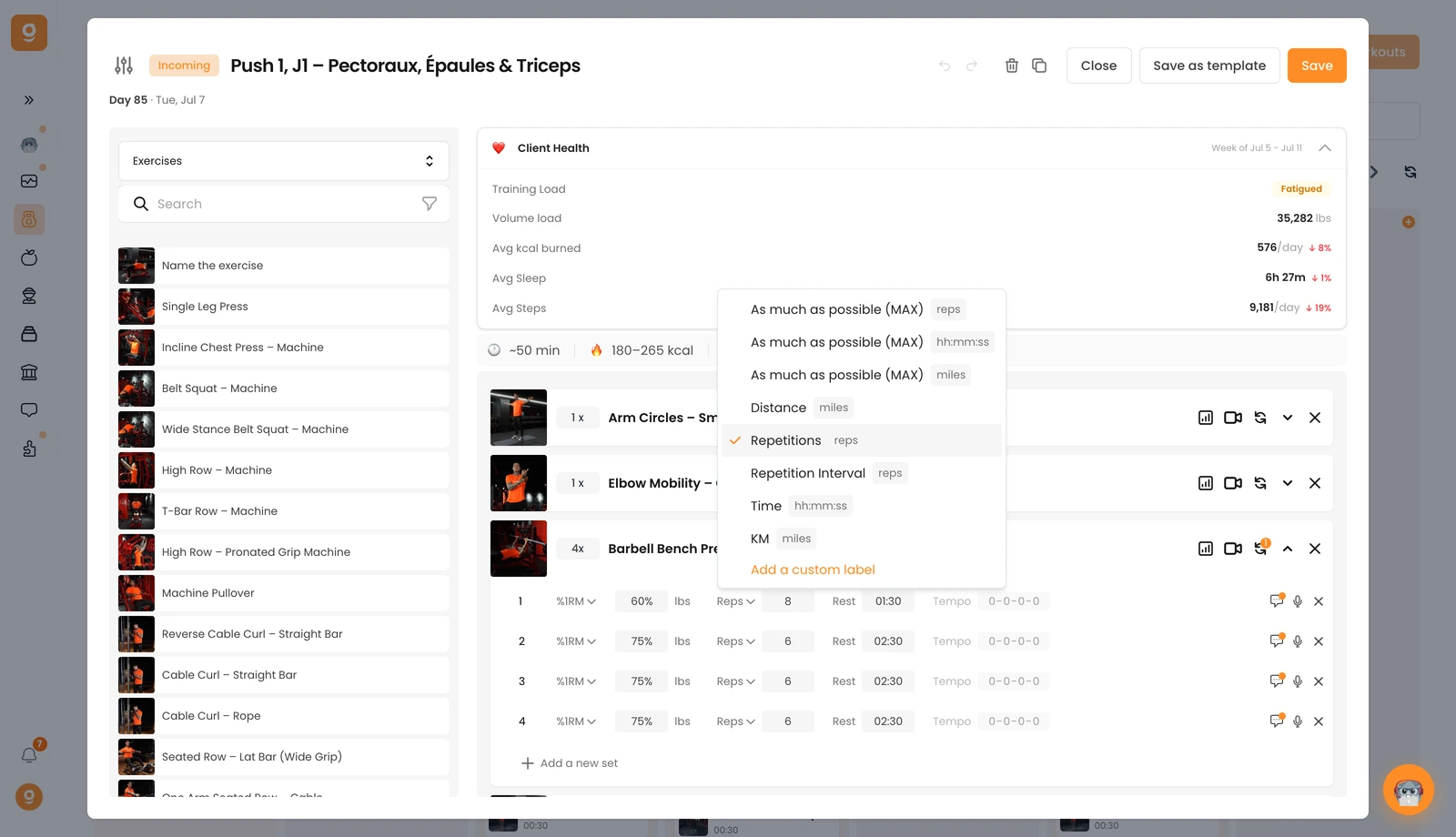
2, Powtórzenia, czas lub dystans. Druga etykieta domyślnie to Powtórzenia. Kliknij ją, aby przełączyć na maksymalnie ile się da (MAX) w powtórzeniach, czasie lub dystansie, stały Dystans, Zakres powtórzeń (np. 8–10 powtórzeń), cel Czasowy lub KM, i tutaj też możesz dodać niestandardowe etykiety.
3, Odpoczynek. Trzecia etykieta to czas odpoczynku między seriami, po prostu go wpisz.
4, Tempo. Czwarta to tempo (domyślnie 0-0-0-0 = wyłączone). Kliknij wartości, aby aktywować i ustawić swoje tempo.
Możesz też dodać komentarz do dowolnej serii za pomocą ikony komentarza, aby dać dodatkowe wskazówki, oraz usunąć serię za pomocą jej ✕. Teraz jesteś gotowy, aby dawać klientom precyzyjne, jasne instrukcje.