
This article is for personal trainers and coaches using the Gymkee web platform to manage their coaching business.
Audience: Coaches and personal trainers | This article is about the Gymkee web platform for managing your coaching business.
What You'll Learn
- How to pause a habit assignment without breaking the client's streak
- How to resume a paused habit
- How to permanently remove a habit assignment
- How to switch between active and paused habits views
- When to use pause vs. remove
Step-by-Step Guide
Access the Habit Management Controls
- Navigate to the client's profile (click their name in your client list)
- Open the Habits tab
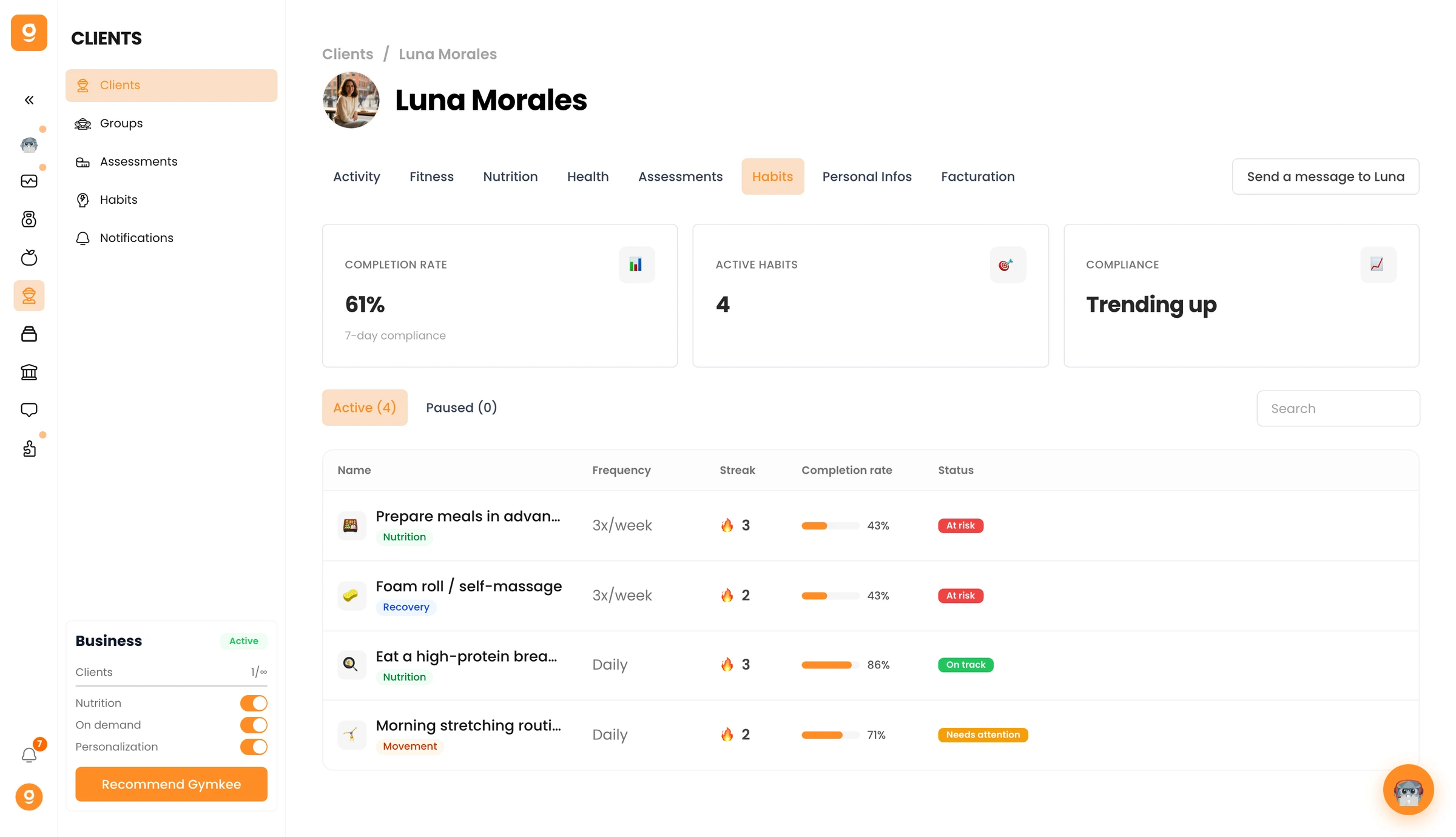
- The habits table shows all assigned habits with two tabs: Active Habits and Paused Habits
Pause a Habit
Pausing temporarily suspends a habit without deleting it. The client no longer sees it in their daily habits, and the streak is frozen (not reset).
- In the Active Habits tab, find the habit you want to pause
- Click the three-dot menu (far right of the habit row)
- Click Pause
- The habit moves from the Active Habits tab to the Paused Habits tab
- The Active Habits count decreases and the Paused Habits count increases
What happens when you pause:
- The client stops seeing this habit in their Gymkee mobile app
- The current streak is preserved. It does not reset to 0
- The completion rate freezes at its current value
- The habit row in the Active tab shows a "Paused" warning badge before it moves to the Paused tab
- Stats cards update: the Active Habits count decreases, and the overall completion rate recalculates based on remaining active habits
Resume a Paused Habit
Resuming reactivates a paused habit. The client starts seeing it again in their daily habits.
- Switch to the Paused Habits tab (click the tab next to "Active Habits")
- Find the habit you want to resume
- Click the three-dot menu (far right of the habit row)
- Click Resume
- The habit moves back to the Active Habits tab
- The Paused Habits count decreases and the Active Habits count increases
What happens when you resume:
- The client starts seeing the habit again in their Gymkee mobile app
- The streak continues from where it was frozen
- The completion rate starts recalculating based on new activity
- If the client does not complete the habit after resuming, the streak may break (depending on the grace period)
Remove a Habit
Removing permanently deletes the habit assignment. This action cannot be undone.
- In either the Active Habits or Paused Habits tab, find the habit you want to remove
- Click the three-dot menu (far right of the habit row)
- Click Remove
- A confirmation prompt appears (showing the client's name for clarity)
- Confirm the removal
- The habit disappears from the table entirely
What happens when you remove:
- The client no longer sees this habit in their Gymkee mobile app
- All streak and completion data for this assignment is archived
- The habit template remains in your library. Only the assignment to this specific client is deleted
- You can re-assign the same template to the client later, but it starts fresh with a new streak
Switch Between Active and Paused Tabs
At the top of the habits table, you see two tab buttons:
- Active Habits with a count (e.g., "Active (5)")
- Paused Habits with a count (e.g., "Paused (2)")
Click a tab to switch views
The table updates to show only habits in that state
If a tab shows a count of 0, the table displays an empty state message
Empty States
- Active tab with no habits: Shows a target icon with the message that no active habits are assigned, plus an Assign Habit button to get started
- Paused tab with no habits: Shows a pause icon with a message that no habits are currently paused
- No habits assigned at all: Shows a larger empty state with an explanation and an Assign Habit button
When to Pause vs. Remove
| | | | | | | | | Scenario | Recommended Action | Why | | Client is going on vacation for 2 weeks | Pause | Preserves the streak. Resume when they return. | | Client is injured and cannot exercise | Pause fitness-related habits | The habit can be resumed when they recover. Keep non-physical habits active. | | Client no longer needs a specific habit | Remove | Frees up a slot (max 12). Clean up habits that served their purpose. | | Habit was assigned by mistake | Remove | No reason to keep it paused. Remove and assign the correct one. | | Client is overwhelmed by too many habits | Pause the less critical ones | Reduce the load without losing progress. Resume one by one as the client builds capacity. | | Seasonal habit (e.g., summer hydration challenge) ended | Remove | The challenge is over. You can re-assign next season if needed. | | Client is switching programs | Pause old habits, then decide | Gives you time to evaluate which habits still apply to the new program. |
Tips
- Pause before removing when in doubt. If you are not sure whether a client will need a habit again, pause it first. You can always remove it later, but removal is permanent.
- Use the Paused tab as a review queue. Periodically (every 2 to 4 weeks), go through the Paused Habits tab for each client. Habits that have been paused for more than a month should either be resumed or removed.
- Communicate pauses to clients. When you pause a habit, let the client know why (e.g., "I paused your cardio habits while your ankle heals"). This prevents confusion when they notice a habit disappearing from their app.
- Check the active count before removing. If a client is close to the 12-habit limit, removing unused habits frees up slots for new, more relevant ones.
Common Mistakes
- Removing a habit instead of pausing it. Removal is permanent. If the client had a 30-day streak that you wanted to preserve, pausing was the right choice. Once removed, that data is gone for the active view.
- Forgetting to resume habits after a pause. A client who went on vacation 3 weeks ago may still have 4 paused habits. Set a reminder to check and resume them.
- Pausing all habits at once. If you pause everything, the client's Habits tab becomes empty from their perspective. Keep at least 1-2 foundational habits active (like hydration or sleep) even during breaks.
- Not checking the Paused tab count. If you see "Paused (7)" next to the tab, something needs attention. Seven paused habits suggest a cleanup is overdue.
Troubleshooting
Problem: Cannot find the three-dot menu on a habit row
Why it happens: The menu column may not be visible if the table is too narrow on your screen, or you may be viewing a demo client (demo clients do not have action menus).
How to fix it: Scroll horizontally in the table to reveal the menu column. If you are on a real client's profile and still do not see the menu, try resizing your browser window.
Problem: Paused habit does not appear in the Paused tab
Why it happens: The table may still be loading, or the pause action did not complete.
How to fix it: Refresh the page and check the Paused Habits tab again. If the habit is still in the Active tab, try pausing it again.
Problem: Resumed habit shows 0% completion rate
Why it happens: When a habit is resumed, the completion rate recalculates based on the most recent 7-day window. If the habit was paused for a week or more, there are no recent completions to count.
How to fix it: This is expected. The completion rate will start climbing as the client logs new completions. The streak, however, resumes from where it was frozen.
Problem: Client still sees a removed habit in their app
Why it happens: The client's mobile app may not have synced yet.
How to fix it: Ask the client to refresh their Gymkee app (pull to refresh or close and reopen). The removed habit should disappear after a sync.
Problem: Stats cards did not update after pausing/removing
Why it happens: The stats cards recalculate based on active habits. If you paused or removed a habit, the page may need a moment to update.
How to fix it: Wait a few seconds for the data to refresh. If the stats still show old data, refresh the page.
Related Articles
- Habits on Gymkee: Complete Guide for Personal Trainers
- Create Habit Templates on Gymkee
- Assign Habits to Your Clients on Gymkee
- Monitor Client Habit Progress on Gymkee