
Dit artikel is voor personal trainers en coaches die het Gymkee-webplatform gebruiken om hun coachingbedrijf te beheren.
Doelgroep: Coaches en personal trainers | Dit artikel gaat over het Gymkee-webplatform om je coachingbedrijf te beheren.
Wat je leert
- Hoe je een abonnement voor een klant aanmaakt
- Hoe je factuurcycli, proefperiodes en kortingen instelt
- Hoe je betaalmethoden en incasso-instellingen beheert
- Hoe je omgaat met opzeggingen, planwijzigingen en mislukte betalingen
Wanneer je abonnementen gebruikt
Abonnementen zijn de beste manier om klanten te factureren die op terugkerende basis betalen. Gebruik ze voor:
- Maandelijkse of jaarlijkse coachingpakketten
- Doorlopende trainingsprogramma's
- Toegang tot je content in lidmaatschapsstijl
Elk abonnement is gekoppeld aan een product dat je aanmaakt in Gymkee Pay. Het product definieert wat je verkoopt en het abonnement regelt de terugkerende facturering.
Voordat je begint
Zorg dat je het volgende hebt:
- Een verbonden en geverifieerd Stripe-account (zie Gymkee Pay instellen)
- Minstens één abonnementsproduct aangemaakt in Gymkee Pay > Producten met een actieve prijs
Als je nog geen product hebt, maak er dan eerst een aan:
- Ga naar Gymkee Pay > Producten
- Klik op Product aanmaken
- Stel het prijstype in op Abonnement en voeg maandelijkse of jaarlijkse prijzen toe
Een abonnement aanmaken
Stap 1: open het abonnementsformulier
Vanaf de pagina Transacties:
- Ga naar Gymkee Pay > Transacties
- Klik op Betaling aanmaken (rechtsboven)
- Selecteer Abonnement in het dropdownmenu
Vanuit het profiel van een klant: je kunt ook een abonnement rechtstreeks aanmaken vanaf de detailpagina van een klant.
Stap 2: kies de klant
Je hebt twee opties:
Een bestaande klant selecteren
- Typ in het zoekveld om een klant op naam of e-mail te vinden
- Klik op de klant om die te selecteren
Een nieuwe klant toevoegen
Klik op Een nieuwe klant toevoegen bovenaan het dropdownmenu
Voer de voornaam, achternaam en e-mail in
Schakel optioneel Klant uitnodigen op Gymkee in om die ook als Gymkee-klant toe te voegen
- Kies wanneer je de uitnodiging verstuurt: Na betaling (aanbevolen) of Onmiddellijk
- Selecteer de taal van de klant (Engels, Frans, Duits, Spaans, Portugees, Italiaans)
Klik op Opslaan om te bevestigen
Stap 3: kies het product en de prijs
De sectie Prijzen toont al je actieve abonnementsproducten.
- Selecteer een product in het dropdownmenu
- Kies een prijs (maandelijks, jaarlijks of elk interval dat je hebt ingesteld)
- Stel de hoeveelheid in (meestal 1)
Je kunt meerdere producten toevoegen aan één abonnement indien nodig. Klik op de knop "+" om nog een productregel toe te voegen.
Stap 4: stel de duur in
Kies hoe lang het abonnement loopt:
- Voor altijd: loopt tot het handmatig wordt opgezegd
- Opzeggen aan het einde van de periode: loopt voor één factuurperiode en stopt dan
- Opzeggen op specifieke datum: stel een exacte einddatum in
Stap 5: voeg een korting toe (optioneel)
In de sectie Korting kun je een kortingscode op het abonnement toepassen. Dit gebruikt de kortingscodes die je hebt aangemaakt in Gymkee Pay > Kortingen.
Stap 6: stel belastinginstellingen in (optioneel)
Schakel Automatische belasting in als je wilt dat Stripe belastingen automatisch berekent en toepast op basis van de locatie van de klant.
Stap 7: stel een proefperiode in (optioneel)
In de sectie Proefperiode kun je een gratis proefperiode instellen:
- Kies een einddatum voor de proefperiode
- Tijdens de proefperiode heeft de klant volledige toegang zonder dat er wordt afgeschreven
- De facturering start automatisch wanneer de proefperiode eindigt
Stap 8: kies de betaalmethode
Automatisch afschrijven (standaard)
- Stripe schrijft automatisch de kaart van de klant af die is opgeslagen
- Als de klant opgeslagen betaalmethoden heeft, kun je selecteren welke kaart wordt gebruikt
- Dit is de beste optie voor naadloze terugkerende facturering
Factuur versturen
- Stripe verstuurt elke factuurperiode een factuur-e-mail
- De klant betaalt handmatig via de factuurlink
- Stel het aantal dagen in tot de factuur vervalt (standaard: 30)
Als de klant geen opgeslagen betaalmethode heeft, schakelt het formulier automatisch over naar "Factuur versturen".
Voor nieuwe klanten maakt het abonnement een afrekenlink aan die je met de klant deelt. Ze voeren hun kaartgegevens in op de Stripe-afrekenpagina.
Stap 9: bekijk de voorbeeldweergave
Aan de rechterkant van het formulier toont een voorbeeldpaneel:
- Wat er bij de klant wordt afgeschreven
- Het factuurinterval
- Eventuele toegepaste kortingen
- Belastingbedragen (indien ingeschakeld)
- De volgende factuurdatum
Stap 10: maak het abonnement aan
Klik op Abonnement aanmaken om het af te ronden.
Als de klant een opgeslagen kaart heeft:
- Het abonnement start onmiddellijk
- Je wordt doorgestuurd naar de detailpagina van het abonnement
Als de klant betaalgegevens moet invoeren:
- Er wordt een afrekenlink gegenereerd
- Je kunt de link kopiëren en met de klant delen
- Klik op Link kopiëren en sluiten om de link naar je klembord op te slaan
Abonnementen beheren
Alle abonnementen bekijken
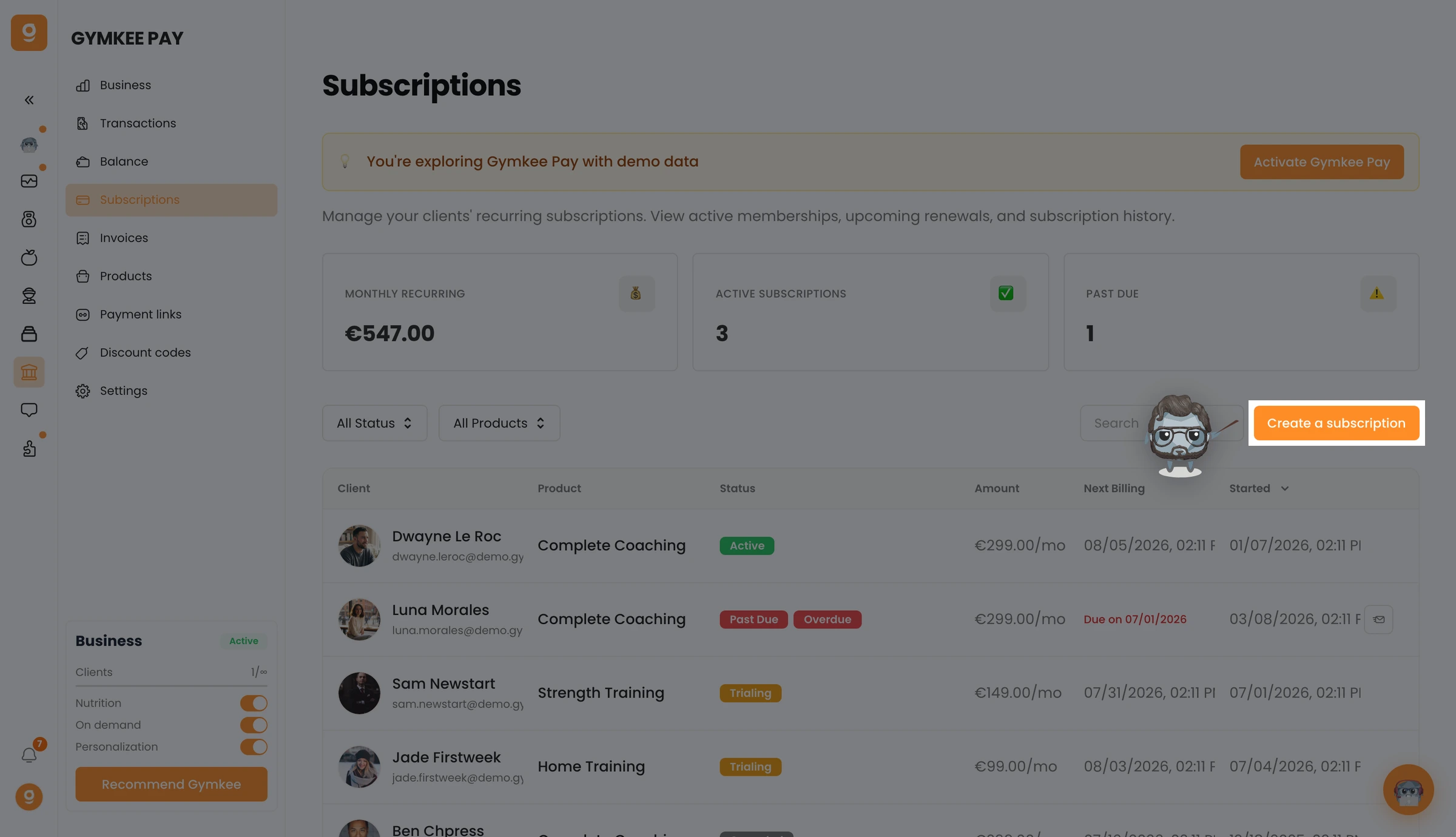
Ga naar Gymkee Pay > Abonnementen om al je abonnementen te zien. Je kunt filteren en zoeken op klantnaam, product of status.
Abonnementsstatussen
| | | | | | | Status | Wat het betekent | | Actief | Het abonnement loopt en de betalingen zijn op koers | | Proefperiode | De klant zit in de gratis proefperiode | | Achterstallig | De laatste betaling is mislukt, nieuwe pogingen zijn bezig | | Opgezegd | Het abonnement is opgezegd | | Onvolledig | Wacht op de eerste betaling | | Onbetaald | Betaling is mislukt en de nieuwe pogingen zijn uitgeput |
Een abonnement bijwerken
Je kunt een actief abonnement aanpassen:
- Het product of de prijs wijzigen (upgraden/downgraden)
- Kortingscodes toevoegen of verwijderen
- De betaalmethode bijwerken
- De factuurdatum wijzigen
Wijzigingen kunnen onmiddellijk ingaan of bij de volgende factuurcyclus, afhankelijk van je instellingen in Gymkee Pay > Instellingen > Abonnementen & facturen.
Een abonnement opzeggen
Om een abonnement op te zeggen:
- Ga naar Gymkee Pay > Abonnementen
- Klik op het abonnement
- Gebruik de optie om op te zeggen
Afhankelijk van je opzeginstellingen:
- Aan het einde van de periode: de klant behoudt toegang tot de huidige factuurperiode eindigt
- Onmiddellijk: de toegang wordt meteen ingetrokken
Hoe mislukte betalingen werken
Wanneer een abonnementsbetaling mislukt, gebeurt het volgende:
Stripe probeert het opnieuw op basis van je instellingen (standaard: 3 pogingen over 7 dagen)
Het abonnement gaat naar de status Achterstallig
Als alle pogingen mislukken, treedt de actie in werking die je hebt ingesteld:
- Toegang pauzeren: de klant kan geen content openen, maar het abonnement blijft open
- Toegang intrekken: de klant verliest alle toegang
- Toegang behouden: de klant behoudt toegang ondanks niet-betaling
Je kunt deze instellingen instellen in Gymkee Pay > Instellingen > Abonnementen & facturen > Afhandeling van mislukte betalingen.
Mislukte betalingen verschijnen ook in de sectie Vereiste acties van je dashboard.
Verrekening: wat er gebeurt bij planwijzigingen
Wanneer een klant halverwege de cyclus van plan wisselt (bijv. van maandelijks naar jaarlijks, of van basic naar premium):
- Met verrekening ingeschakeld: de klant krijgt tegoed voor de ongebruikte tijd op hun huidige plan en betaalt het verschil voor het nieuwe plan
- Zonder verrekening: de nieuwe prijs gaat in bij de volgende factuurcyclus
Stel dit in bij Gymkee Pay > Instellingen > Abonnementen & facturen > Planwijzigingen.
Tips
- Gebruik de incassomethode "Automatisch afschrijven" voor je vaste klanten. Het vermindert wrijving en zorgt dat betalingen op tijd binnenkomen.
- Stel proefperiodes strategisch in. Een proefperiode van 7 dagen laat klanten je coaching ervaren voordat ze zich vastleggen.
- Bekijk het voorbeeldpaneel voordat je een abonnement aanmaakt. Het toont precies wat er bij de klant wordt afgeschreven en wanneer.
- Voor klanten die van een maandelijks naar een jaarlijks plan upgraden, schakel verrekening in zodat ze alleen het verschil betalen.
- Wanneer je een abonnement voor een nieuwe klant aanmaakt, kies "Uitnodigen na betaling" zodat ze pas toegang tot Gymkee krijgen zodra ze hebben betaald.
Veelgemaakte fouten
- Een abonnement aanmaken zonder een product. Je hebt minstens één actief abonnementsproduct met een Stripe-prijs nodig. Maak eerst producten aan in Gymkee Pay > Producten.
- "Factuur versturen" kiezen voor klanten die automatische facturering verkiezen. De meeste klanten verkiezen betalingen die je instelt en vergeet. Gebruik automatisch afschrijven waar mogelijk.
- Geen afhandeling van mislukte betalingen instellen. Zonder deze houden klanten die niet betalen onbeperkt volledige toegang. Stel je instellingen voor nieuwe pogingen en acties in bij Instellingen.
- Een proefperiode instellen zonder duidelijke communicatie over het einde. Zorg dat je klant weet wanneer hun proefperiode eindigt en wanneer de facturering start.
Problemen oplossen
Probleem: ik kan geen producten vinden bij het aanmaken van een abonnement
Waarom het gebeurt: je hebt nog geen abonnementsproducten aangemaakt, of je bestaande producten hebben geen actieve prijzen met Stripe-prijs-ID's.
Hoe je het oplost: ga naar Gymkee Pay > Producten en maak een product aan met prijstype "Abonnement". Zorg dat het minstens één actieve prijs heeft.
Probleem: het abonnement blijft hangen in de status "Onvolledig"
Waarom het gebeurt: de klant heeft de eerste betaling via de afrekenlink niet voltooid.
Hoe je het oplost: deel de afrekenlink opnieuw met de klant. Als ze er niet bij kunnen, moet je dit abonnement mogelijk opzeggen en een nieuw aanmaken.
Probleem: bij de klant wordt het verkeerde bedrag afgeschreven
Waarom het gebeurt: de verkeerde prijs is geselecteerd, of een korting is niet correct toegepast.
Hoe je het oplost: je kunt het abonnement bijwerken om de prijs te wijzigen of de juiste korting toe te voegen. Controleer of verrekeningsinstellingen het bedrag beïnvloeden.
Probleem: de klant verloor toegang na opzegging, hoewel de periode nog niet is geëindigd
Waarom het gebeurt: de opzeginstelling staat op "Onmiddellijk" in plaats van "Aan het einde van de periode".
Hoe je het oplost: controleer je opzeginstellingen in Gymkee Pay > Instellingen > Abonnementen & facturen. Wijzig naar "Aan het einde van de periode" als je wilt dat klanten toegang behouden tot hun huidige factuurperiode eindigt.
FAQ
V: Kan een klant meerdere abonnementen hebben? Ja. Een klant kan meerdere actieve abonnementen voor verschillende producten hebben.
V: Kan ik een abonnement aanmaken voor iemand die geen Gymkee-klant is? Ja. Bij het aanmaken van een abonnement kun je een nieuwe klant toevoegen door hun e-mail in te voeren. Je kunt er ook voor kiezen om ze tegelijkertijd uit te nodigen op Gymkee.
V: Wat gebeurt er wanneer een proefperiode eindigt? De facturering start automatisch. De klant wordt gefactureerd voor de eerste volledige factuurperiode. Als hun betaling mislukt, geldt de standaardlogica voor nieuwe pogingen.
V: Kan ik een abonnement pauzeren? Stripe ondersteunt het pauzeren van abonnementen via het Stripe Dashboard. In Gymkee kun je opzeggen en opnieuw aanmaken, of Stripe's pauzefunctie rechtstreeks gebruiken.
V: Hoe bied ik verschillende prijzen aan voor dezelfde dienst? Maak één product aan met meerdere prijzen (bijv. maandelijks voor $99, jaarlijks voor $899). Bij het aanmaken van een abonnement kies je welke prijs je gebruikt.
V: Kan de klant zelf hun betaalmethode wijzigen? Klanten kunnen hun kaart bijwerken via het Stripe-klantportaal. Je kunt die ook bijwerken vanaf de detailpagina van het abonnement.
Gerelateerde artikelen
- Betaald worden met Gymkee Pay: complete gids
- Gymkee Pay instellen (Stripe Connect)
- Facturen aanmaken en beheren
- Betaallinks en kortingen