
The most detailed way to build a nutrition day is meal by meal, real foods, products and recipes, with macros for each. Here's how the meal builder works.
To open it, hover over a day and click Create a meal (or the small + on the day). You'll land in the nutrition plan builder: the library is on the left, and your meals are on the right.
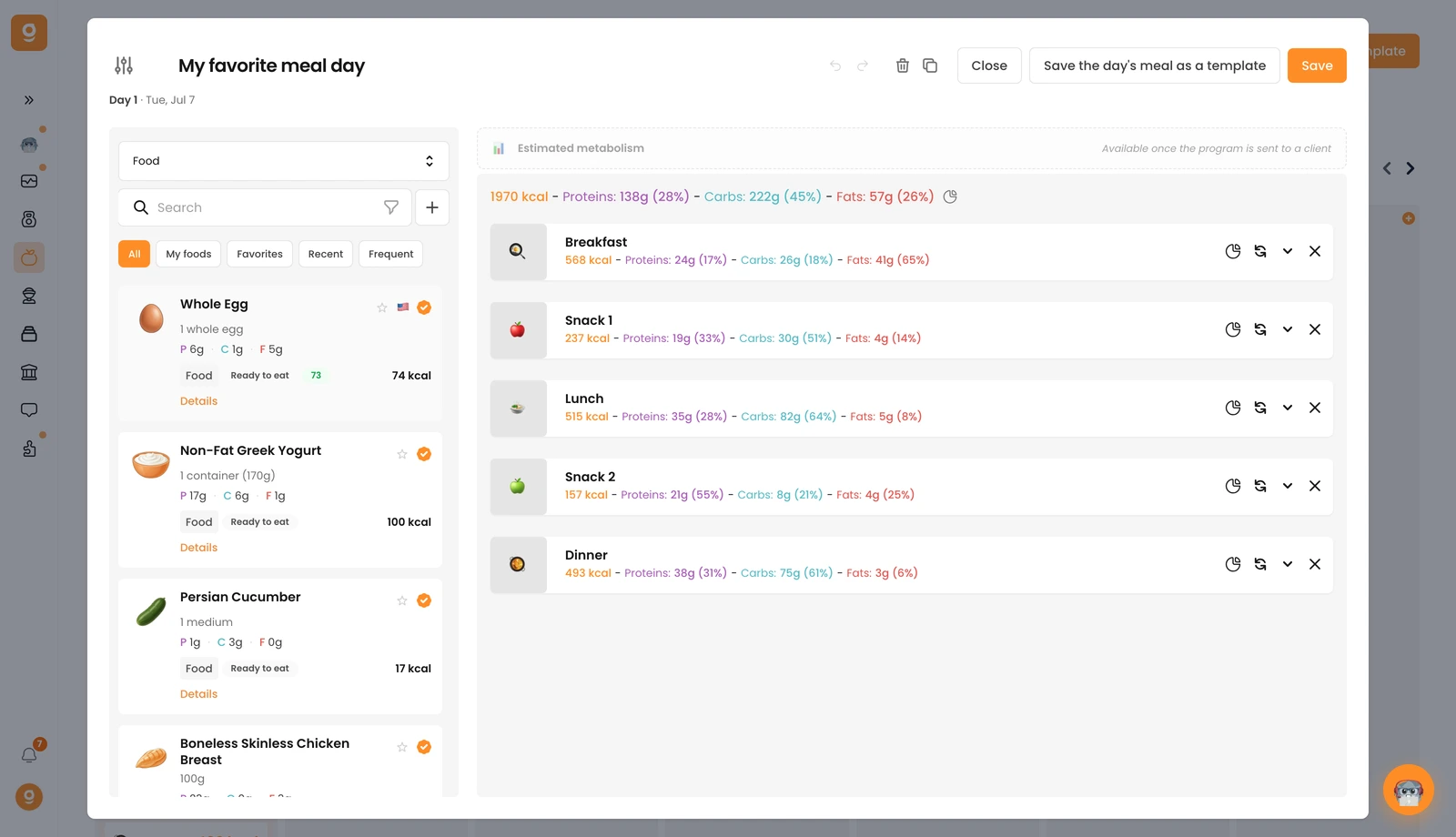
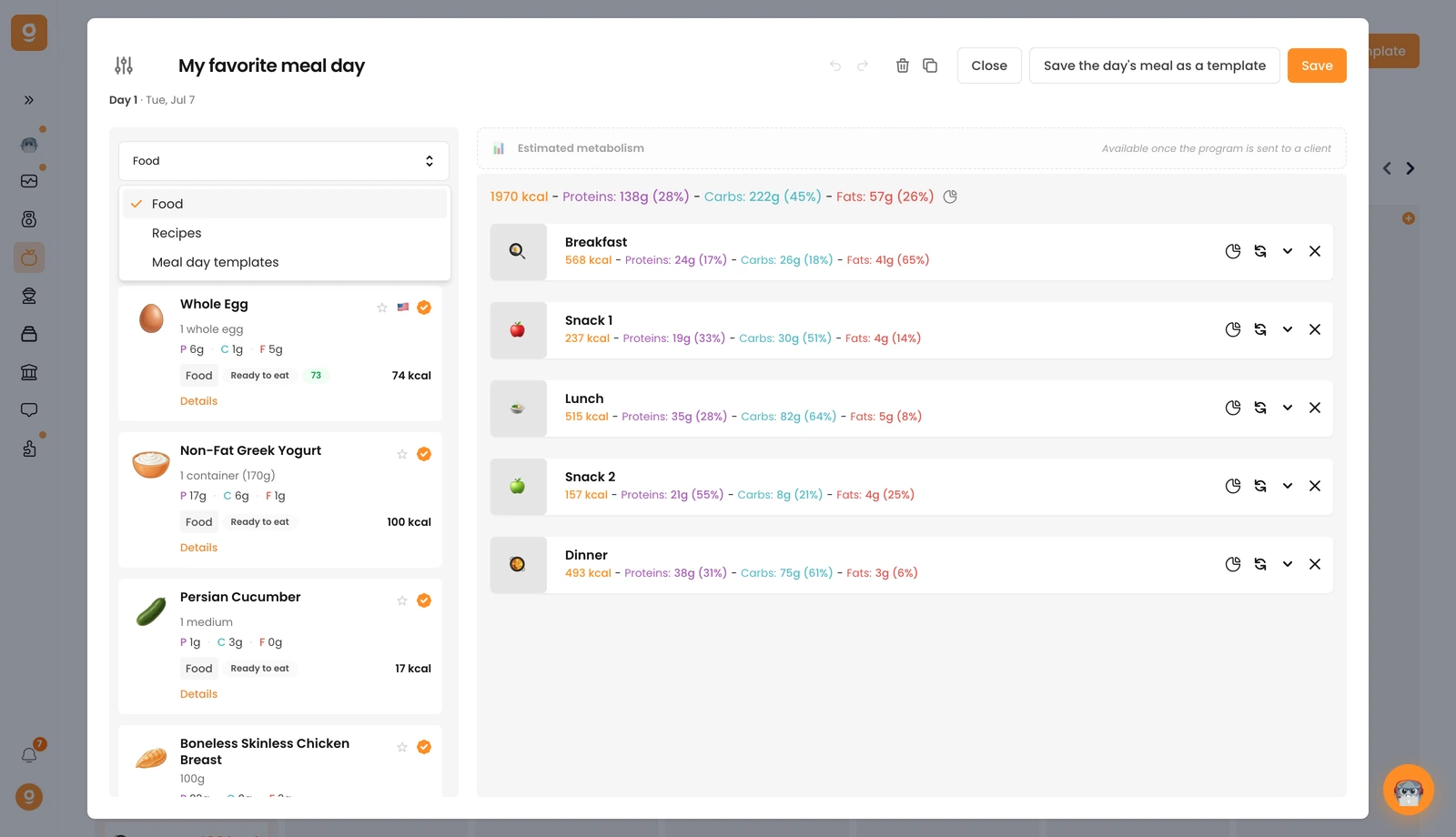
The dropdown at the top left switches what the library shows: Food, Recipes, or Meal day templates. You've got over 5 million foods and branded products to build with, and you can add your own with the + button next to the search bar.
Because any coach can add foods, most items carry a certification badge (the orange check). Anything with that badge is verified and safe to use with confidence.
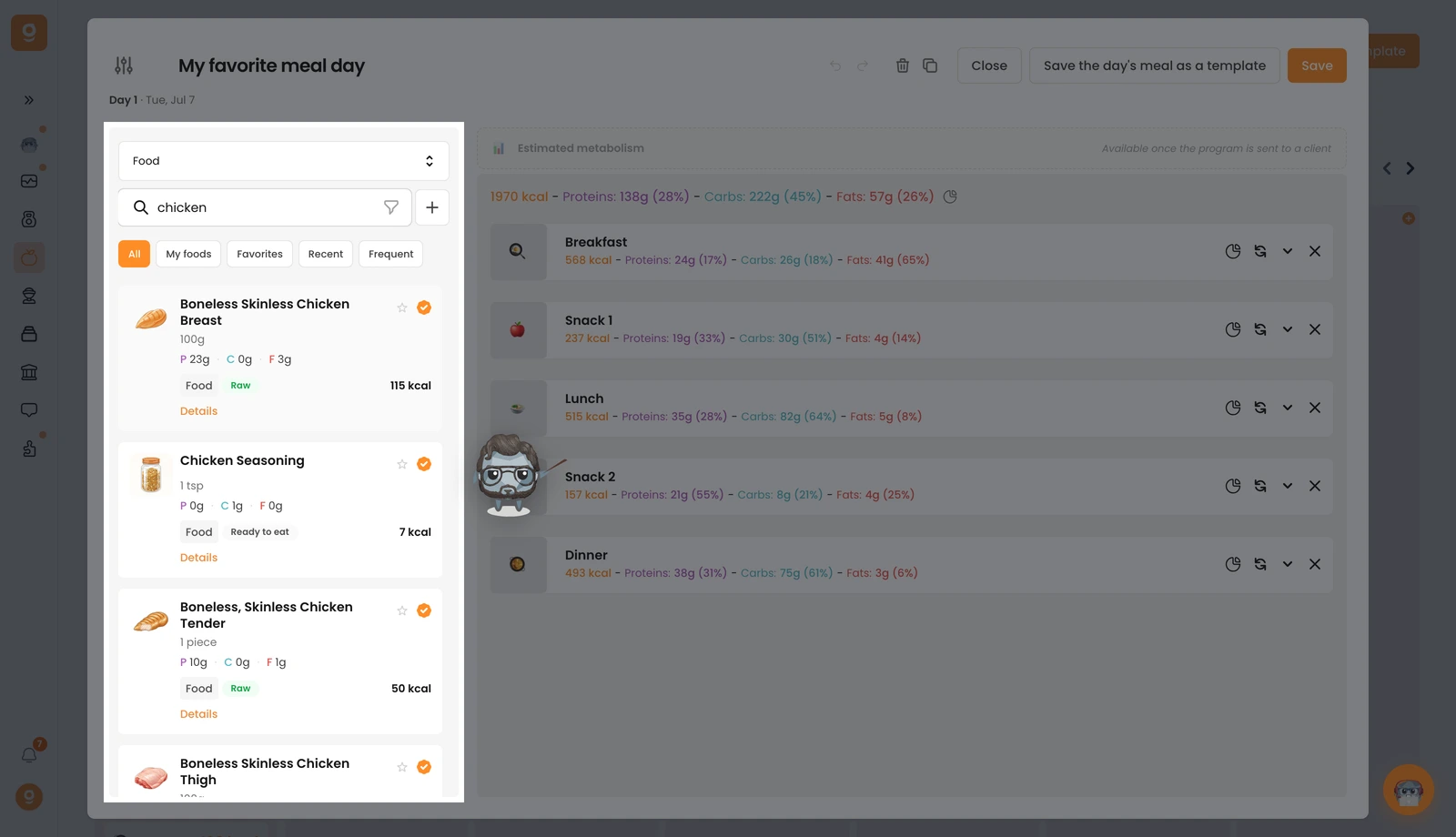
Building meal by meal. Type a food in the search bar, then drag it into the meal area on the right. Your first food automatically creates a meal named Breakfast; the next meals are named Snack 1, Lunch, Snack 2, Dinner, then Snack beyond that. You can rename any meal, change its emoji, or add a custom picture. For branded products, search the specific product, if it's not in the first results, use the advanced search below the list.
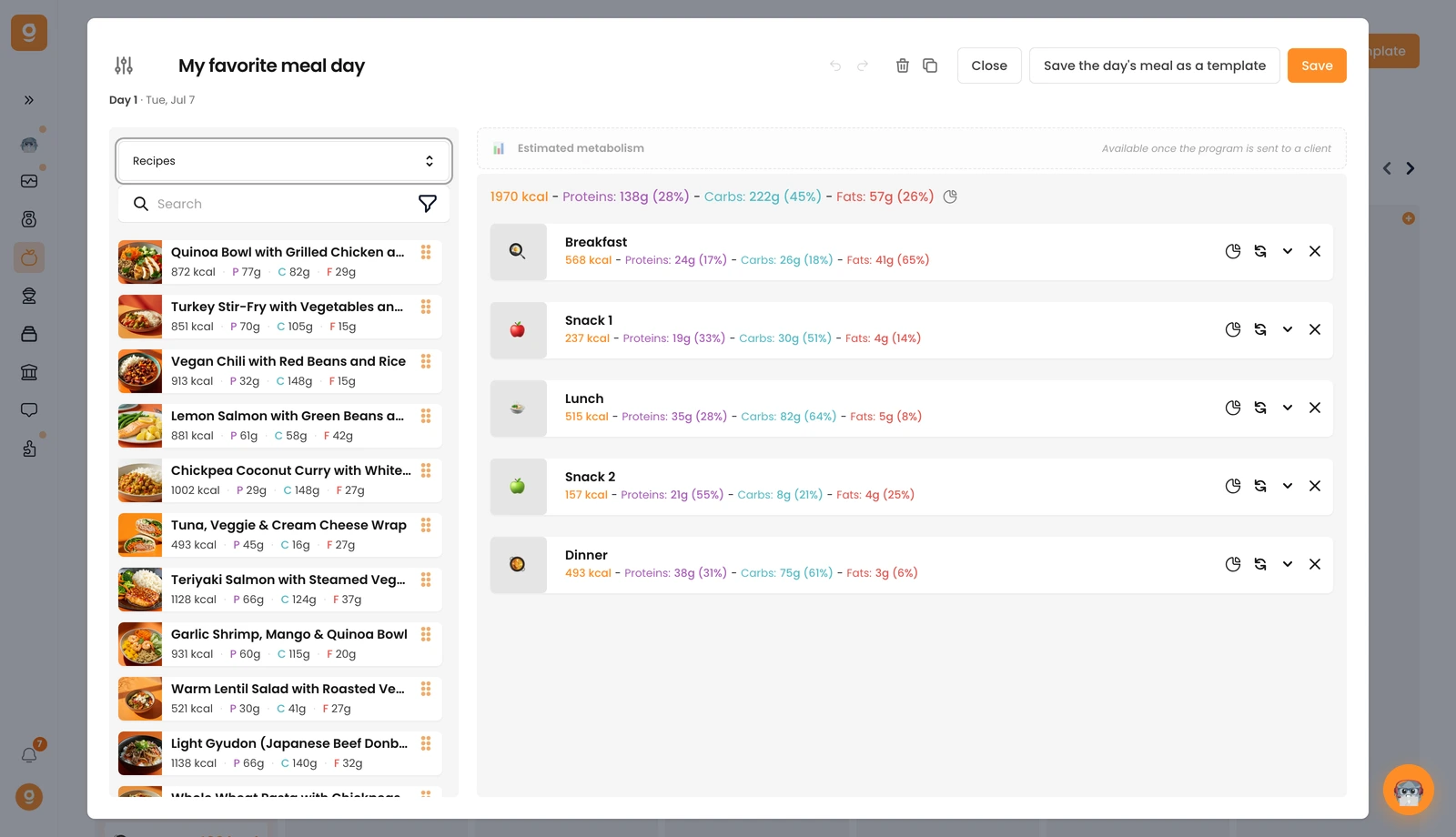
Adding recipes. Switch the source dropdown to Recipes to use our 100+ healthy recipes (your own appear at the very top). Drag a recipe into a meal just like a food, it comes in with its default portion size and matching macros, where the number of portions equals the number of servings. Adjust the portions to fit your client (set it to 1 for a single serving).
Meal alternatives. For any meal you can offer swappable alternatives so your client picks the version they want, see the dedicated guide: Add meal & food alternatives.
Once a meal is complete it shows as a Draft in your program, the status only changes once you send it to a client.