
There are no great fitness results without proper nutrition. That's why Gymkee lets you build complete nutrition programs and share them with your clients, right alongside their training.
This guide is the full overview of how nutrition works on Gymkee: creating a program, building days meal by meal, using foods, products and recipes, offering alternatives, working with daily calorie goals, and reusing everything with templates. Each section links to a more detailed article when you want to go deeper.
Nutrition is included on the Pro plan and above. If you've never used it, you get a 14-day free trial to test it out for yourself, no card required.
Create a nutrition program
Open the Nutrition section from the left menu, then the Programs tab. Click Create a program at the top right.
The creation window opens:
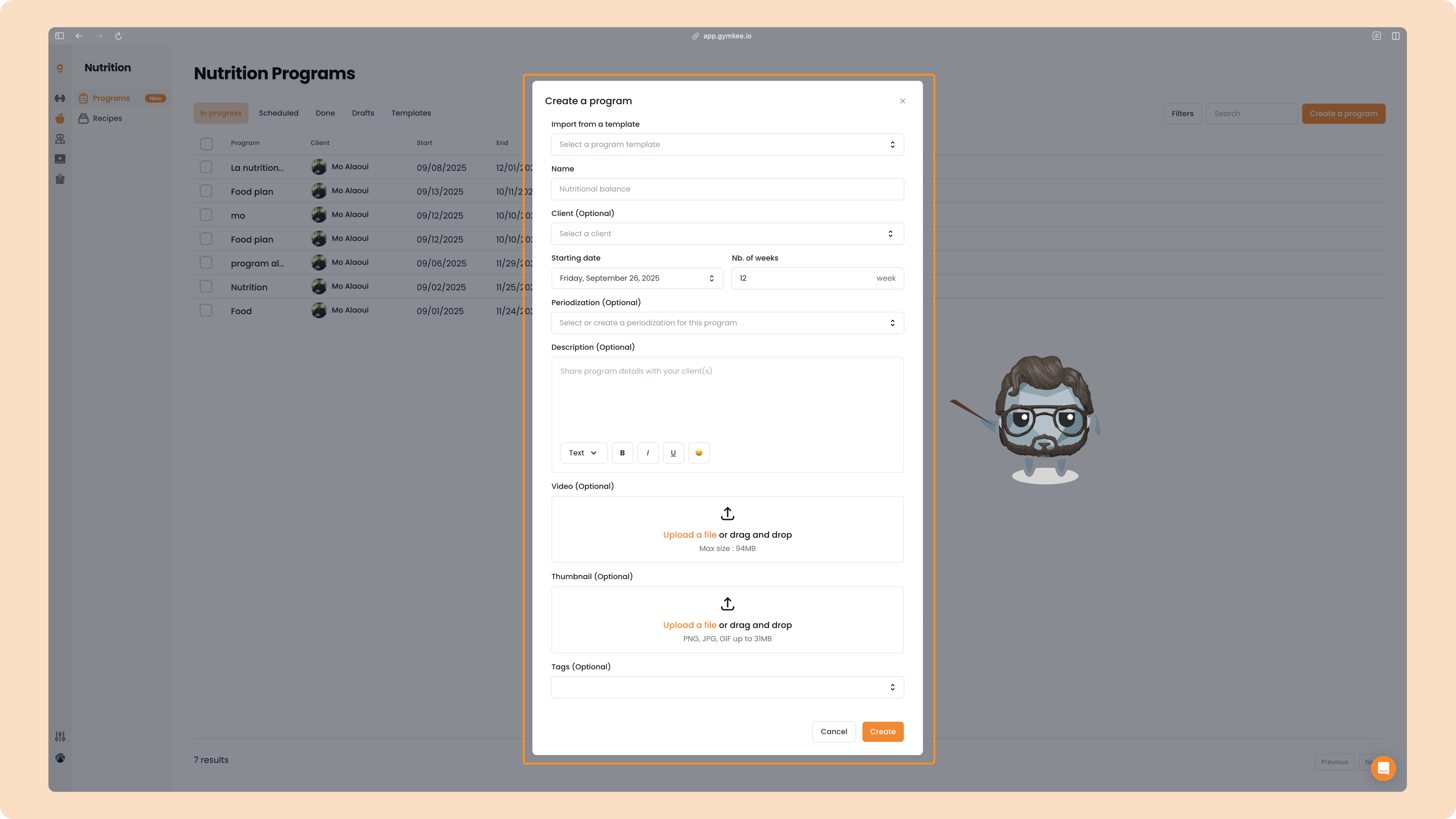
Only two fields are required, everything else is optional:
- Import from a template – reuse one of your saved programs as a starting point (empty the first time, more useful the more templates you build).
- Name (required) – visible to your client, so name it clearly.
- Client (optional) – attach the client now to access their data while you build. You can also pick them later, when you send the program.
- Starting date and Nb. of weeks (required) – set when the program starts for your client and how long it runs.
- Periodization (optional) – if you work in cycles, set it here to track your client's phases.
- Description (optional) – add context for your client. We recommend taking the time to fill it in.
- Video (optional) – attach a short video explaining the program. An underrated way to deliver a premium coaching experience.
- Thumbnail (optional) – a cover image that strengthens your brand.
- Tags (optional) – to organize and filter your programs later.
Click Create and you land straight in the program builder.
The program builder and its views
The builder shows your program as a calendar of days you fill with meal plans. At the top left you can switch how much you see at once:
- Week – the default, one week at a time
- Day – focus on a single day
- 2 weeks – compare two weeks side by side
- Month – the whole month at a glance
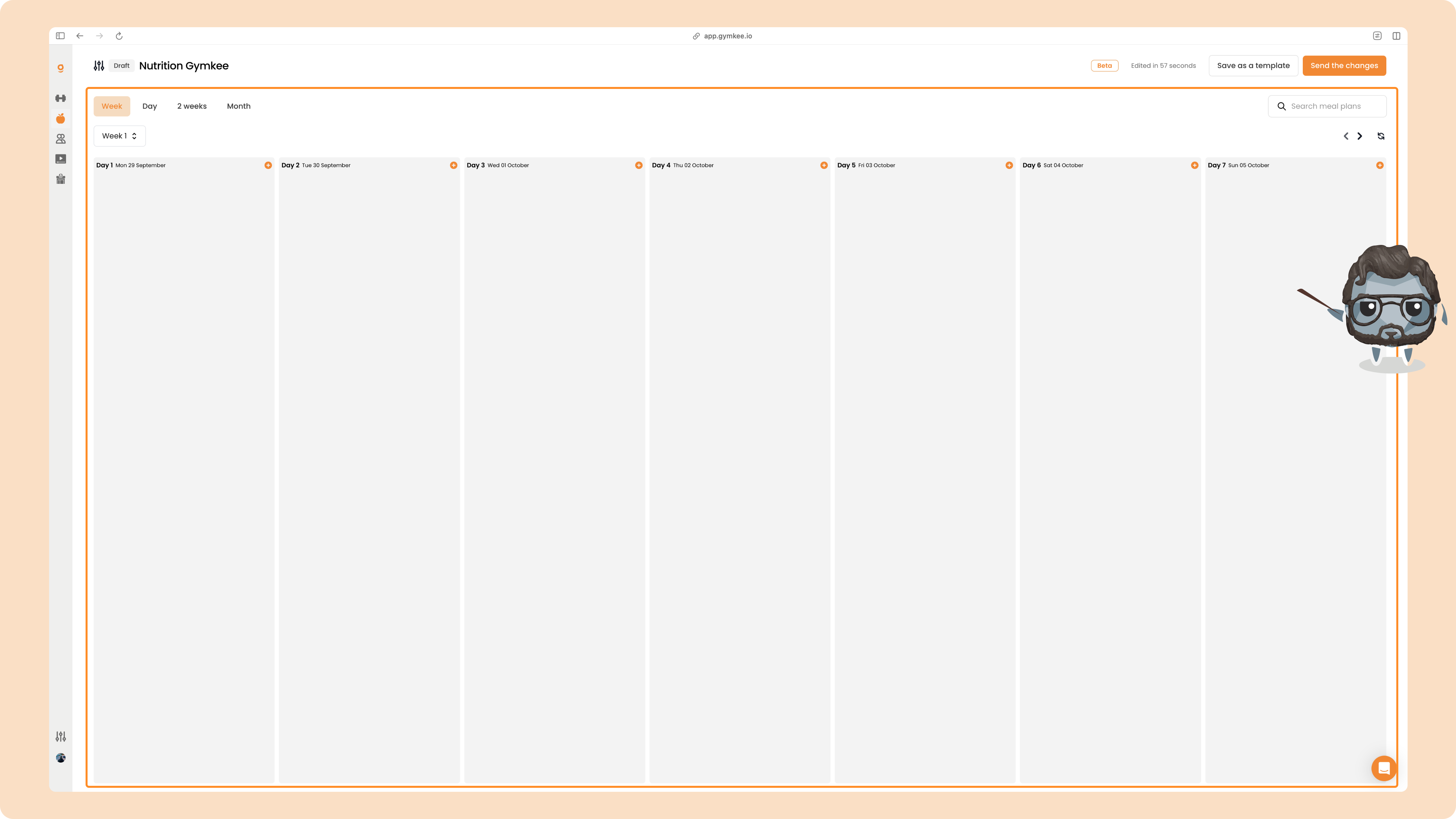
At the top right you'll find Save as a template and Send the changes. Your program stays a Draft until you send it to a client.
There are two ways to fill a day: meal by meal with detailed foods, or with a single daily calorie and macro goal. You can mix both across the same program.
Build a day, meal by meal
Hover a day and click Create a meal plan (or the small + on the day) to open the meal builder.
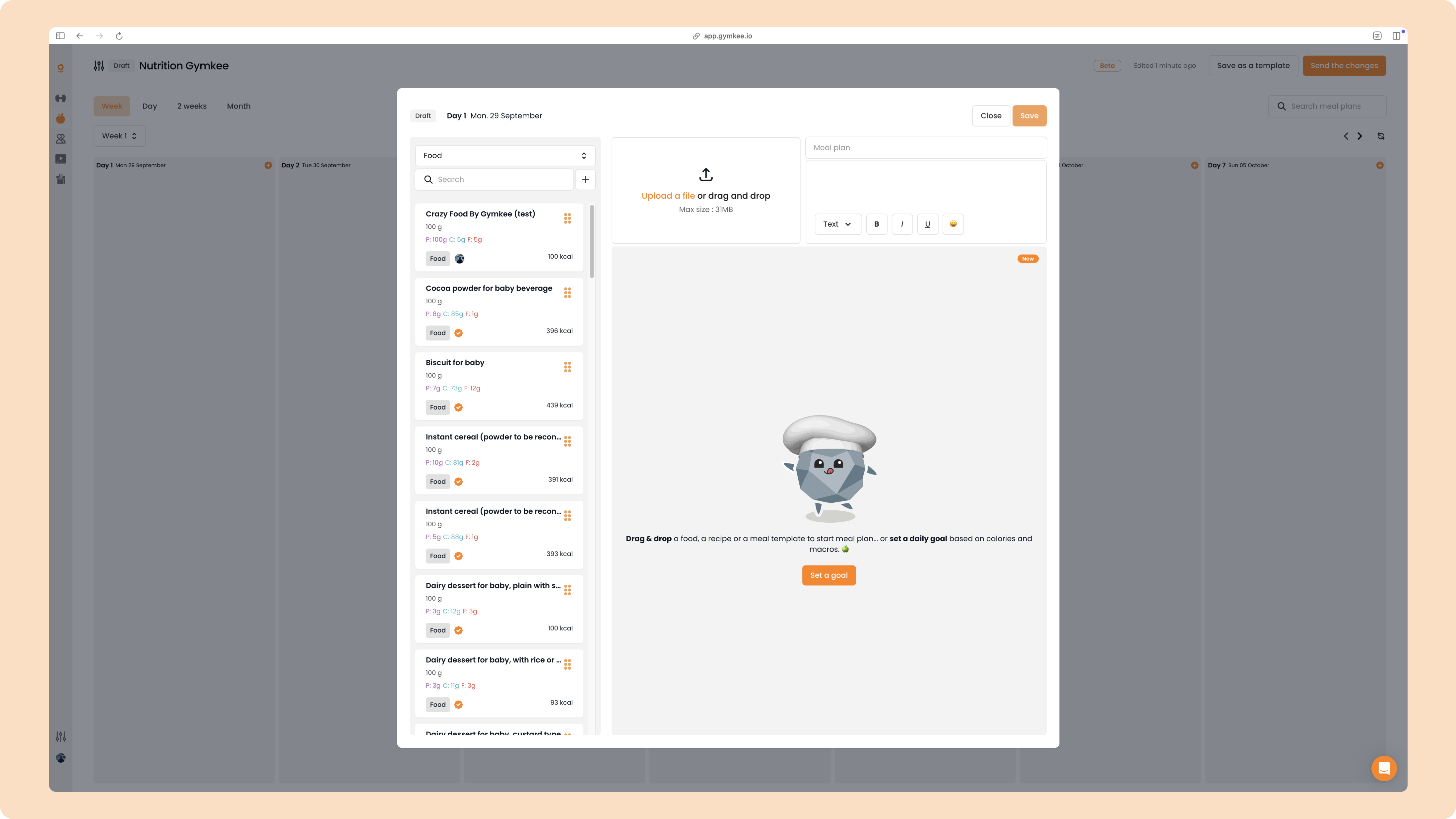
On the left is your search library, on the right is the Meal plan area where meals are built. To add an item, click it or drag and drop it into the meal area.
Foods vs products. The library holds both:
- Foods – raw items like chicken or oats (from Gymkee's and the CIQUAL database)
- Products – branded, barcode items like a specific protein powder or cereal
There are millions of foods and products to build from, and any coach on Gymkee can add their own with the + button. Because coach-added items aren't always accurate, trusted items show a small orange certificate badge next to their Food tag. Anything with that badge is verified and safe to use with confidence.
The first meal you create is automatically named Breakfast. Gymkee names meals in this default order, and you can rename any of them, change the emoji, or add a picture:
- 1st meal → Breakfast
- 2nd meal → Snack 1
- 3rd meal → Lunch
- 4th meal → Snack 2
- 5th meal → Dinner
- 6th and beyond → Snack
Here's a finished day with its meals and per-meal macros:
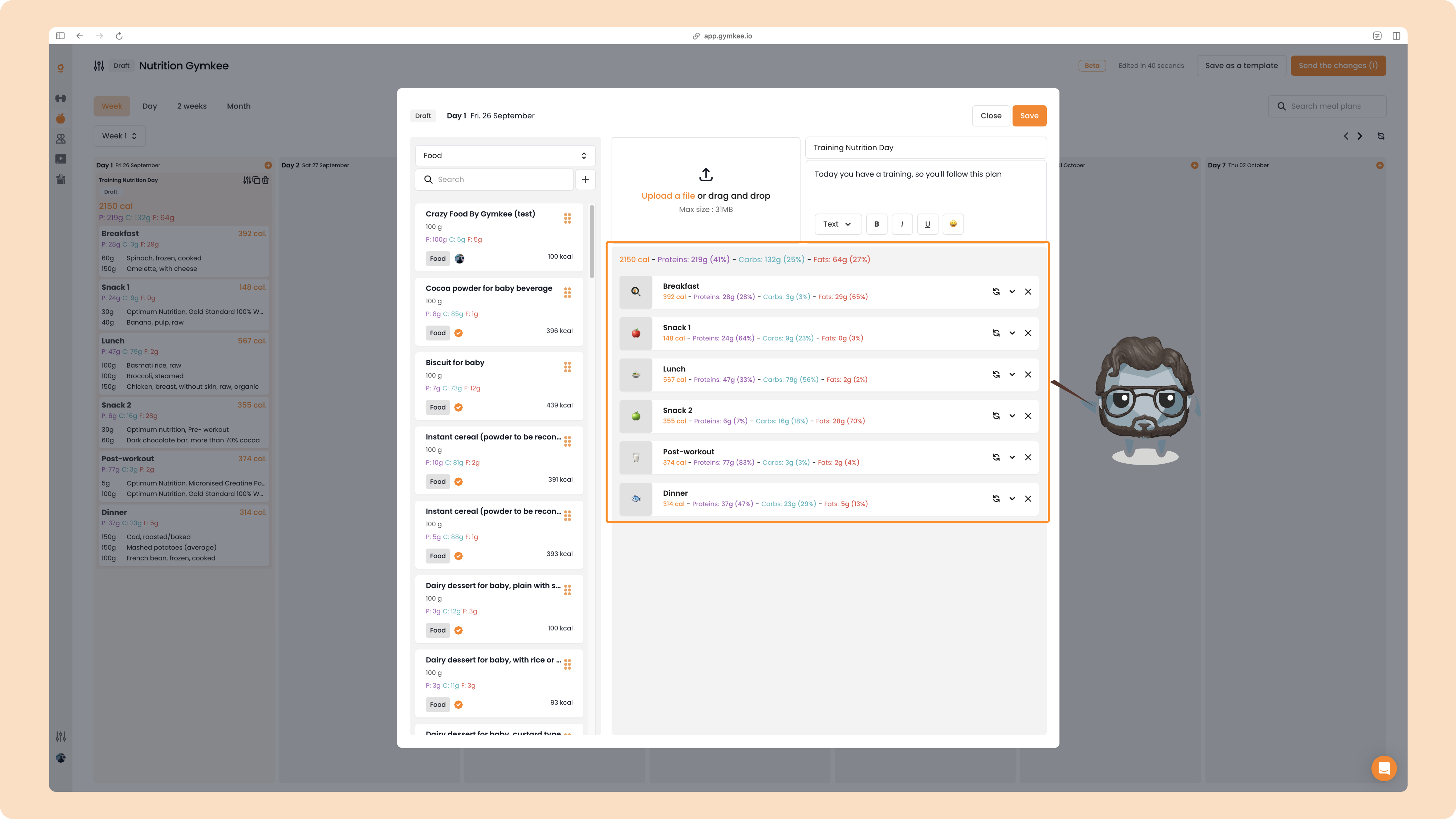
Each meal shows its calories and protein / carbs / fats, and the day totals sit at the top. Click a meal to expand it and edit its foods.
For the full step-by-step, see Create a daily nutrition plan with detailed meals and foods and The food library and custom foods.
Add recipes
Beyond individual foods and products, you can drop whole recipes into a meal. Switch the library selector from Food to Recipes to browse the 100+ healthy recipes we've added, plus any recipe you've created yourself (yours appear at the top).
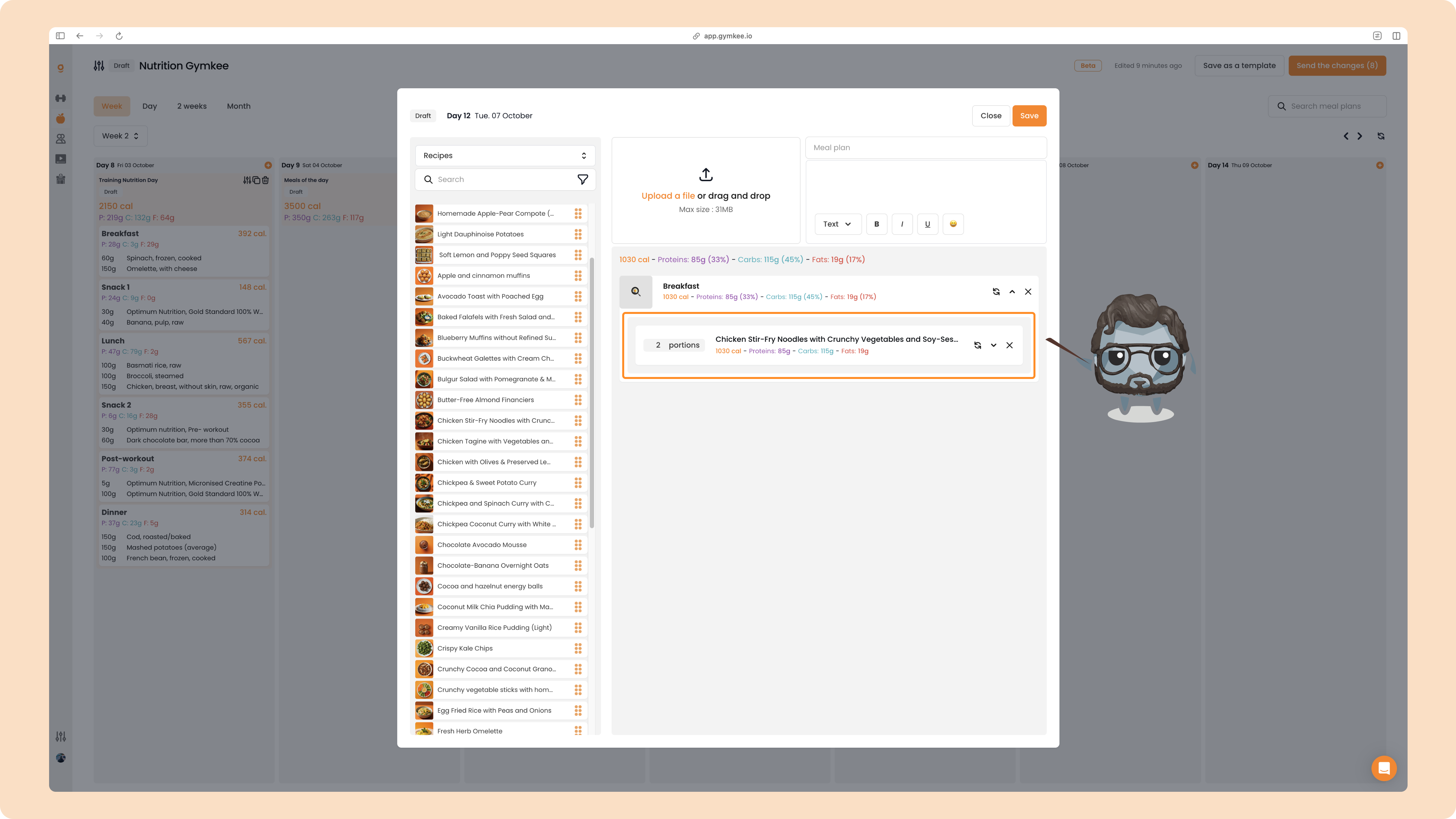
Once added, a recipe shows its portions and matching macros. Portions equal servings, so 2 portions = for 2 people. Adjust the value to fit your client, for example down to 1 portion for a single serving.
Full details: Add a recipe to your meal plan.
Offer meal alternatives
For any meal, you can create one or more alternatives so your client can pick the version they prefer that day. It makes the plan far easier to stick to.
Open a meal's options, keep the base meal at the top for reference, and drag foods into Drag here to add an option to build each alternative.
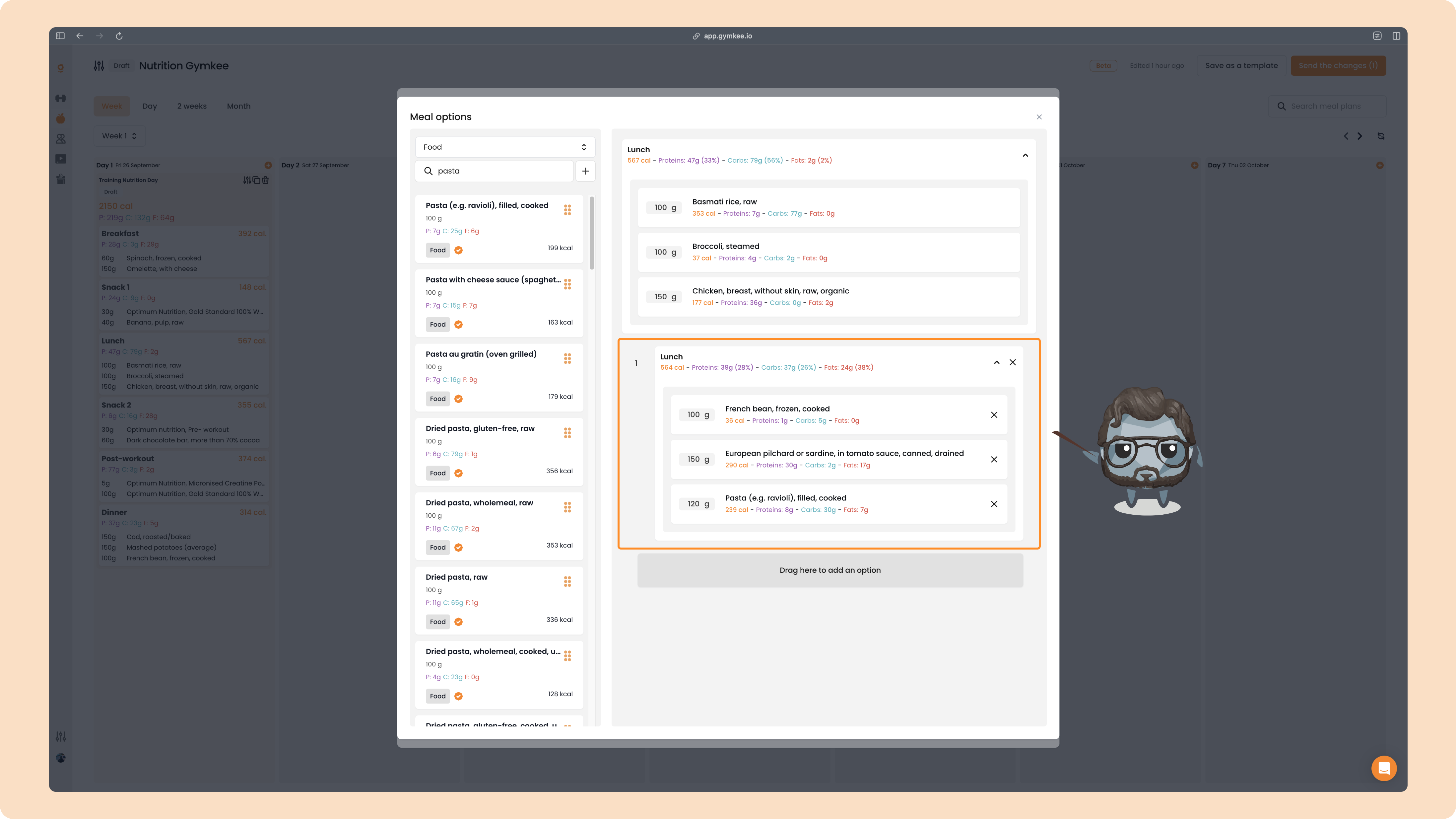
Add as many alternatives as you like, a small badge shows how many exist on the meal.
Full details: Add meals and food alternatives to your clients in your nutrition program.
Set a daily calorie and macro goal instead
If you'd rather give a target than detail every food, use a daily goal. On an empty day, before adding any food, click Set a goal.
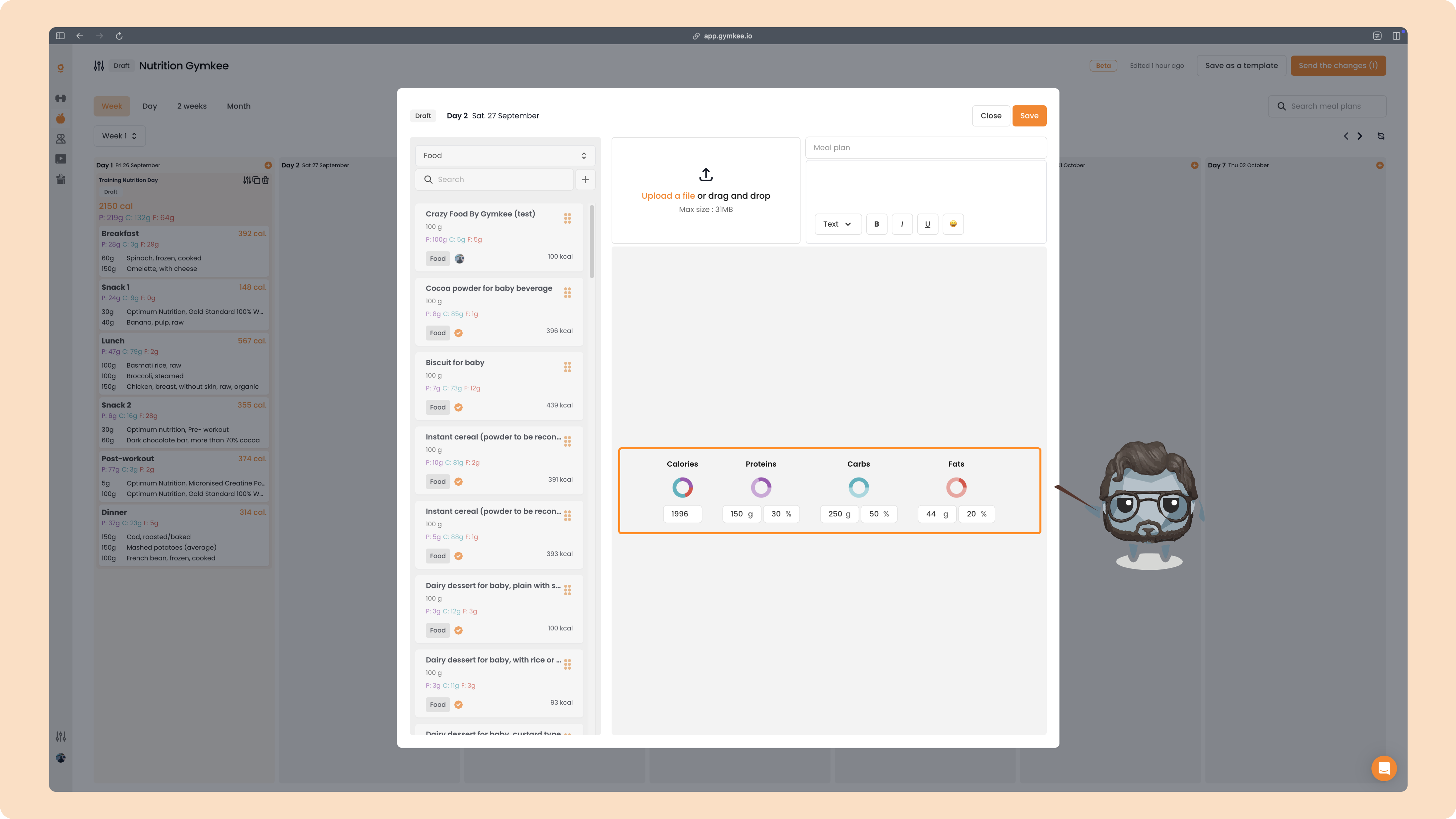
Follow the order Gymkee suggests: start with calories, then set your macros (proteins, carbs, then fats), either in grams or in percentages. As you adjust one macro, the others rebalance to stay aligned with your total calories. If you later change the calorie target, the macros readjust automatically to the percentages you set.
Full details: Create a nutrition plan with a daily calorie goal.
Reuse your work: copy, duplicate, templates
Once your first day is built, you never have to redo it from scratch.
Copy and paste a day
Hover a filled day and click its copy icon. Then hover the target day and click Paste meal plan, everything comes across: name, description, thumbnail, all meals, and alternatives. This works the same for calorie-goal days.
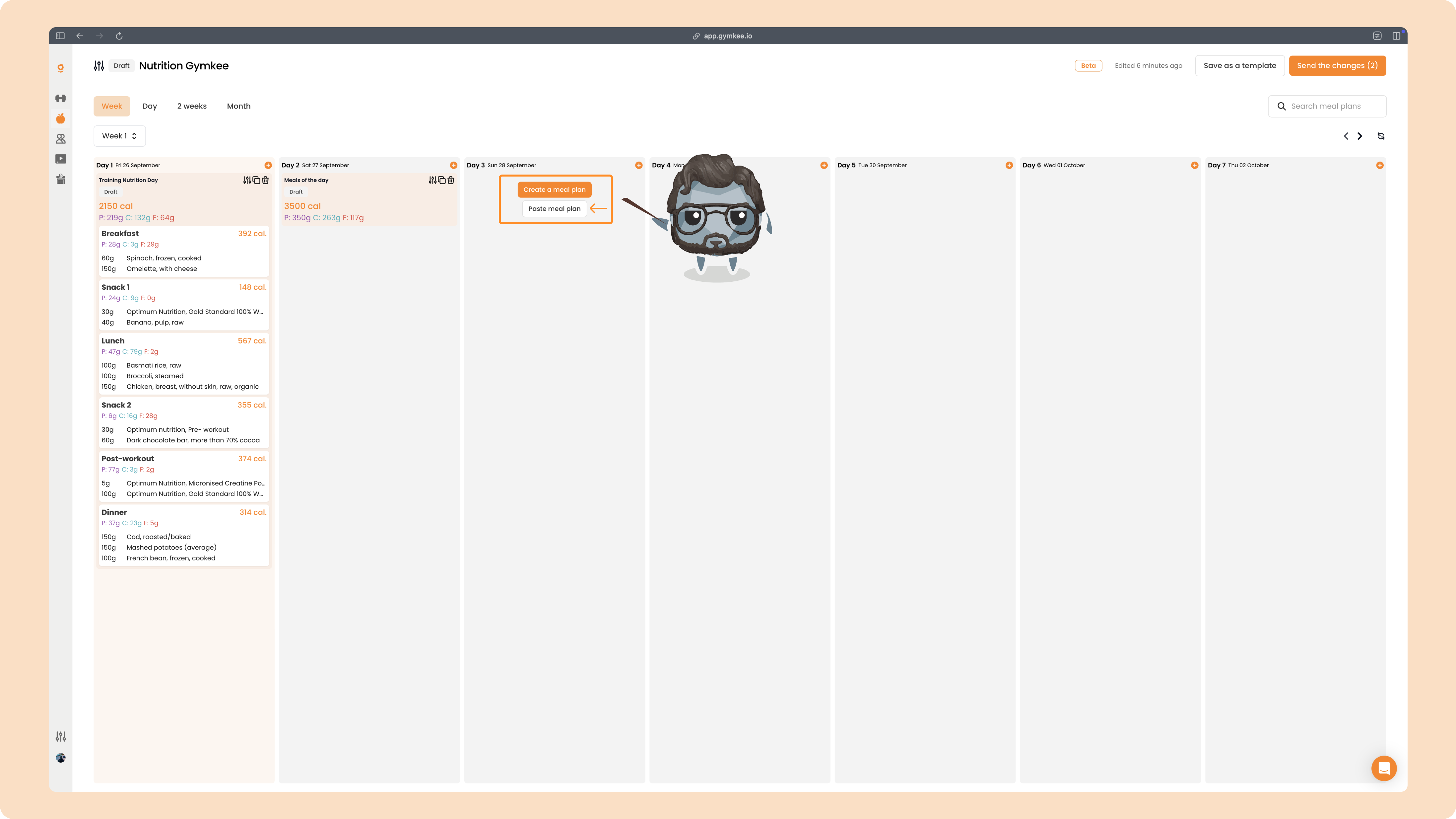
Full details: Copy & paste a daily meal plan.
Duplicate a whole week
Building a multi-week program? Once your first week is ready, duplicate it across the others in two clicks. Open the week's duplicate action to choose how far to repeat it and what to do about days that already exist.
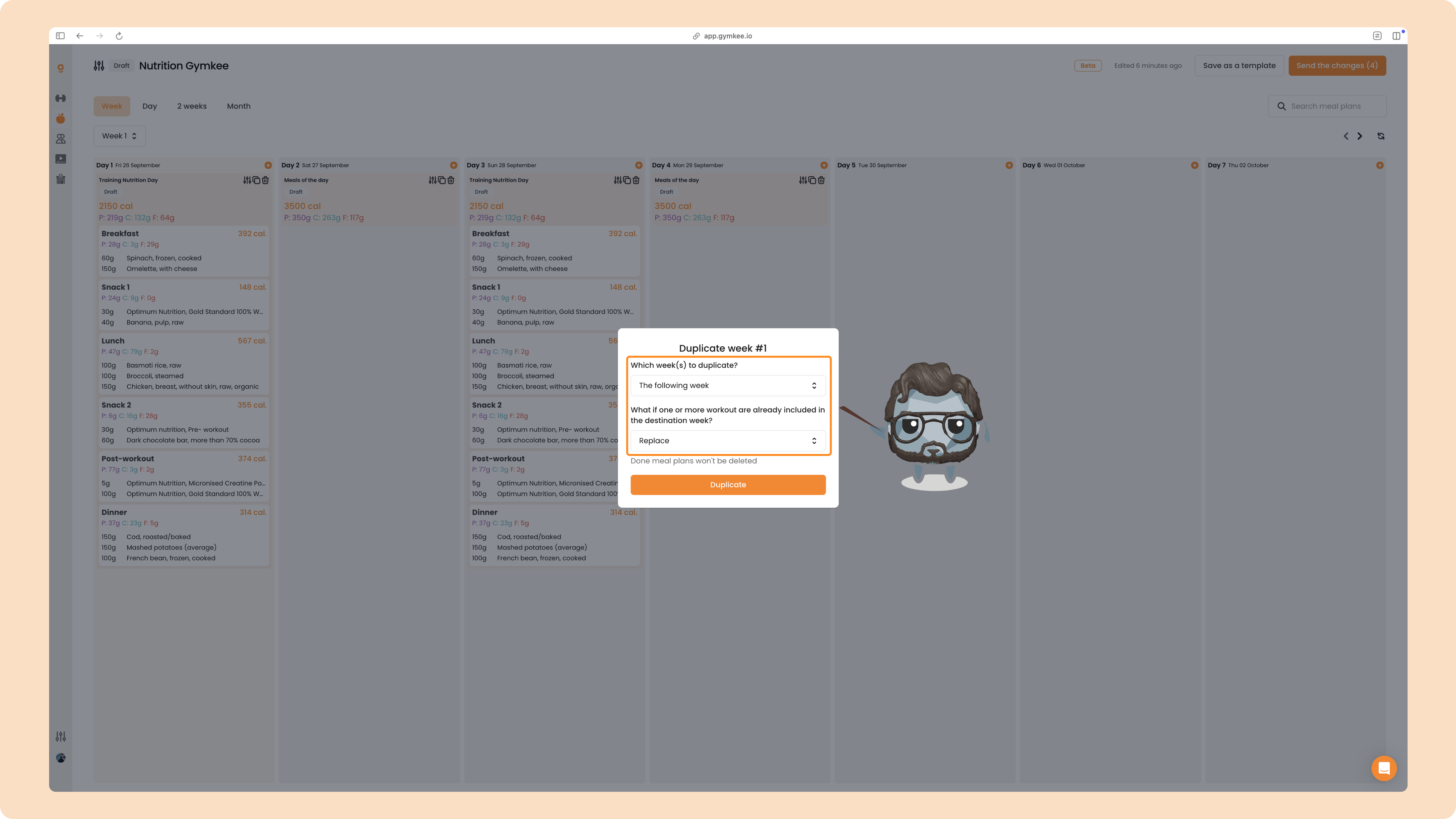
- Which week(s) to duplicate – the following week only, every other week, or all upcoming weeks
- If a plan already exists – Replace, keep both, or don't duplicate
Full details: Duplicate a week of nutrition plan to multiple weeks.
Save as a template
Save any finished program as a reusable template, the best coaches on Gymkee name templates by client profile so they can reuse them with similar clients. Click Save as a template at the top right, name it, and confirm with Export as a template.
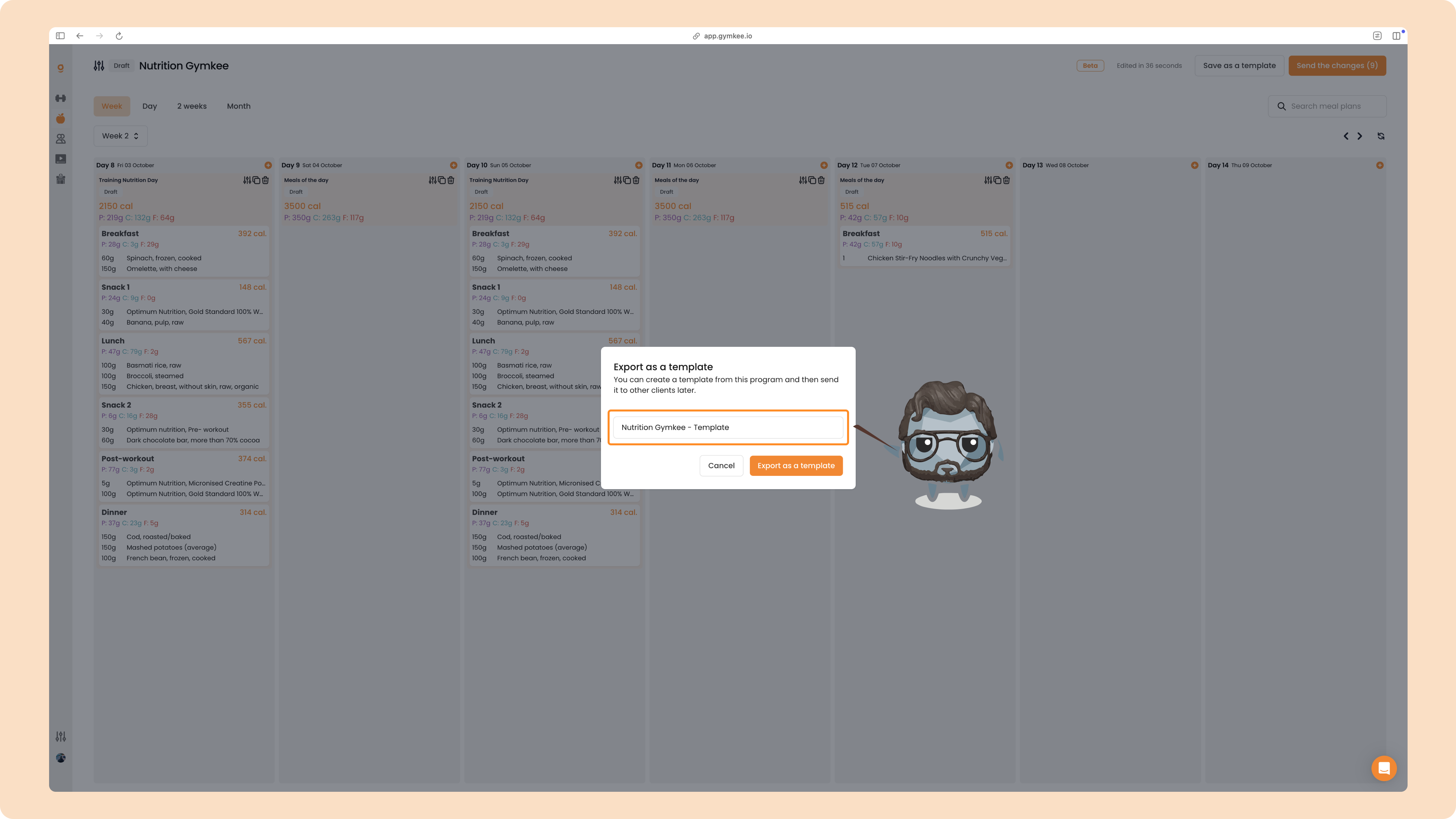
You'll find it afterwards in the Templates tab of your nutrition programs.
Full details: Create nutrition plan templates.
Send the program to your client
When the program is ready, click Send the changes at the top right, then choose the client. They receive it instantly in their mobile app, with every meal, recipe and alternative laid out for them.
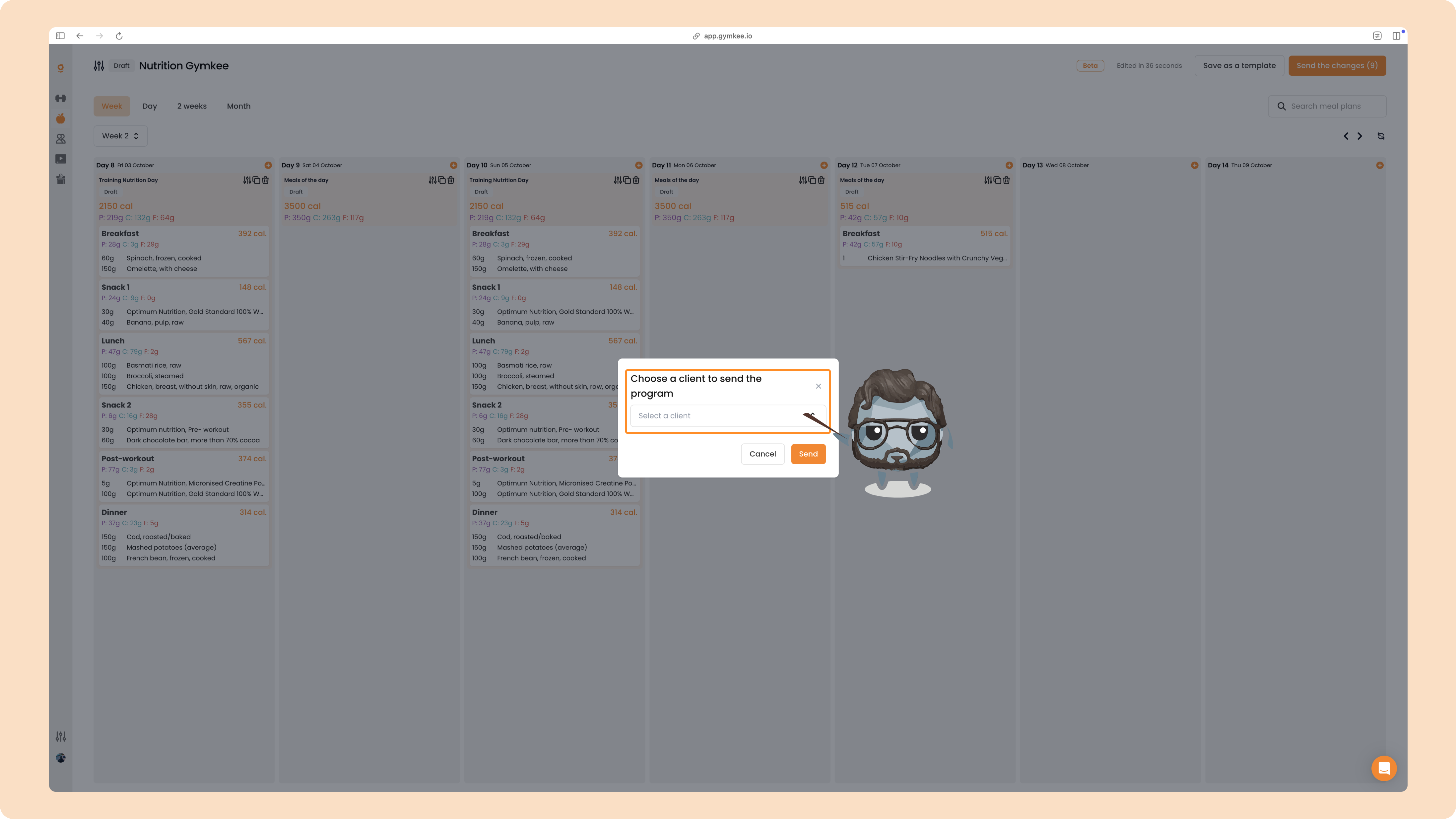
Full details: How to send a nutrition plan to a client.
That's the whole nutrition workflow on Gymkee, from a blank program to a plan in your client's hands. Start with one detailed day, save it as a template, and every future program gets faster. Happy coaching!